Management console tour
README · Install · Operations
Open the local console URL returned by bridge_panel and authenticate with a bridge token. It submits through /v1/chat/completions and uses the same /v1/bridge management and notification extensions as other applications.
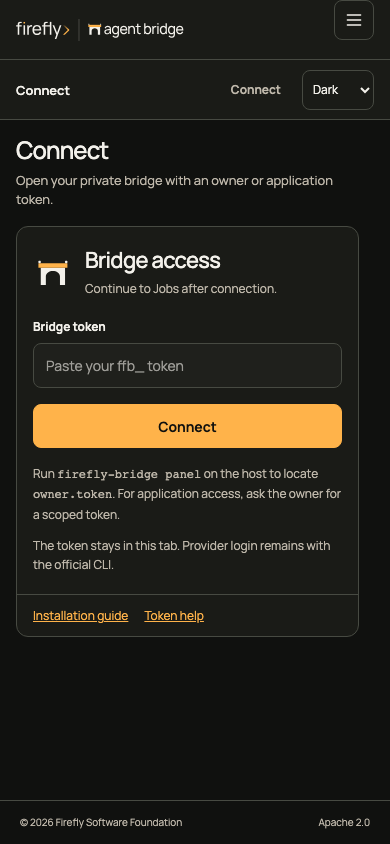
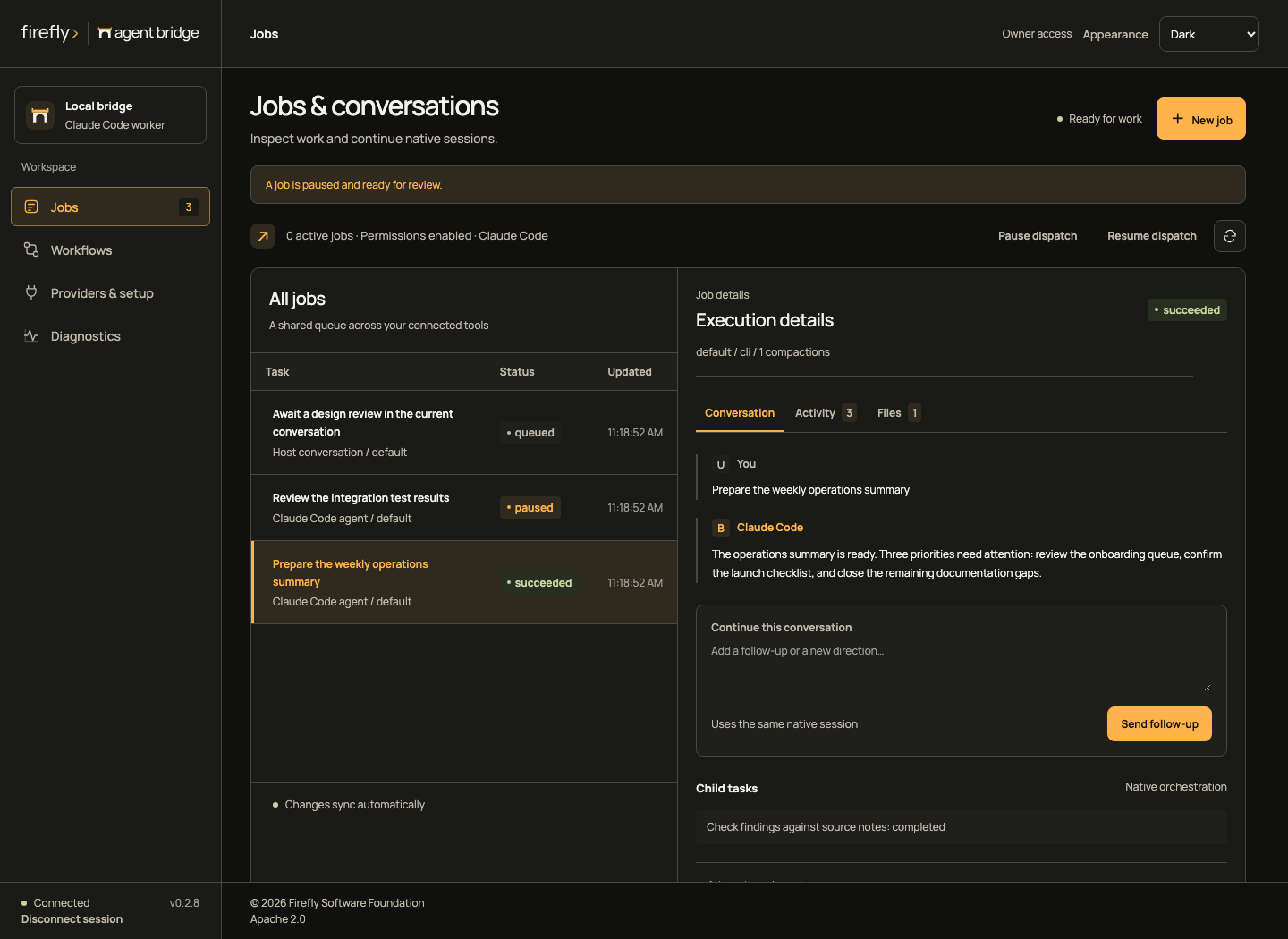
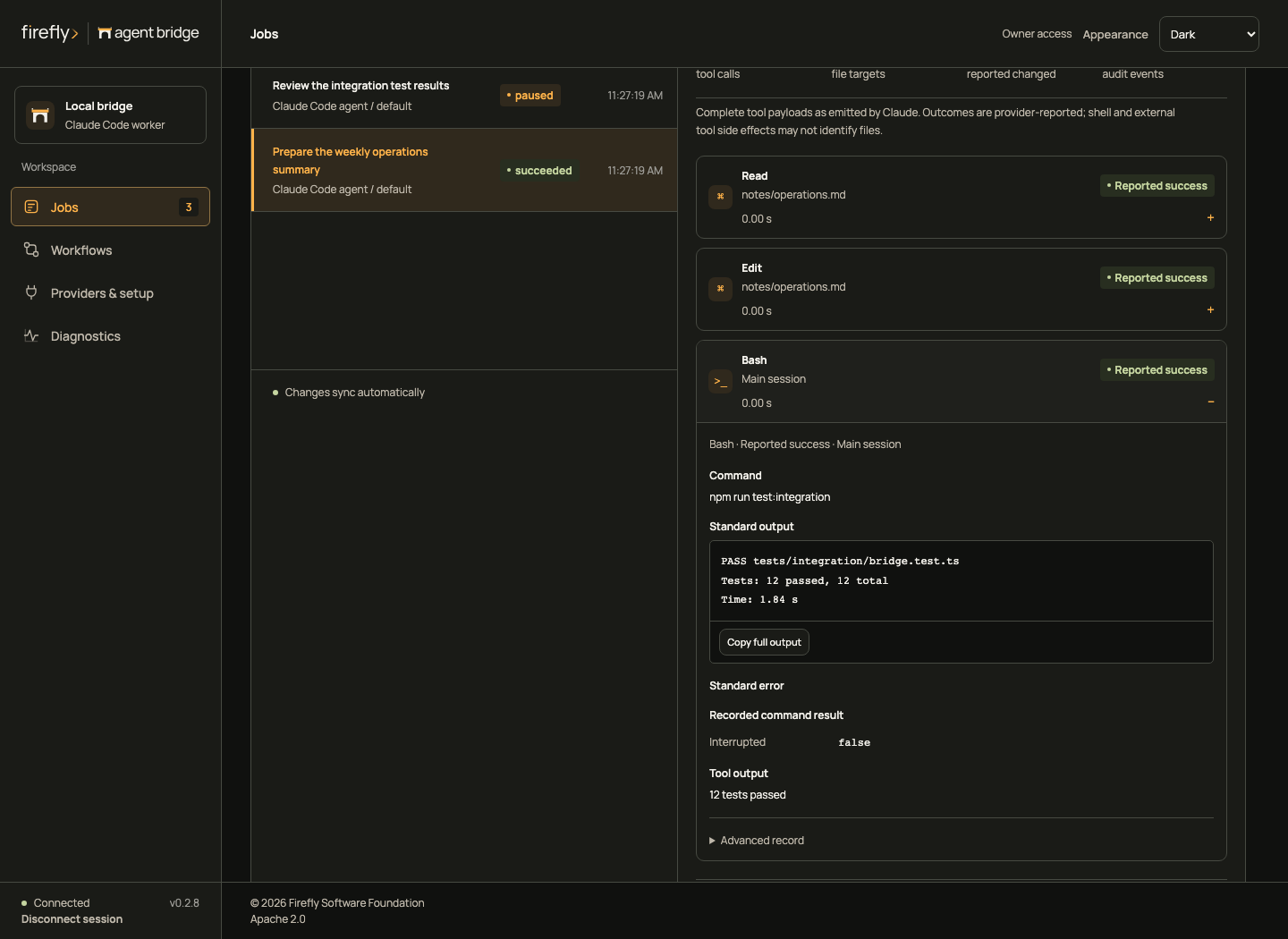
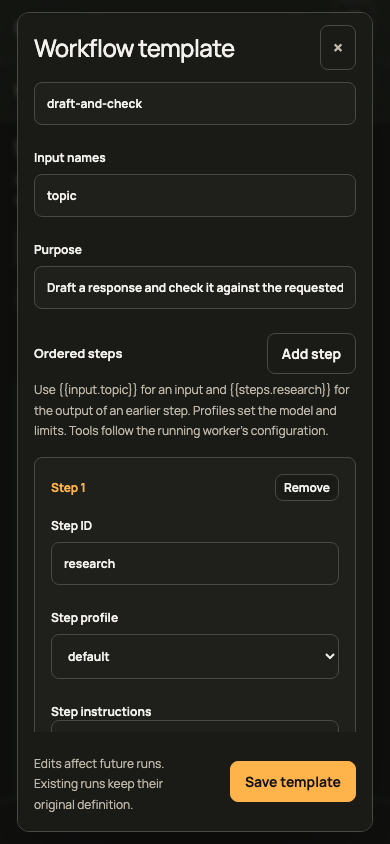
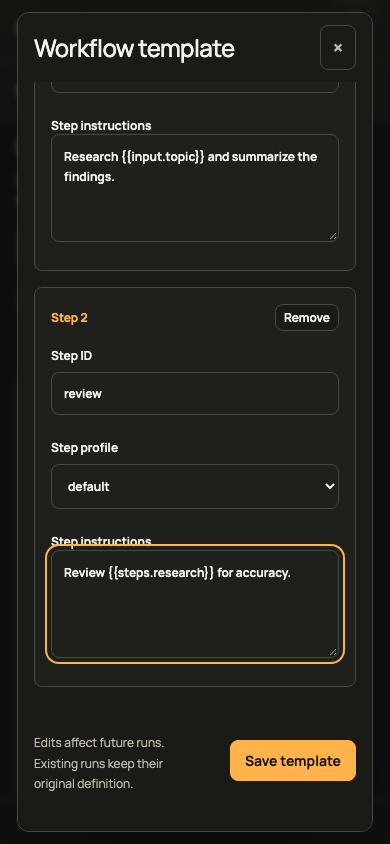
Select any screenshot to open its full capture. Images follow the page's light or dark appearance.
The screenshots show Bridge 0.2.8 running in an isolated local fixture service at the configured desktop and mobile viewport sizes. Jobs, tool observations, workflow results and provider readiness use deterministic fixtures. Historical checks with authenticated official CLIs remain in verification.
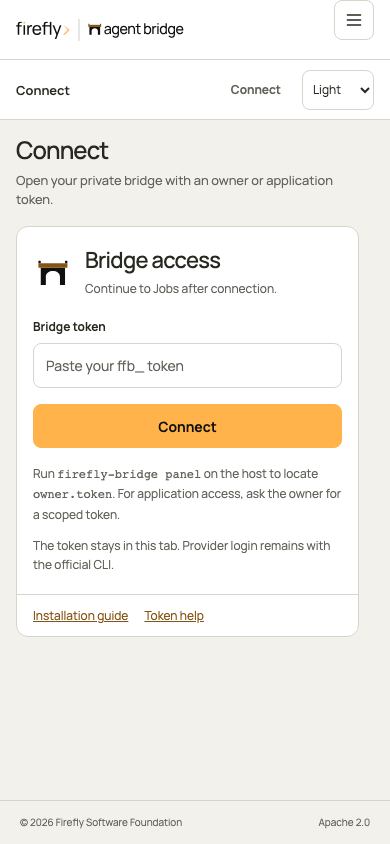
Connect
At Connect, choose a destination from the sidebar or phone menu. The console opens that destination after authentication. Locked destinations show the access requirement and withhold private job and service state.
Paste an owner or application token into Bridge token. It remains in tab memory and is cleared from the form after connection. Reloading or disconnecting clears the session. Expired or revoked access returns to the connection gate and clears loaded private details.
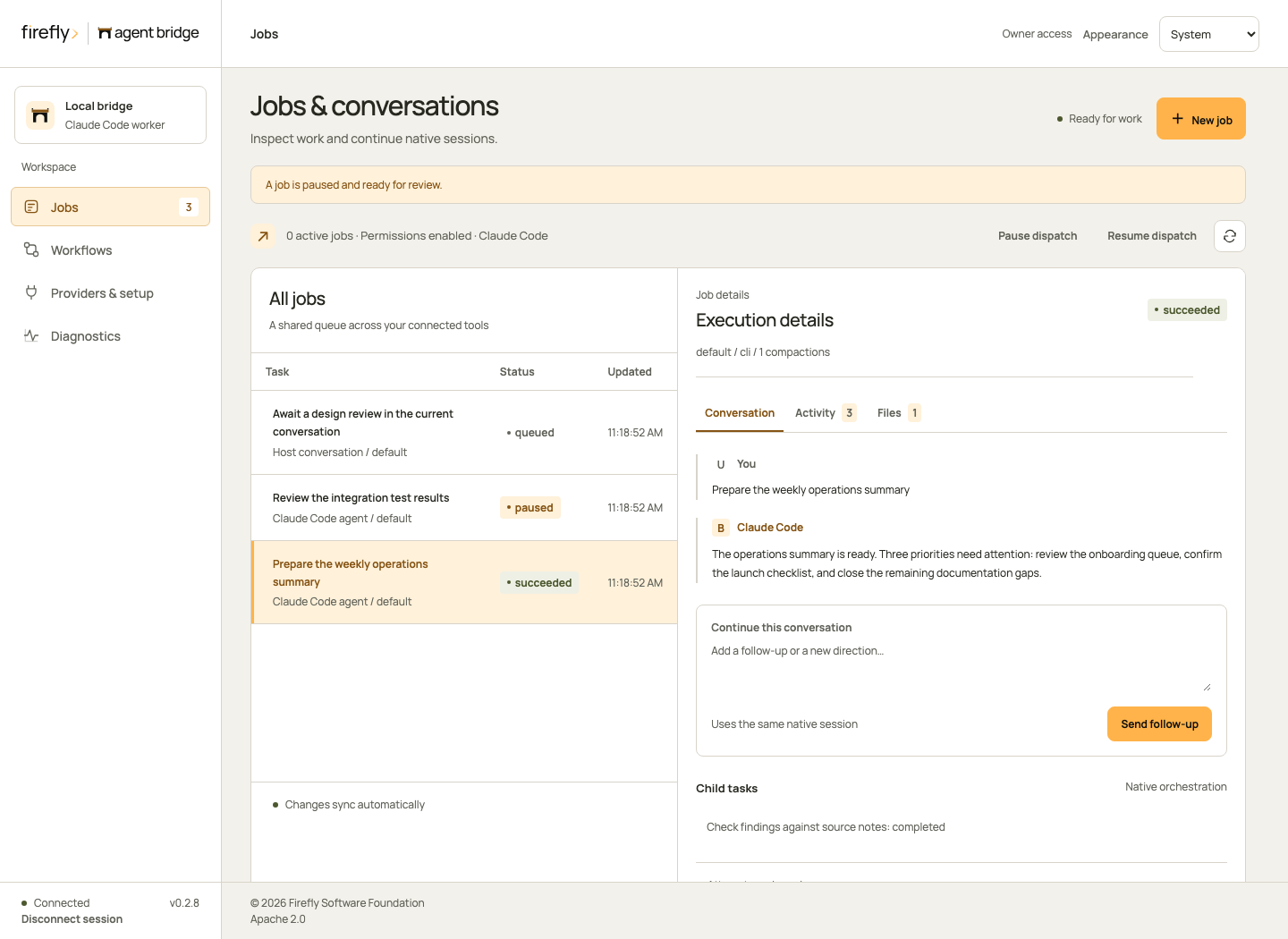
Jobs and conversations
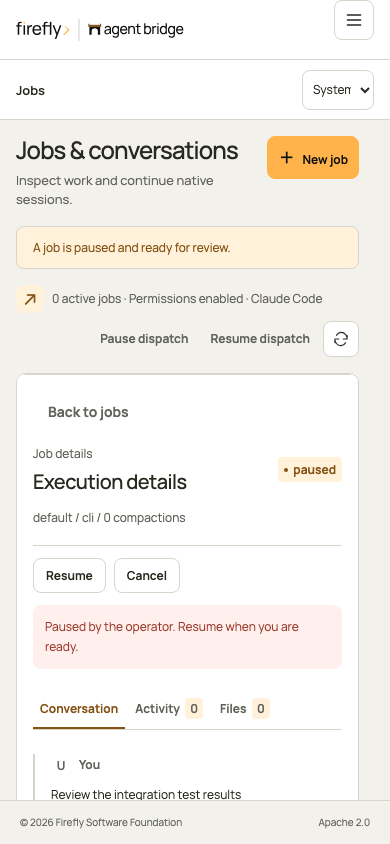
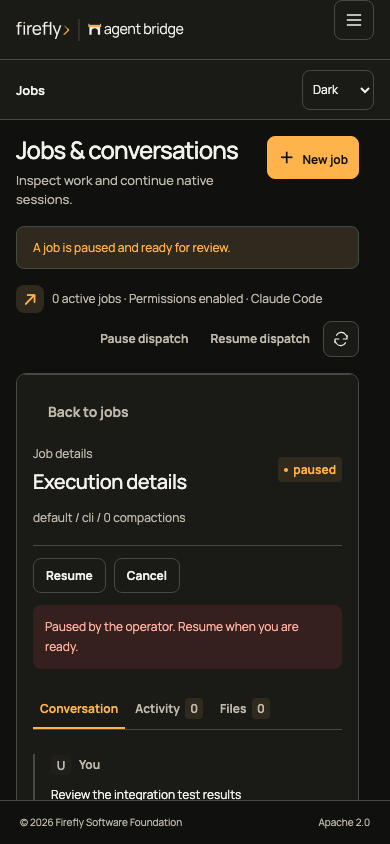
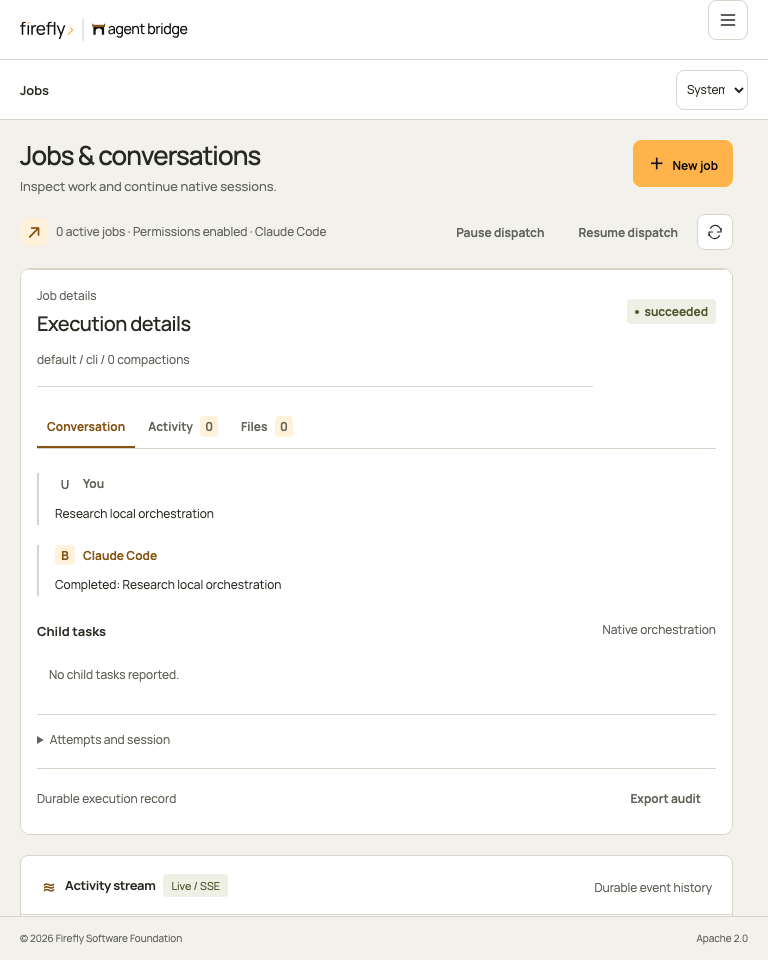
Select a row to inspect messages, attempts, session continuity, and reported child tasks. Follow-ups remain associated with the same job. A message submitted while work is running is queued until the current attempt completes.
New job opens three steps: Task, Execution and Review. Describe the work, choose an existing profile and execution mode, then review the actual worker, native model, permissions and limits. Back preserves your choices. Queue job appears only on the review step.
Native coding jobs use the official CLI's configured capabilities. Text completions disable native actions; application callers execute declared functions. Host conversations wait for a connected host to claim the work. A failed or unknown admission keeps the request key when you queue unchanged content again.
Follow the three new-job steps
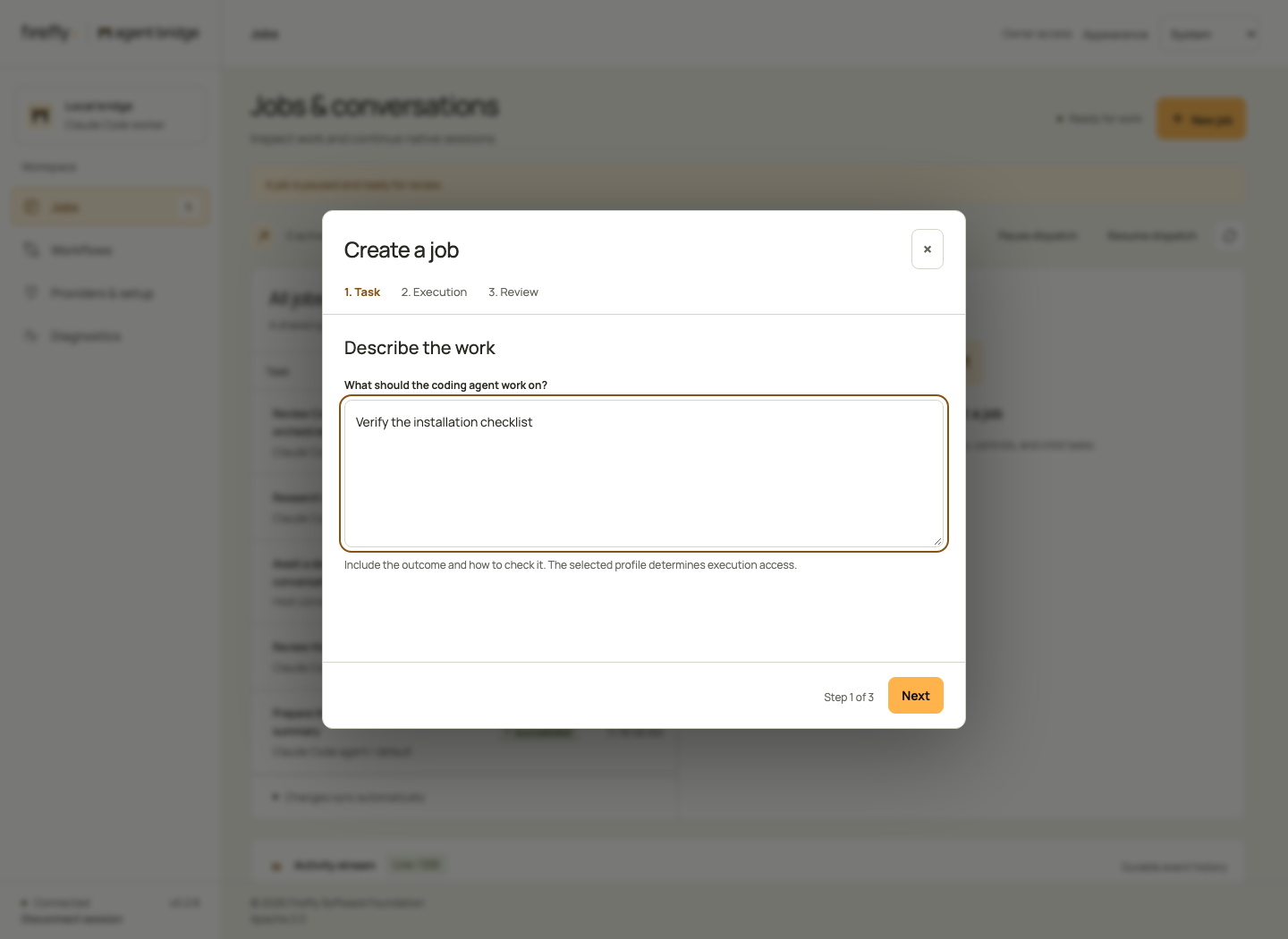
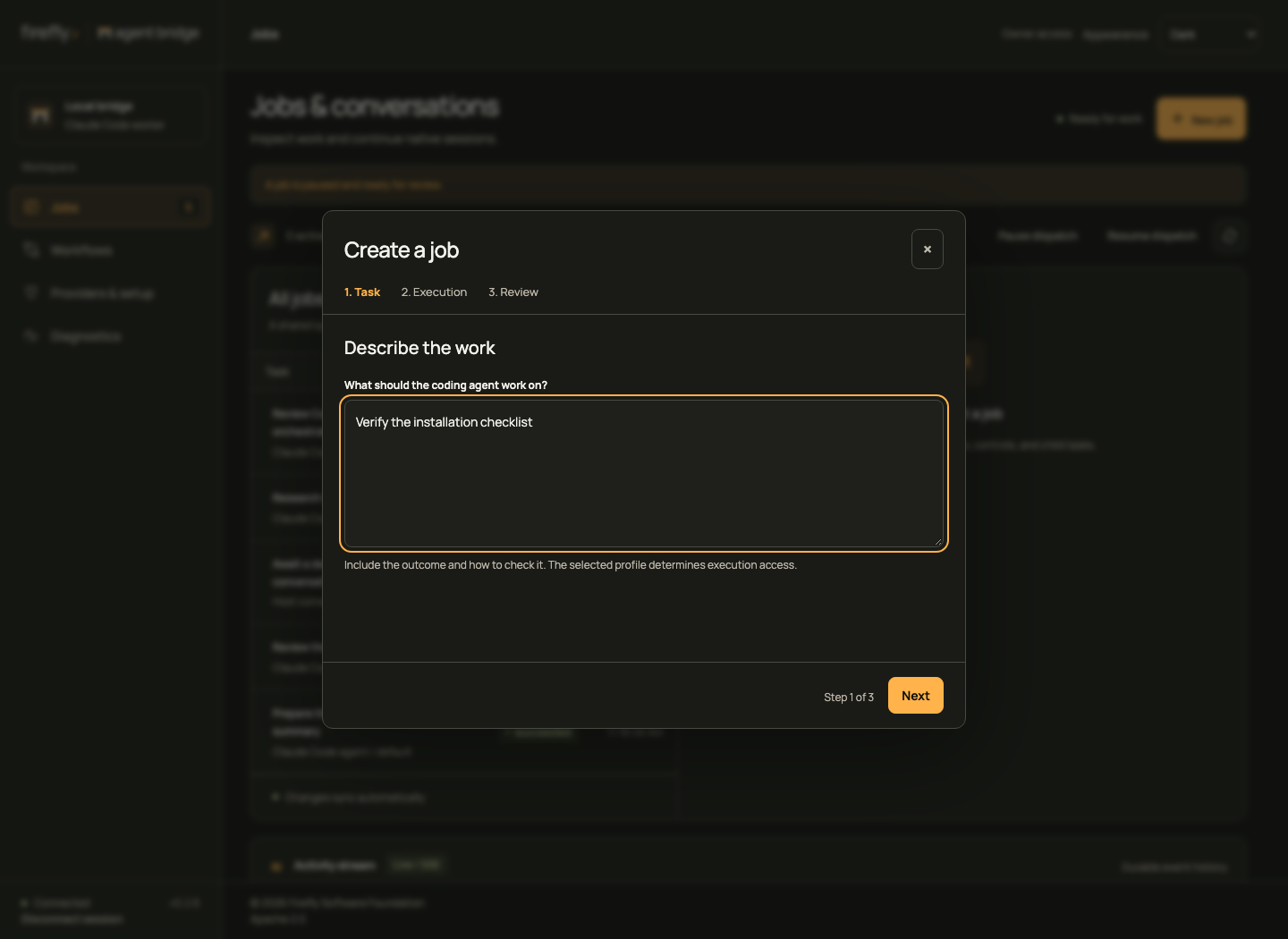
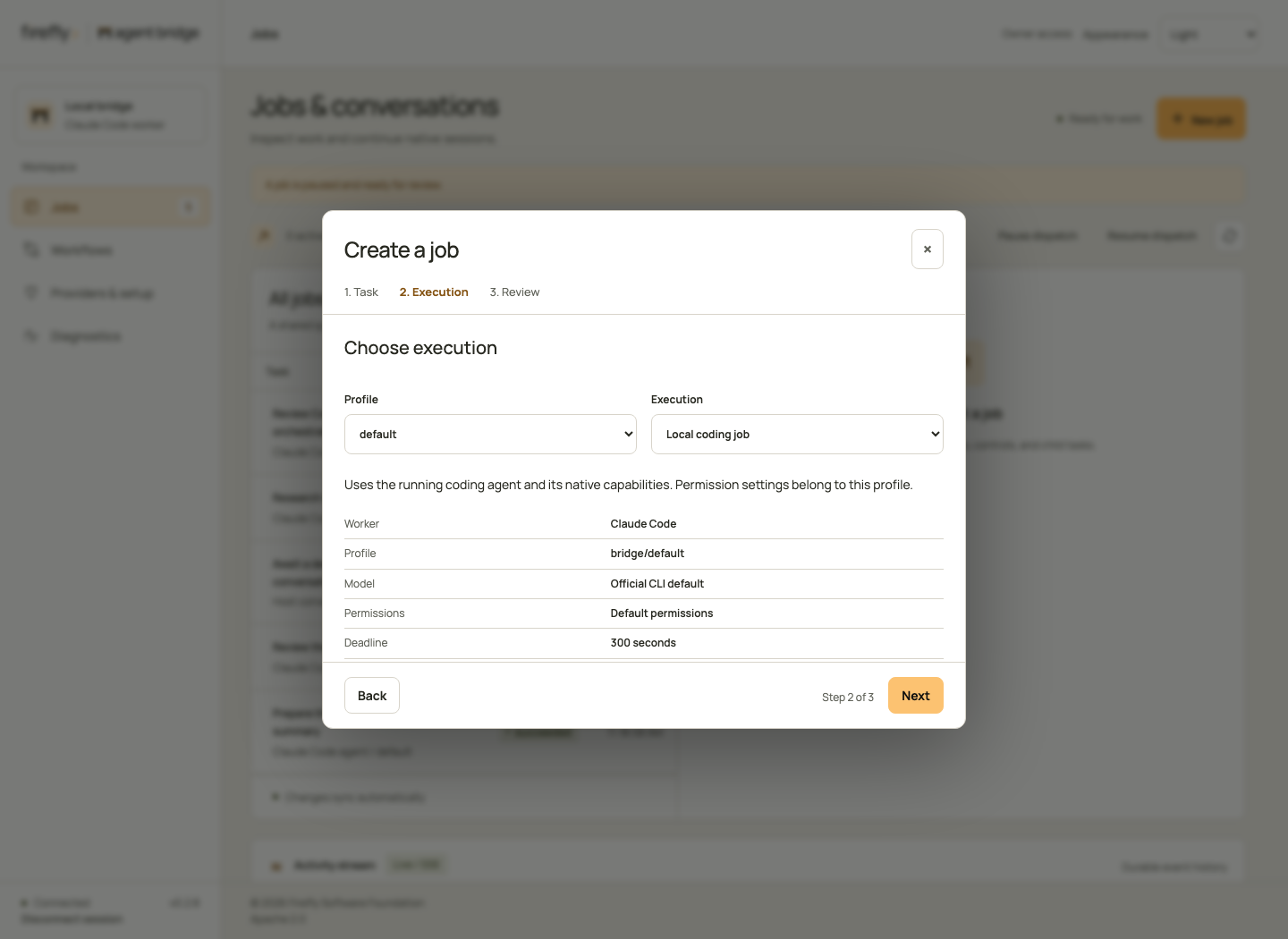
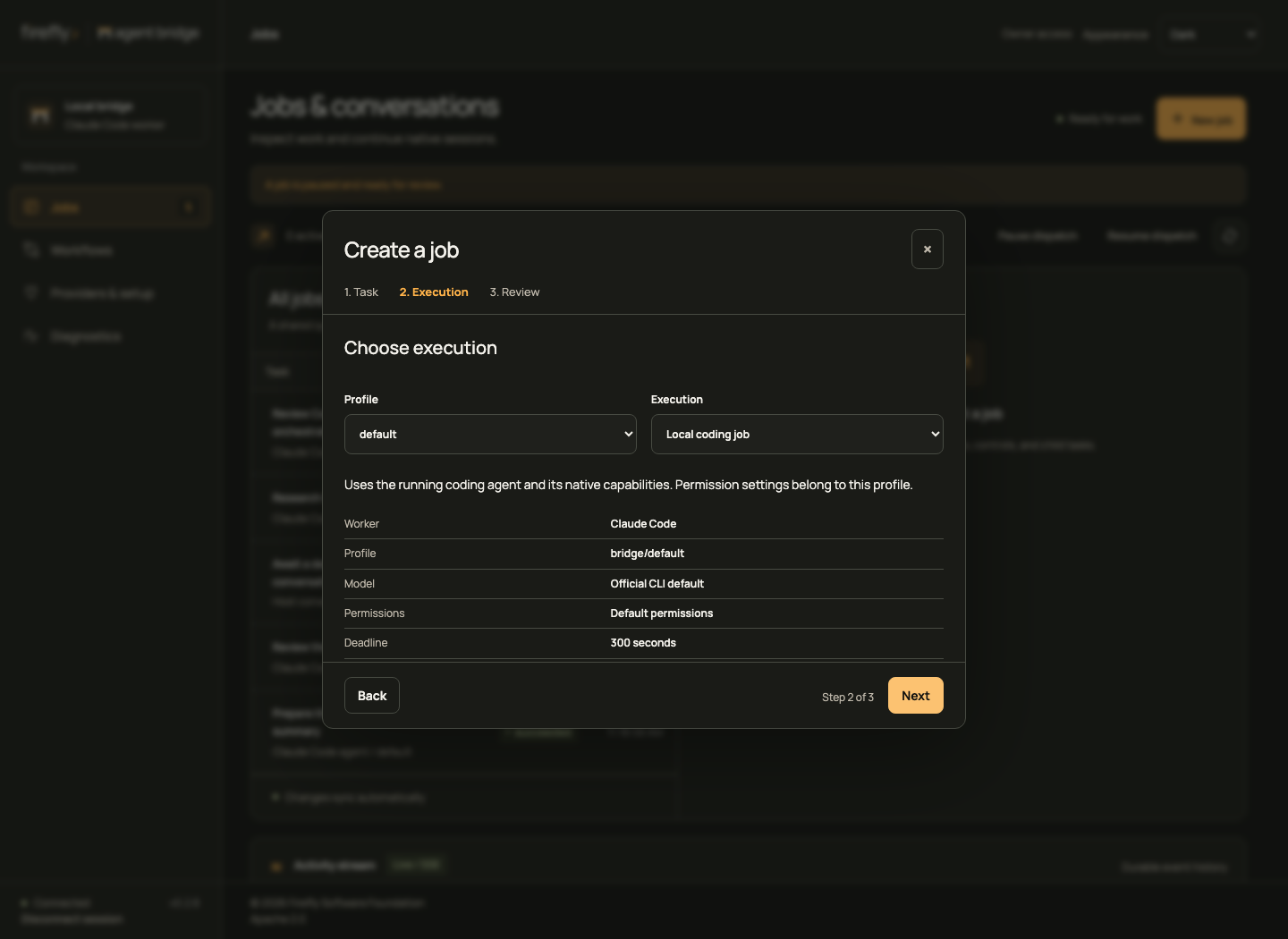
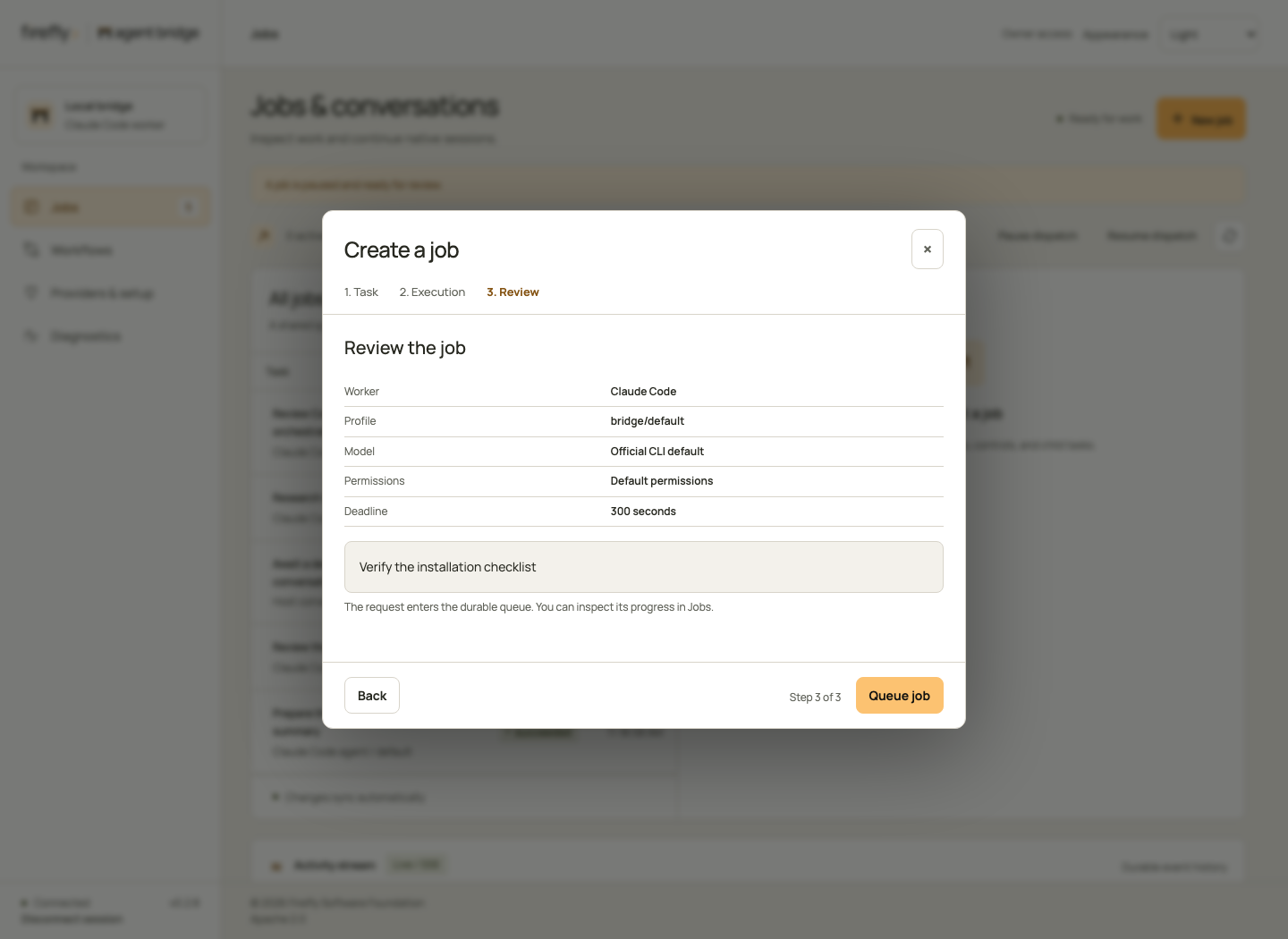
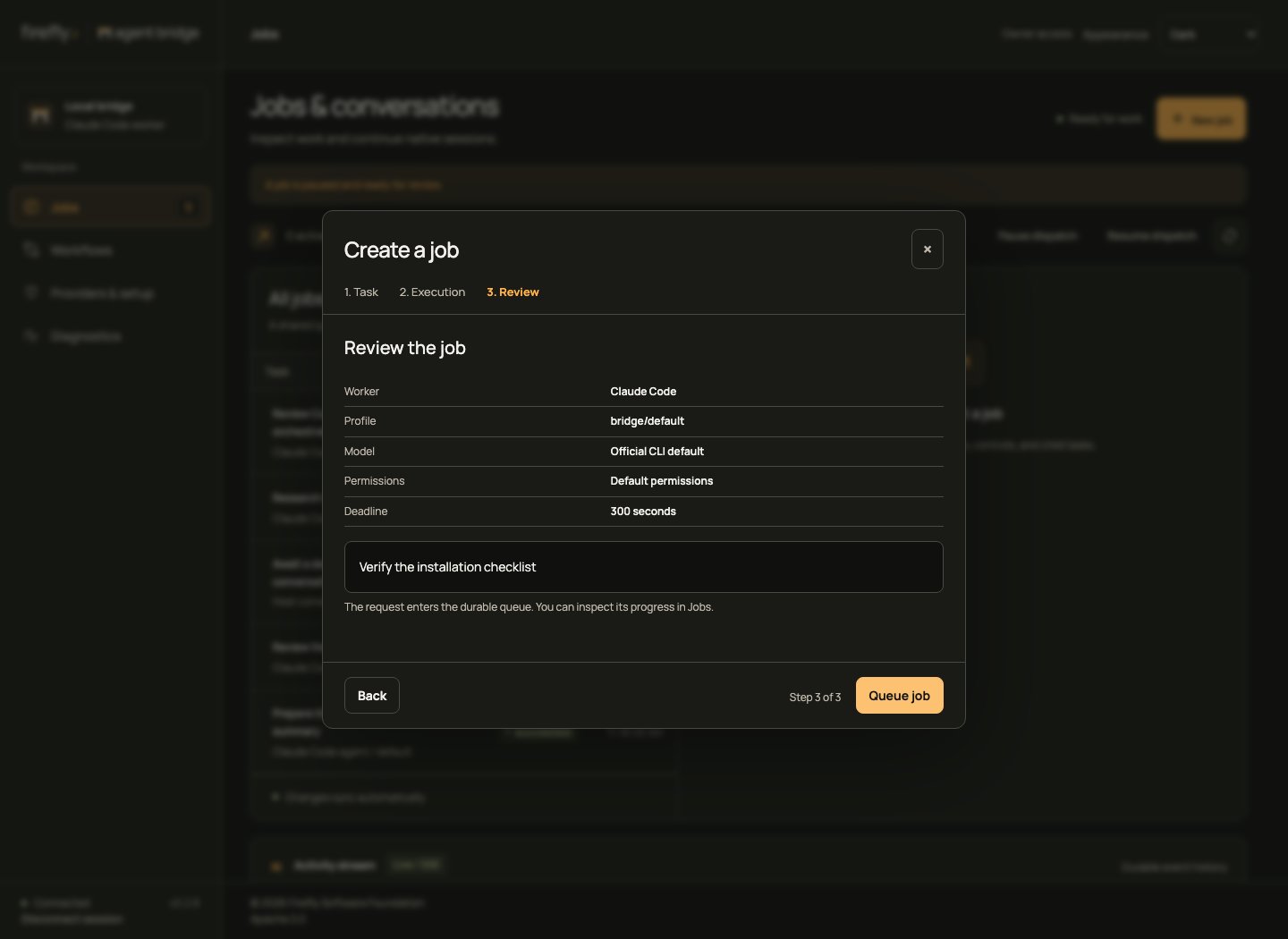
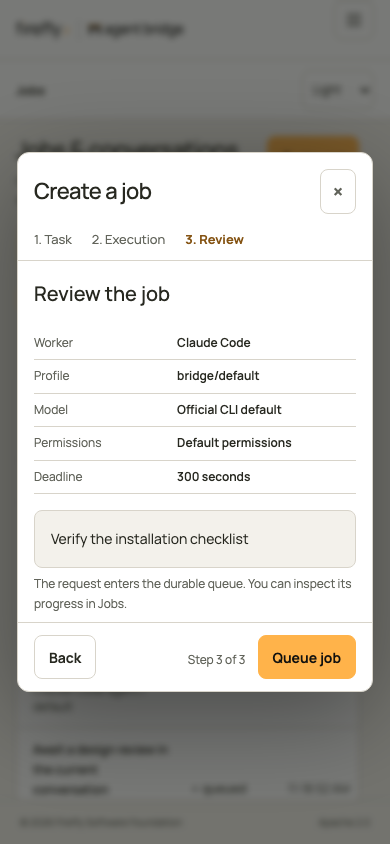
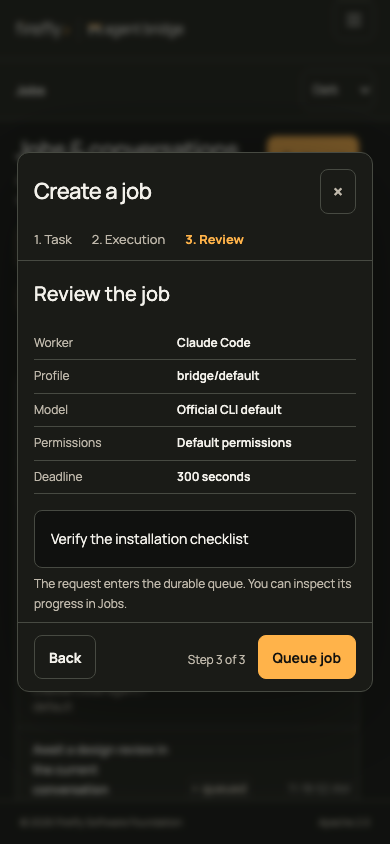
Pause, resume, cancel, and retry follow the job state and your token scopes. Image jobs require a fresh explicit request after interruption; their view does not offer in-place resume or retry. Retry starts a new session and can repeat prior effects; resume continues a saved session when available.
Tool activity, files, and audit
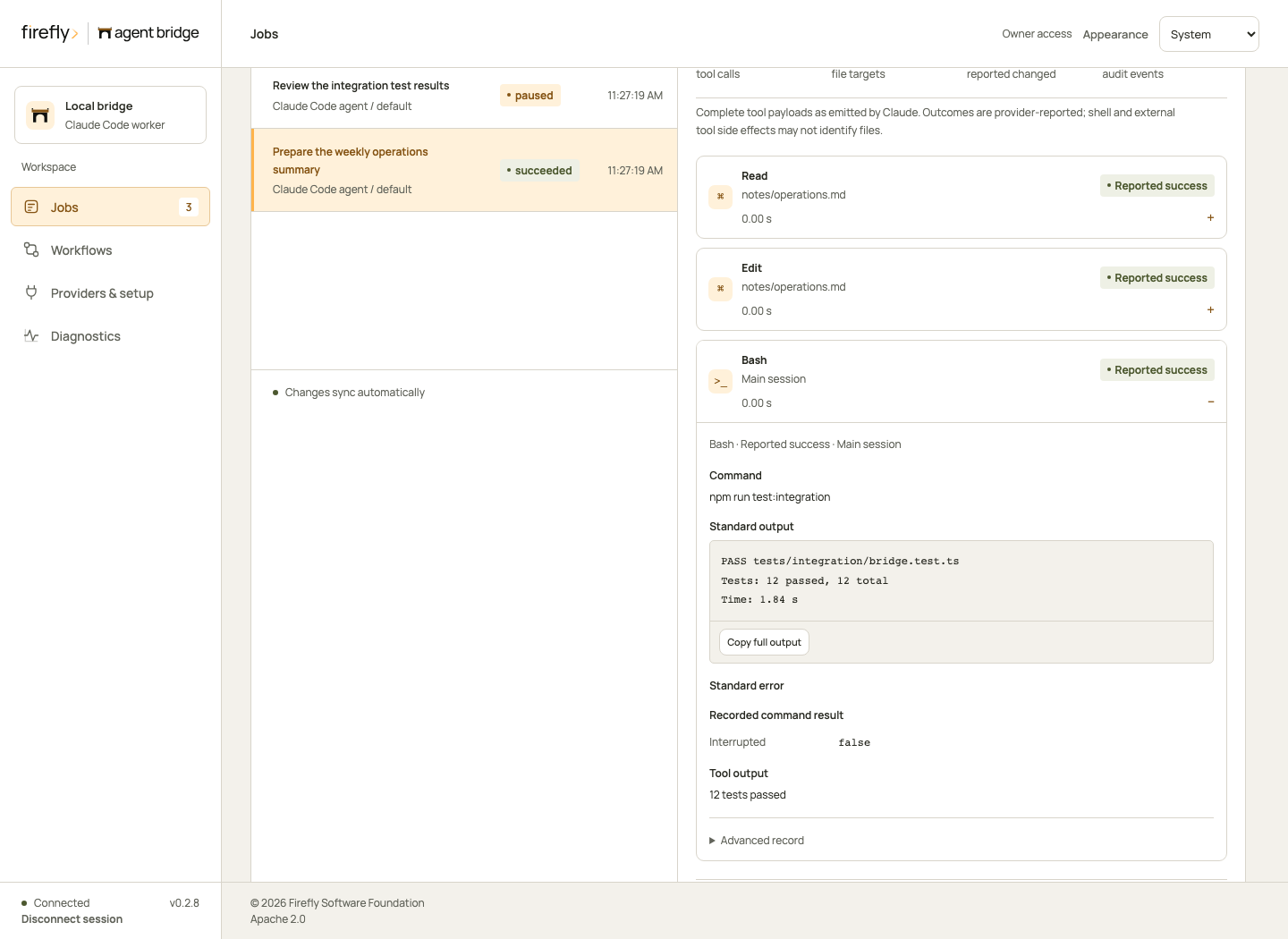
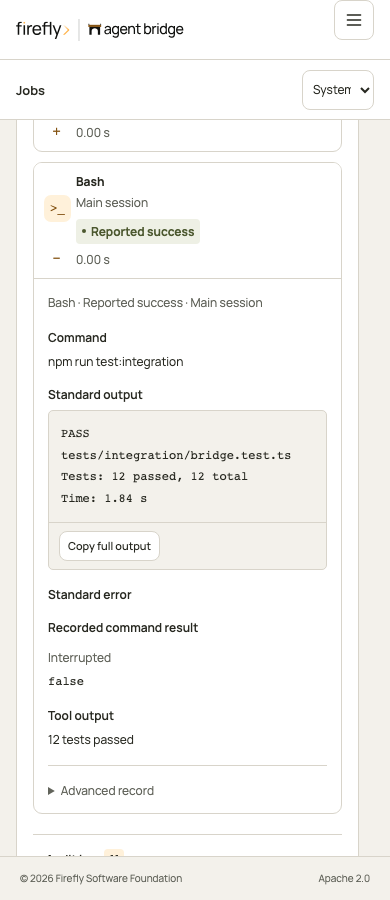
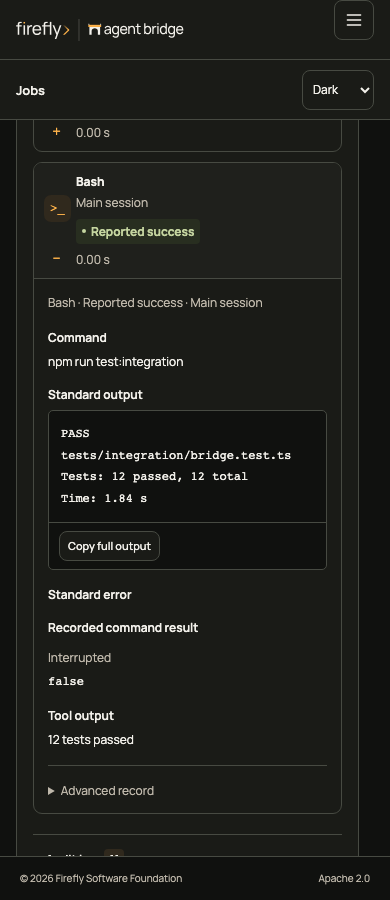
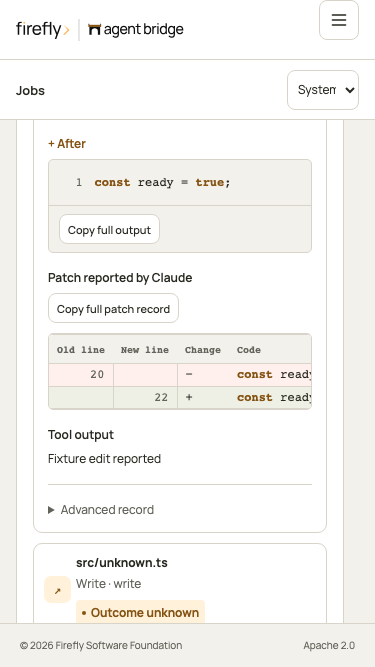
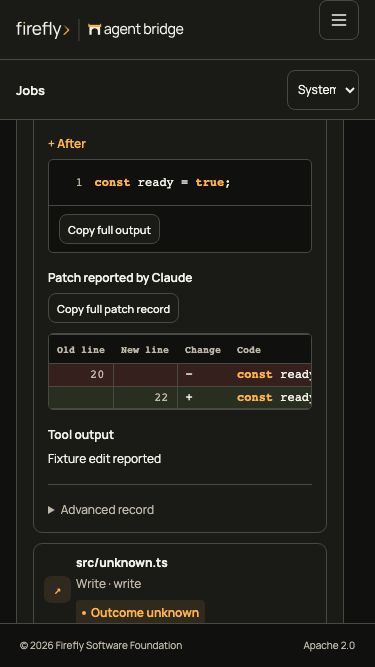
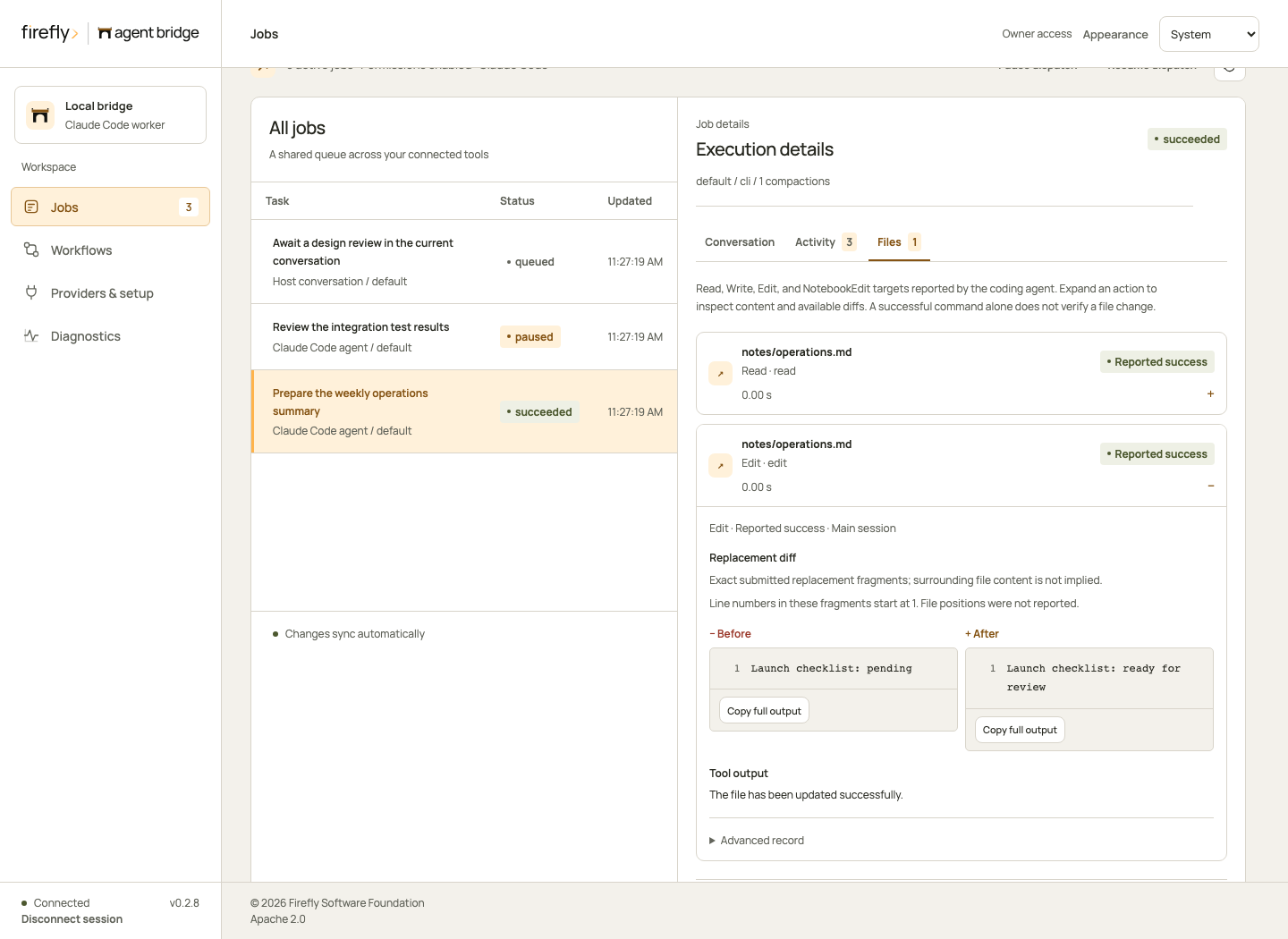
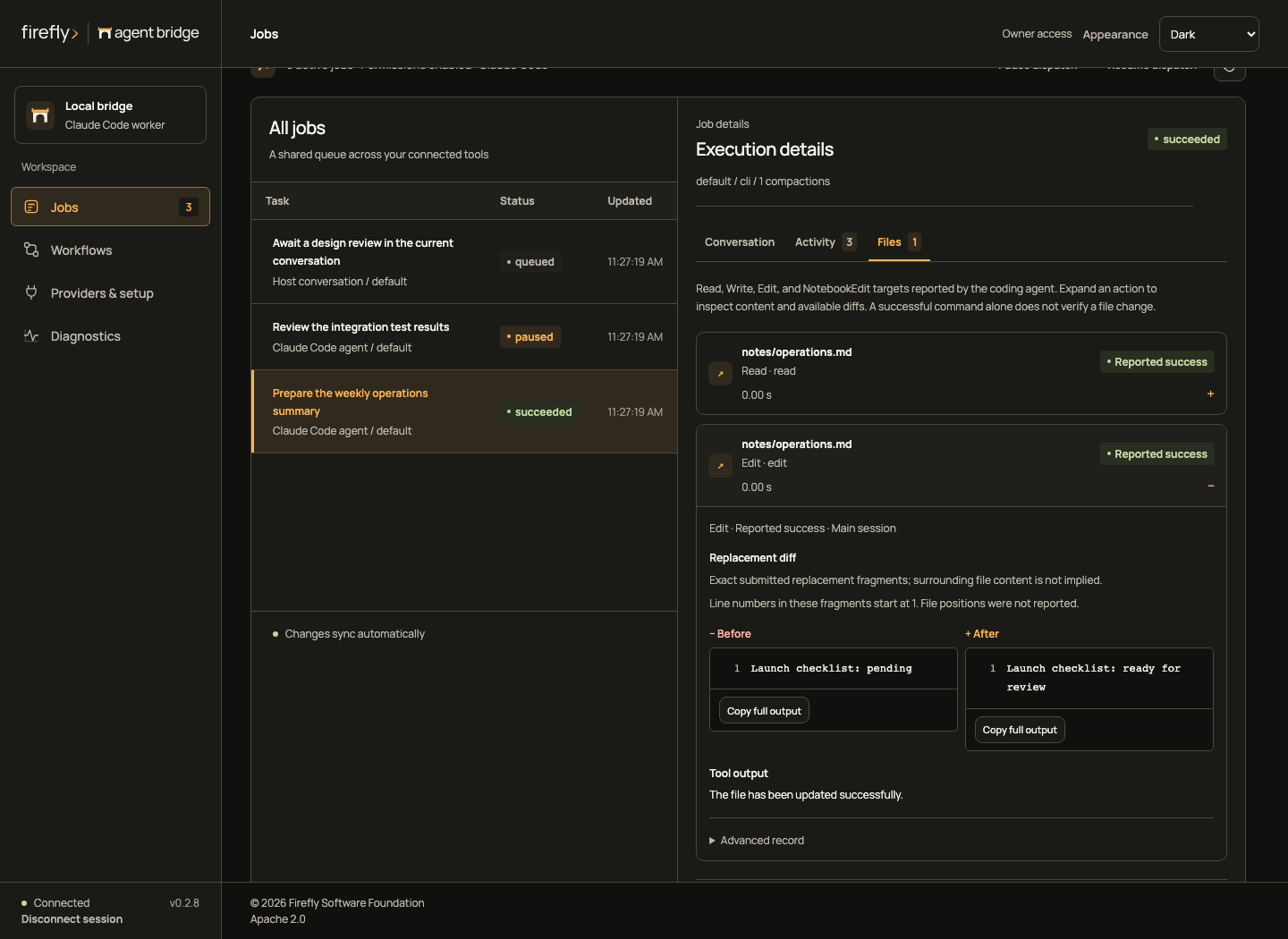
Each job has Conversation, Activity, and Files tabs. Activity shows recorded commands, labeled result fields and bounded stdout/stderr previews. Copy includes the full recorded output. Files shows known targets, submitted or returned content, and available replacement fragments. Expand Advanced record for the original payload and correlation fields.
The TypeScript fixture shows syntax colors and line gutters for submitted replacement fragments, followed by a provider-reported patch. Fragment gutters start at 1; they do not imply positions in the file. The patch columns use its supplied old and new line offsets.
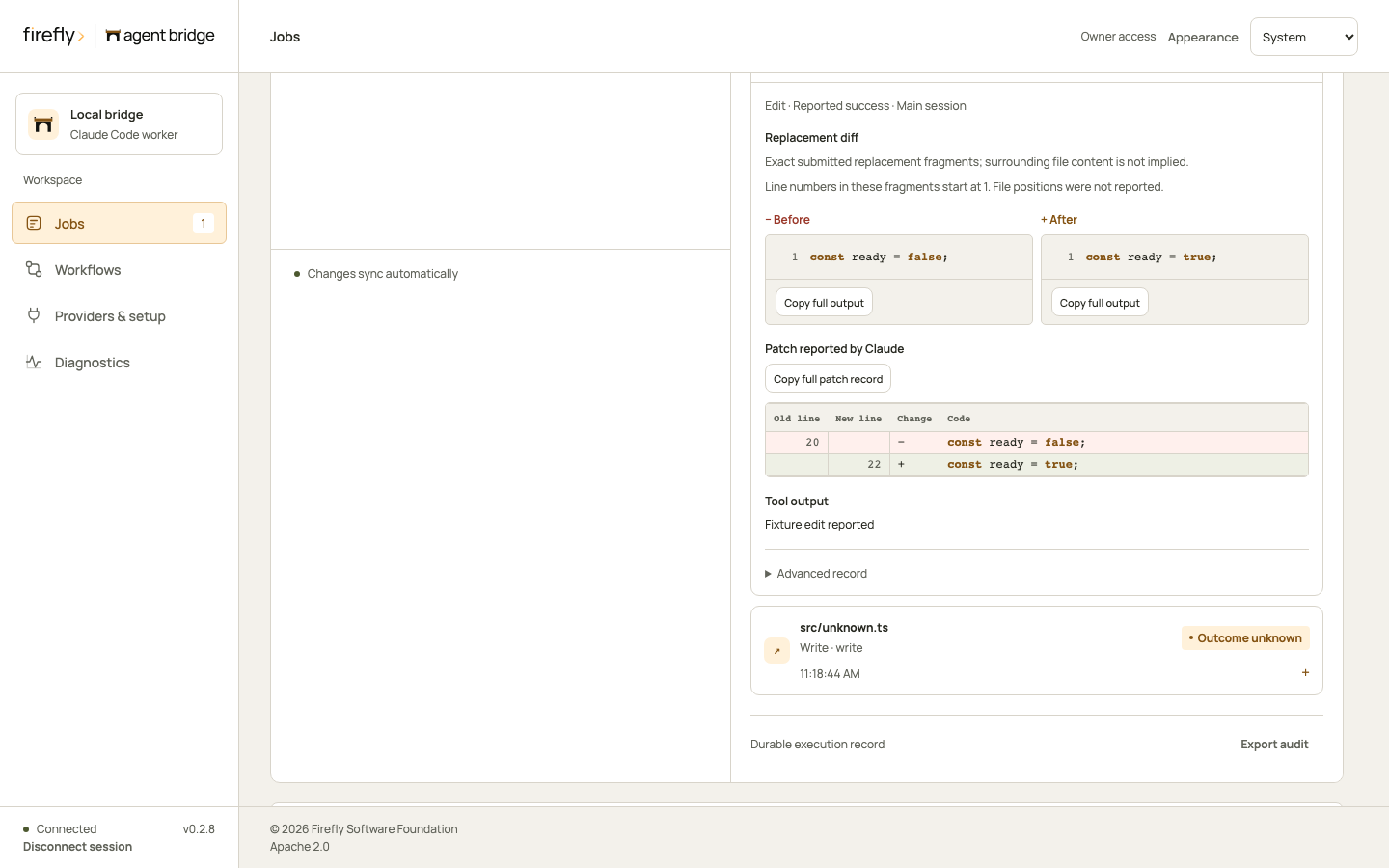
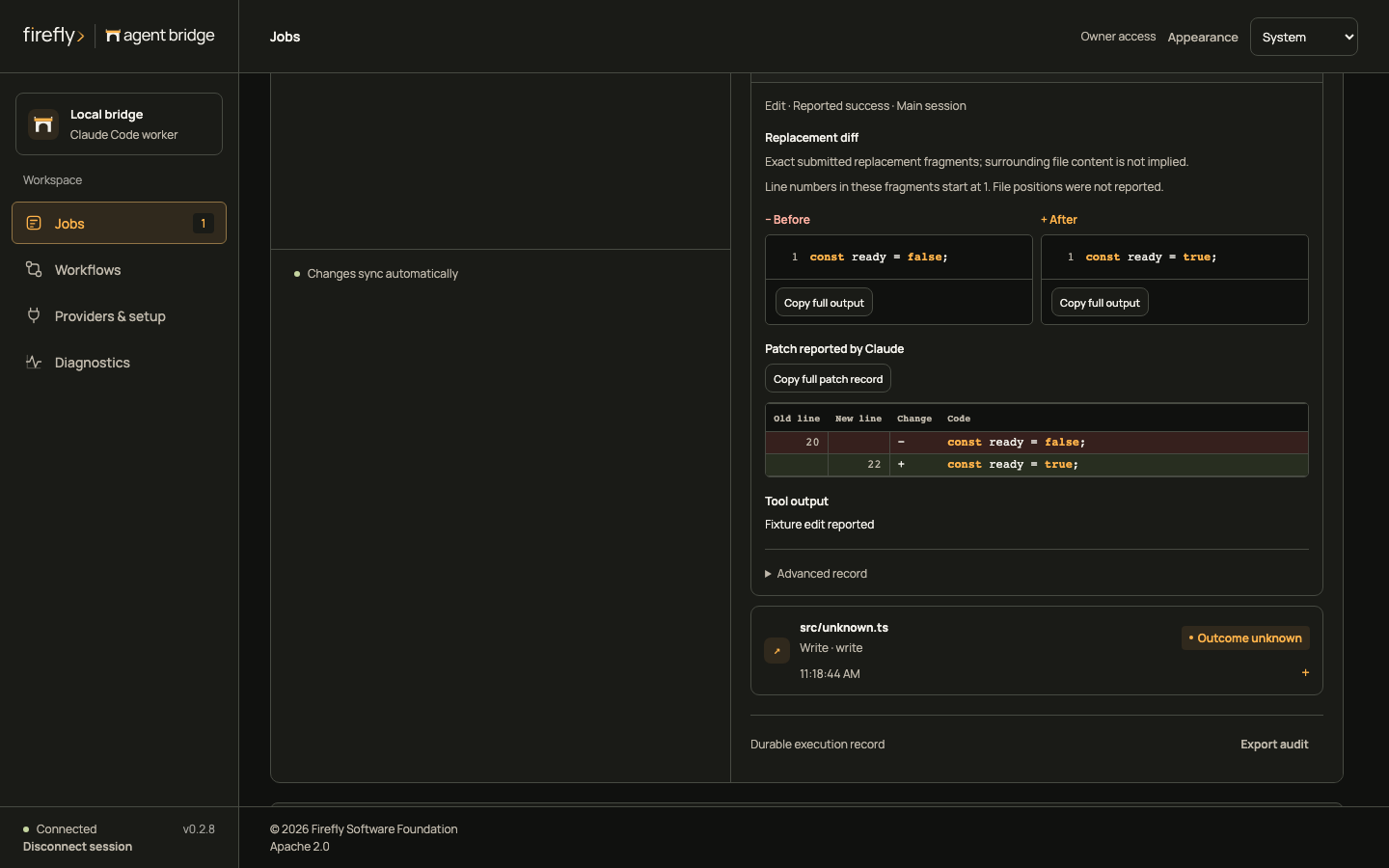
The audit log retains tool and lifecycle observations across service restarts and SSE retention. Export audit downloads a consistent JSON snapshot, including full payloads. Failed or interrupted actions remain clearly labeled; the console does not claim to observe every indirect filesystem effect. See audit coverage, access, and export.
Inspect activity and file details on a phone
Chat Completions
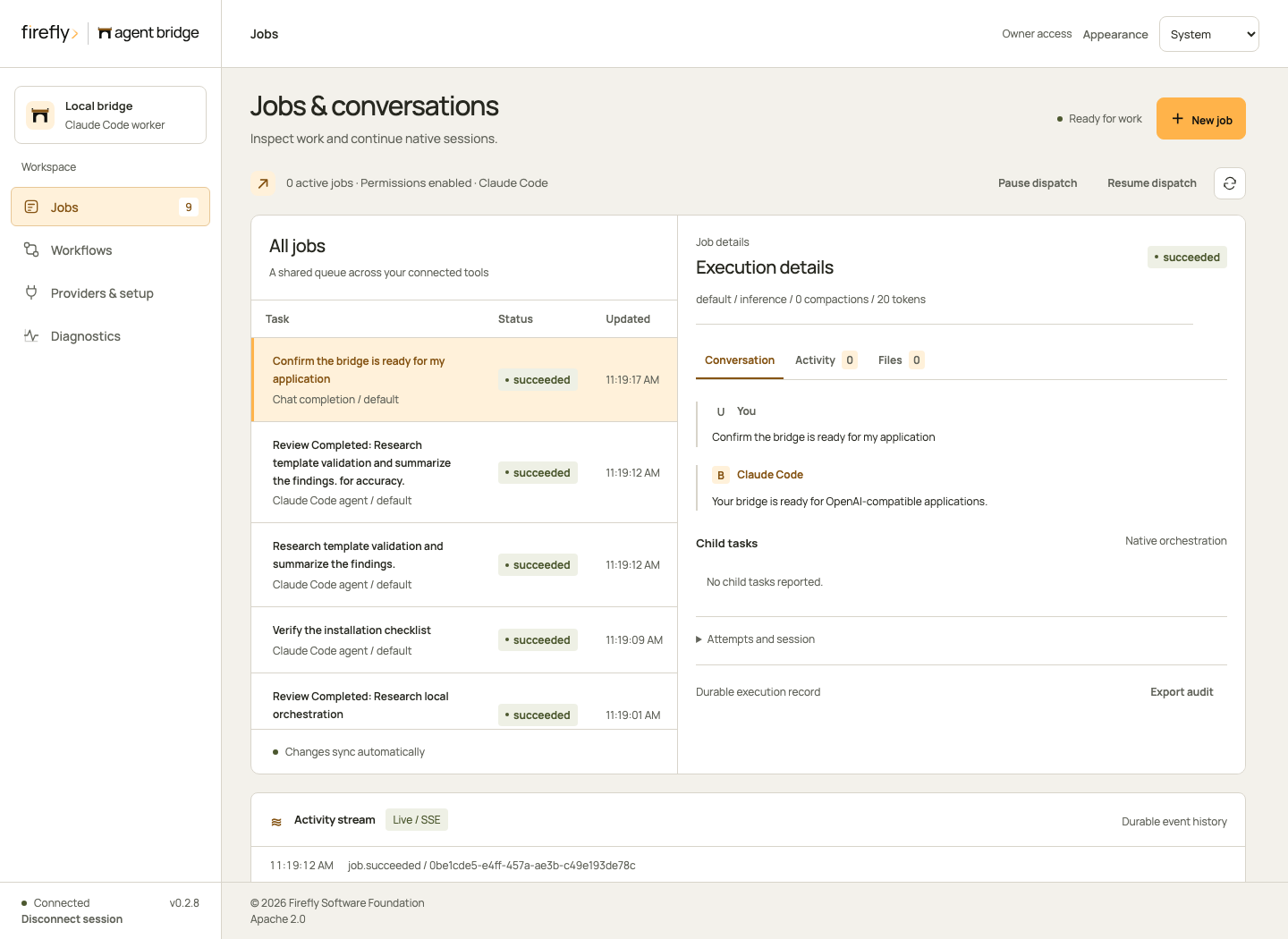
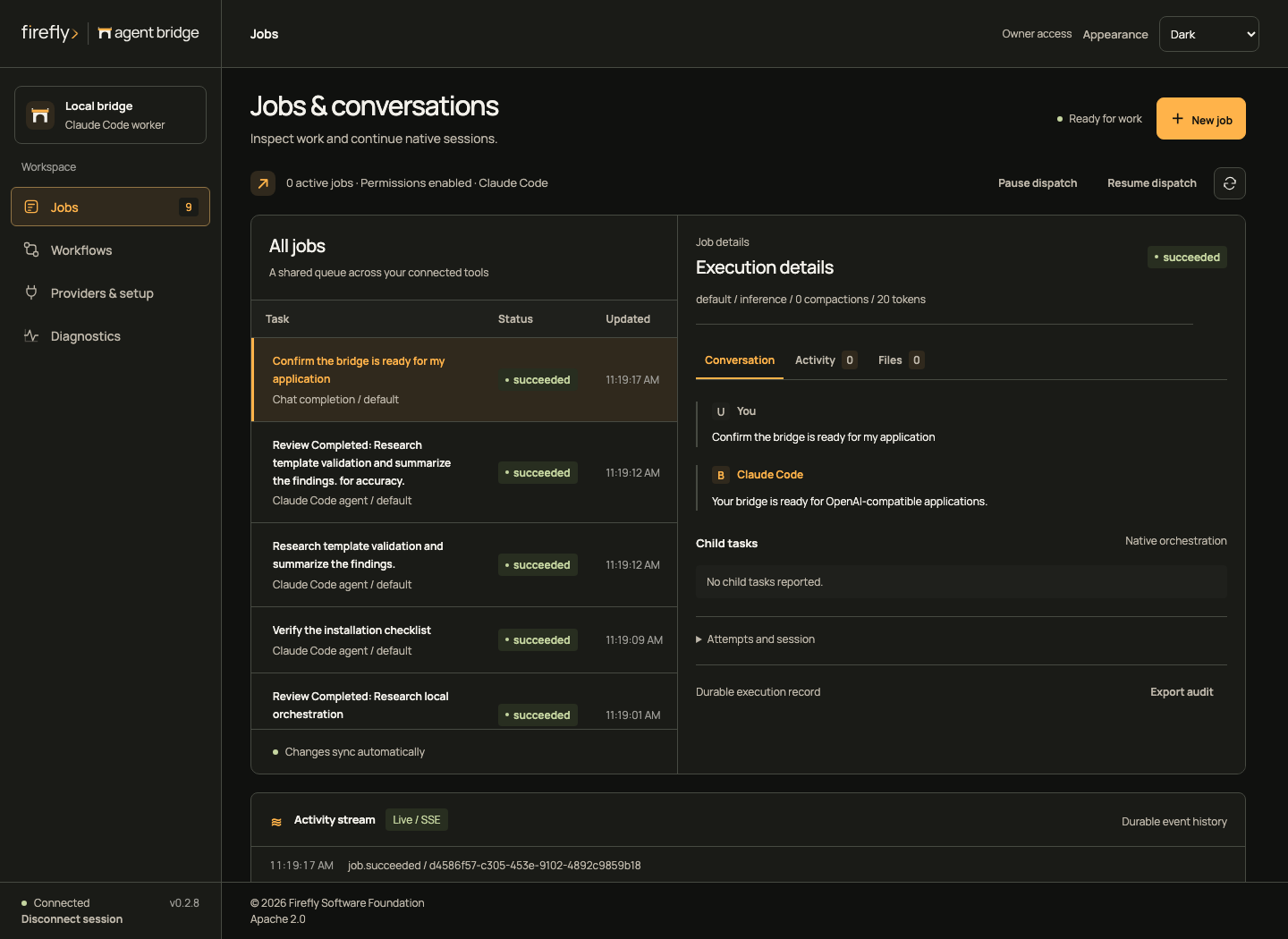
SDK requests and console-created completions appear in the same queue. Select one to inspect its submitted message history, validated answer or client function requests, observed token usage, and execution attempts. The inference view hides native follow-up controls because the calling application supplies complete history for its next model turn.
Inspect a completion on a phone
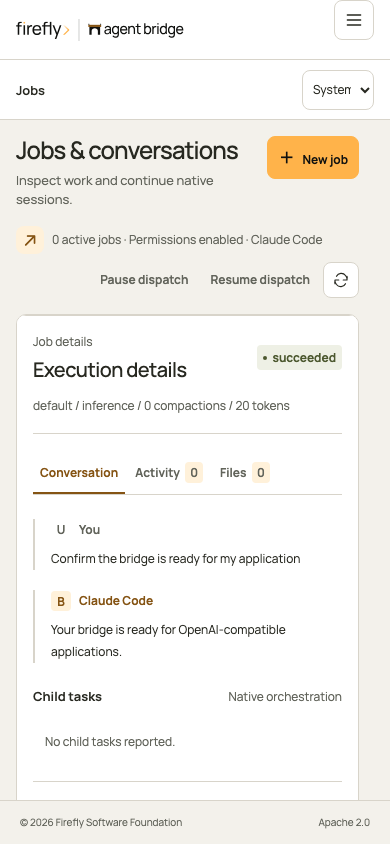
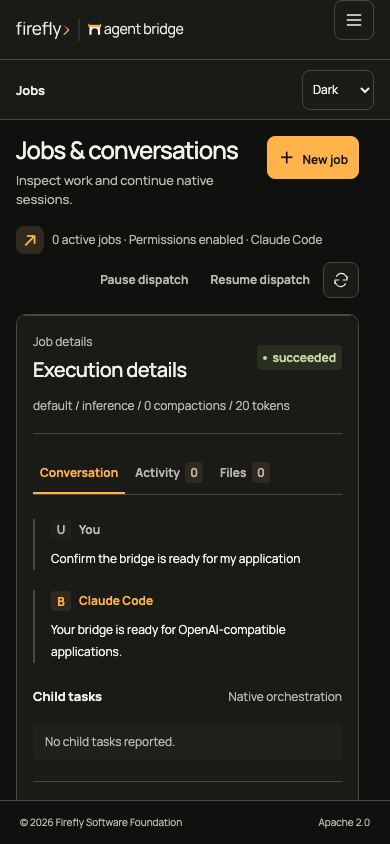
Workflows
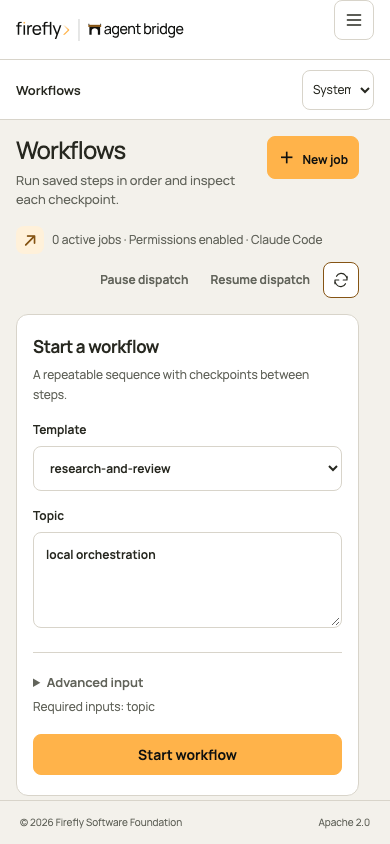
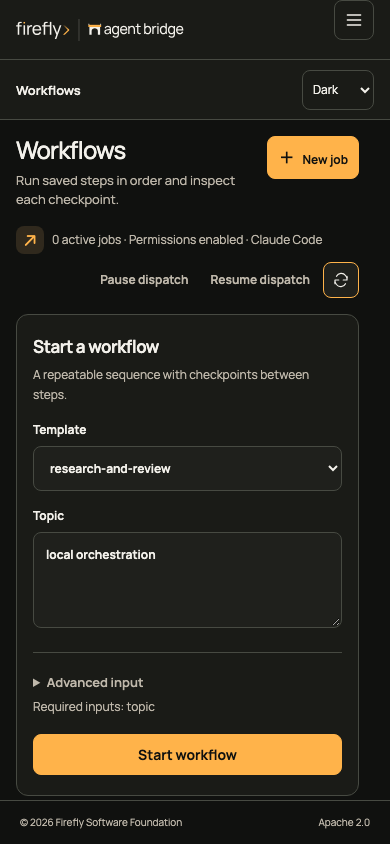
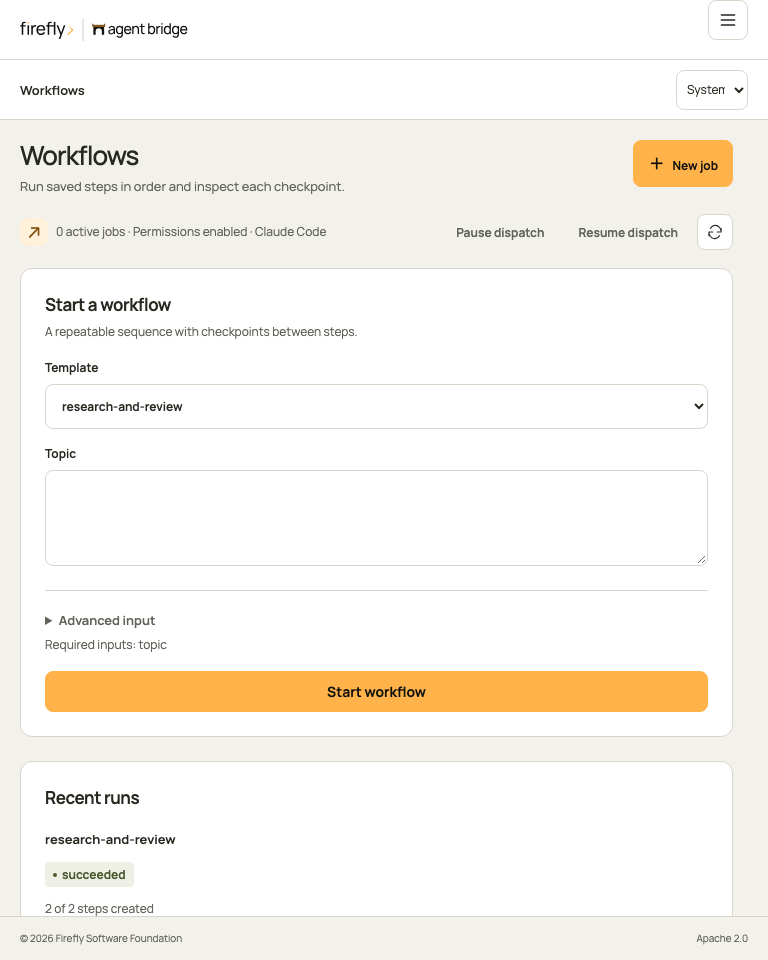
Choose a configured template, fill its named inputs, and start a run. JSON is available only under Advanced input when you explicitly select Use JSON values. Each run shows its current state and links to the jobs created for its steps. Open step switches directly to that job's conversation.
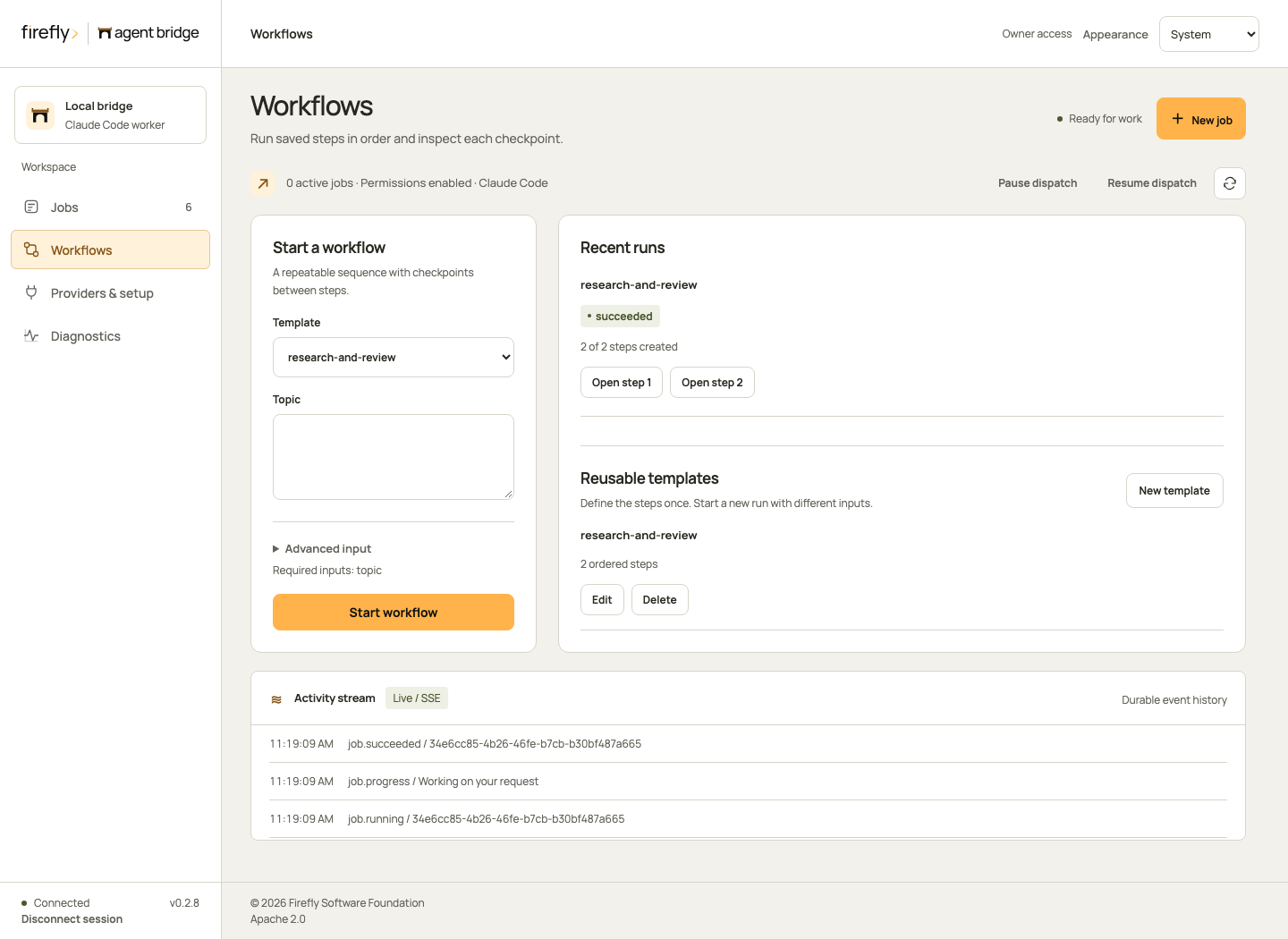
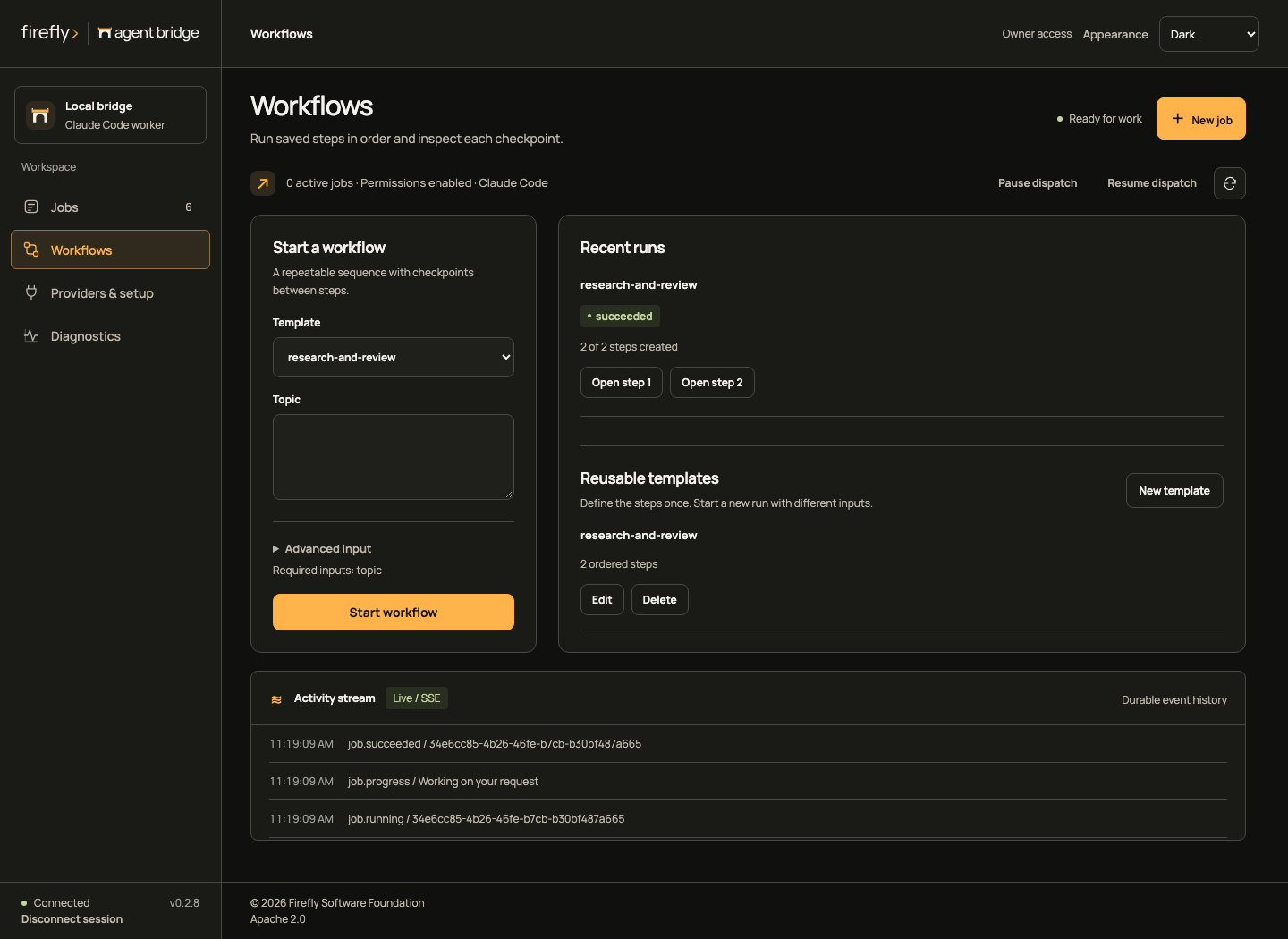
A failed or unknown admission retains its request key when you start again with unchanged inputs. It returns the existing run instead of repeating admitted work.
A workflow pause blocks the next step and requests a pause of its current job. Resuming the workflow clears that barrier. A failed step can be retried from its job view after reviewing its effects.
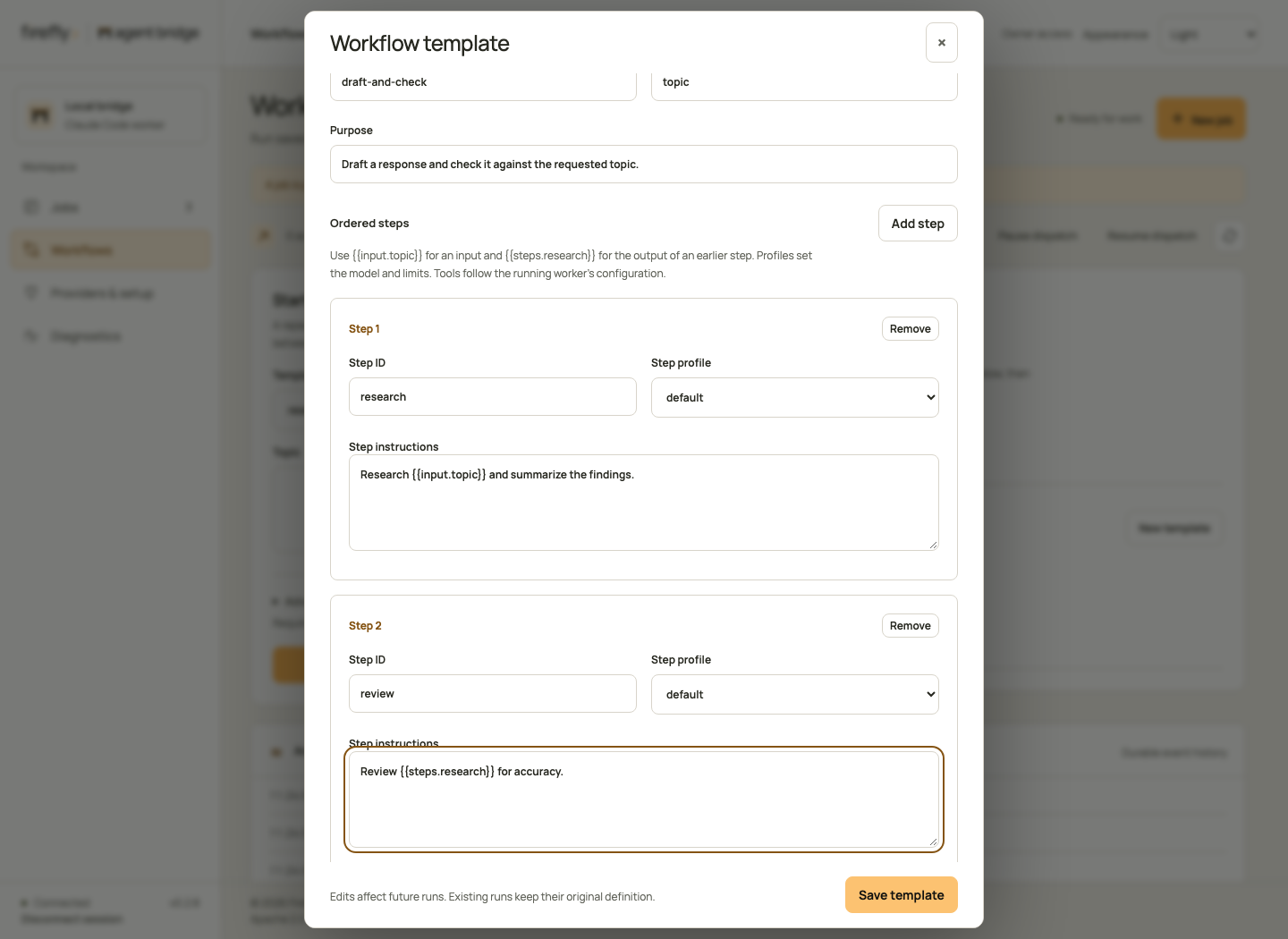
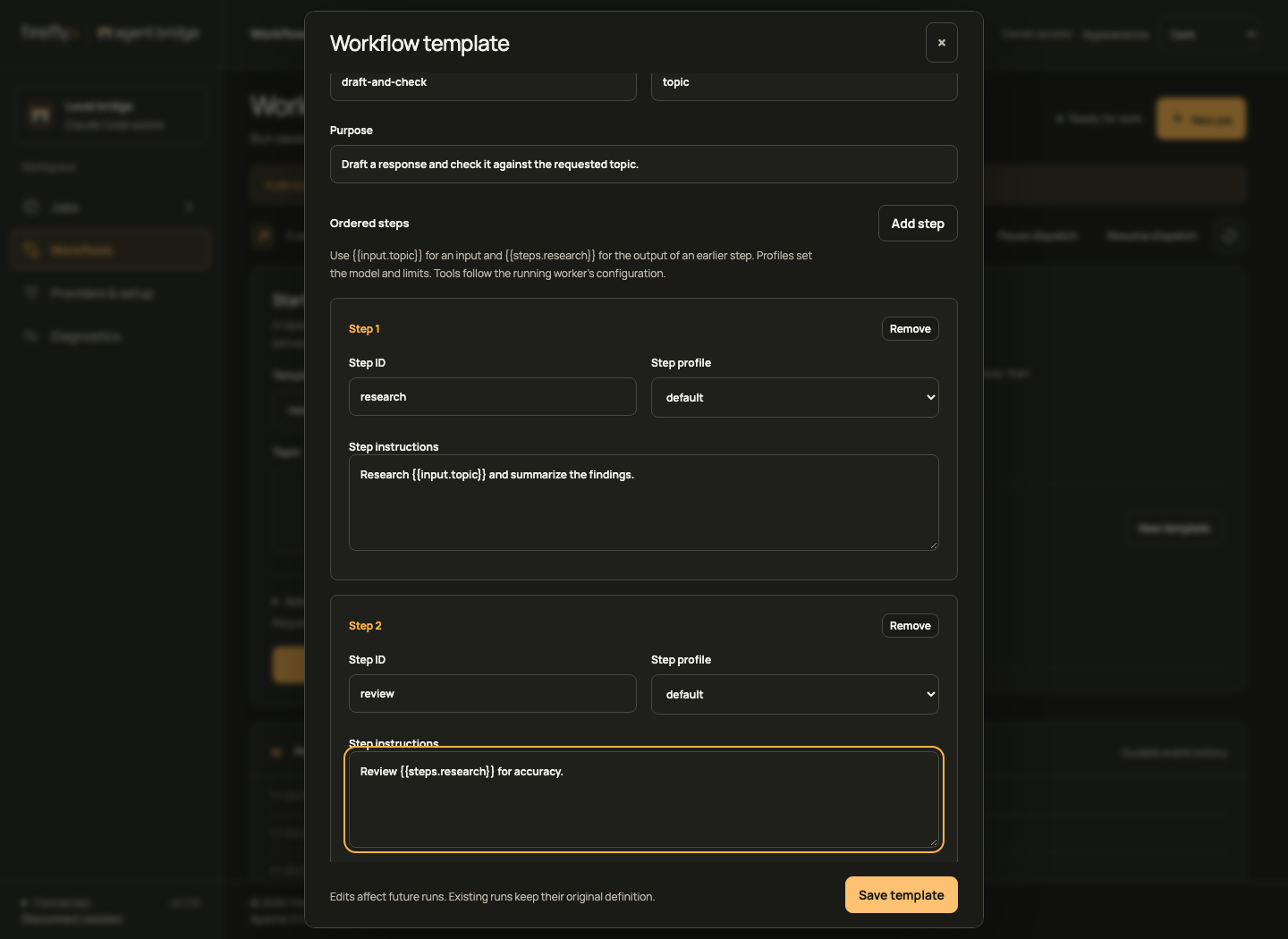
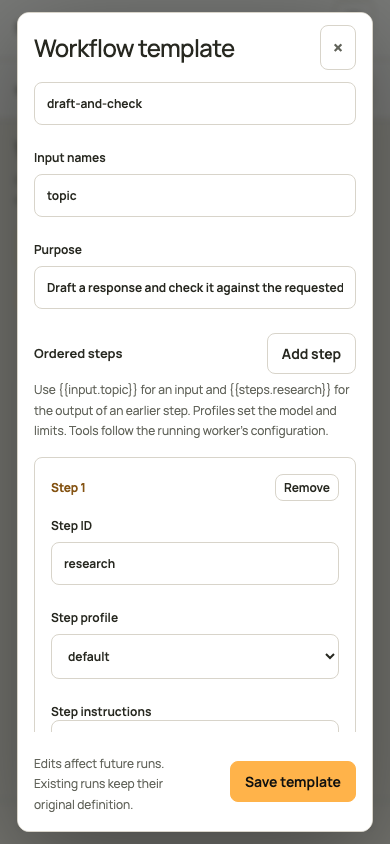
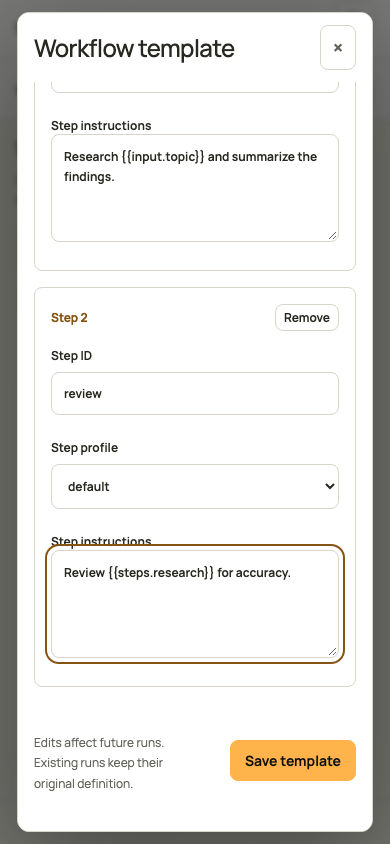
Reusable template editor
Use New template to define inputs, ordered steps, instructions, and execution profiles. Edit updates future runs; existing runs keep their original definition. The form checks references before saving. See template authoring for valid use cases and rules.
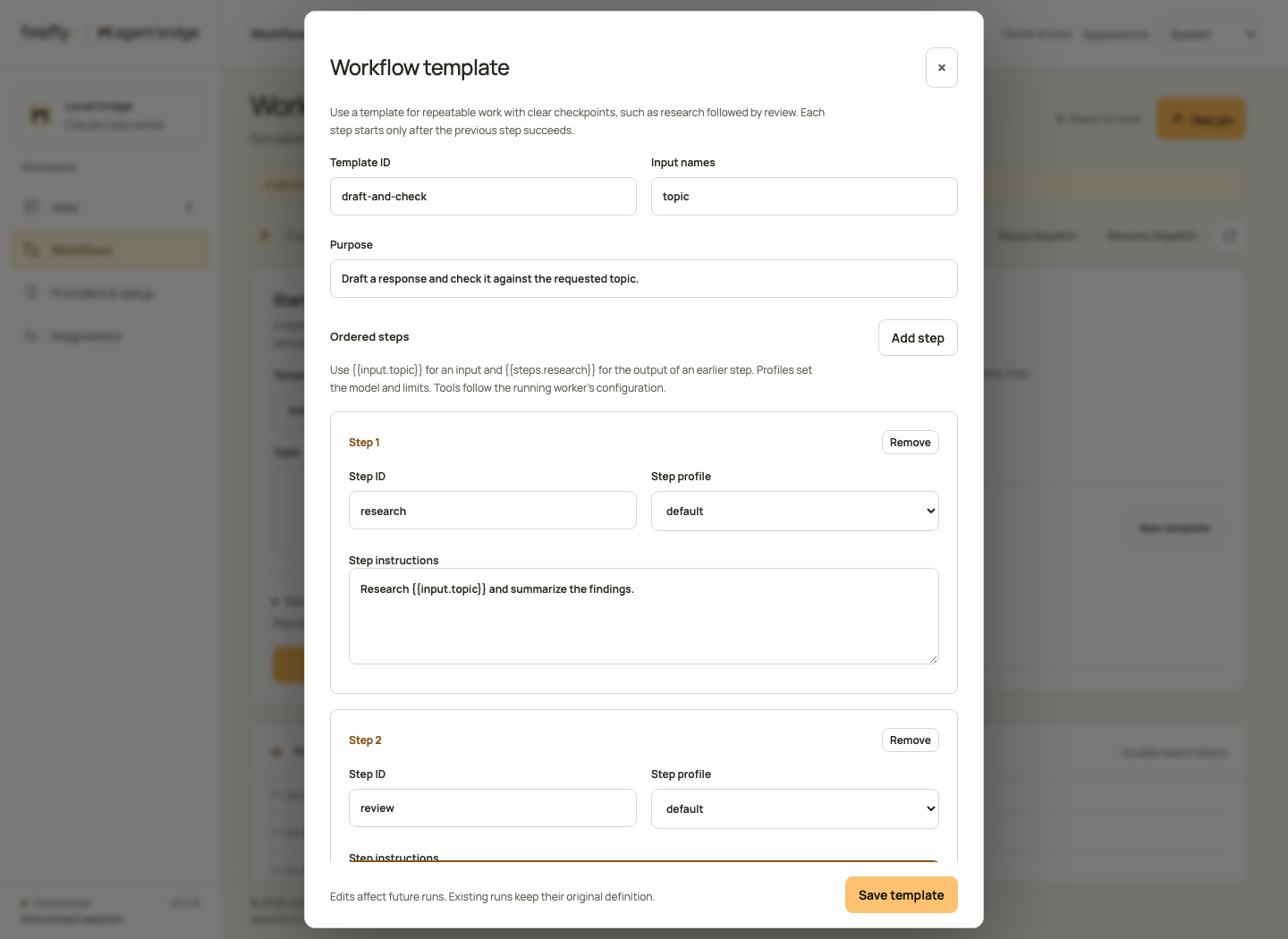
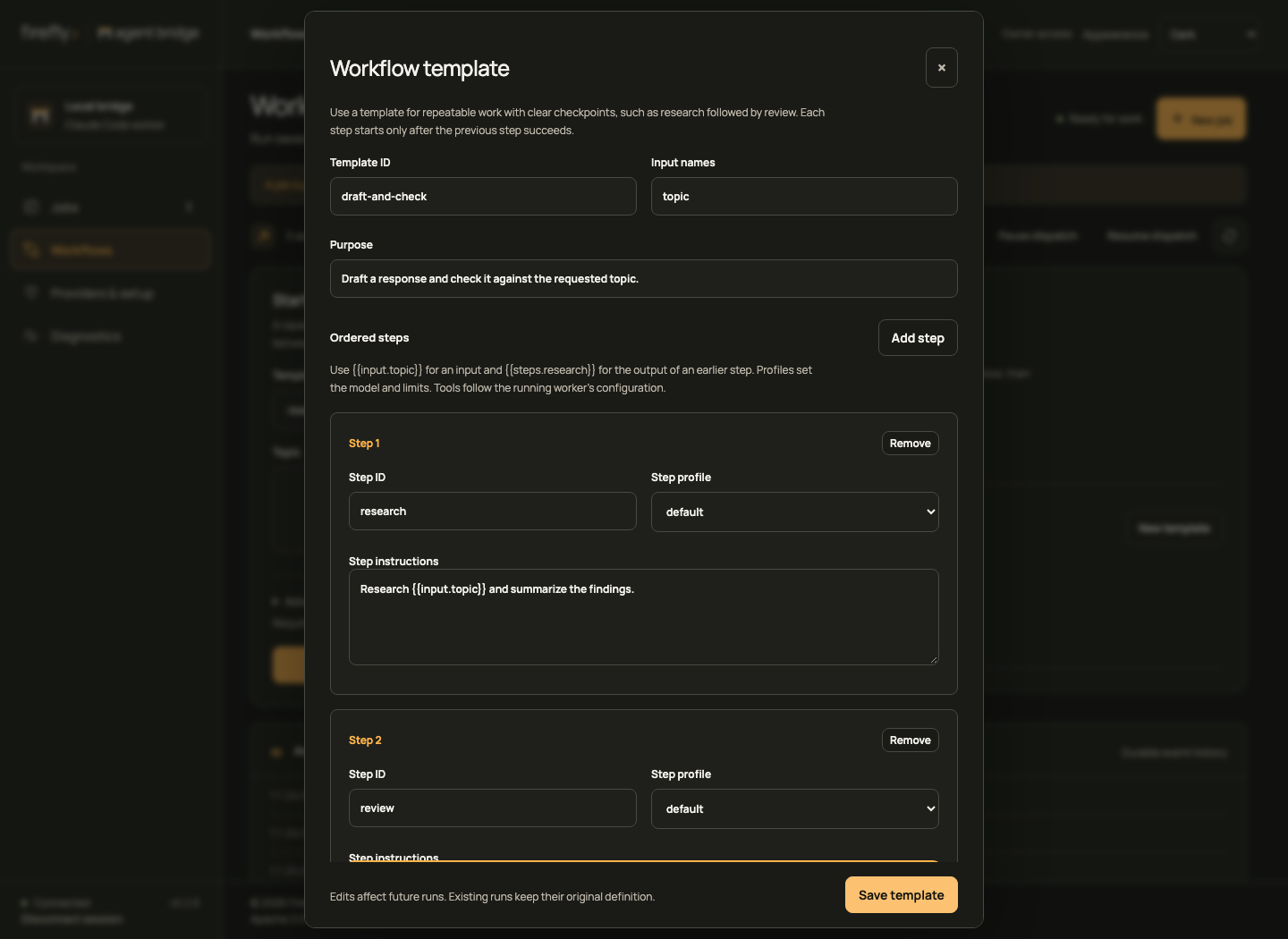
Inspect later steps and the phone editor
Diagnostics and application access
Service health explains login readiness, dispatch state, active jobs, connected hosts, profiles, OpenAI base URL, model aliases, and the workspace. Expand Connection and execution details for the full status payload. Readiness combines official CLI login checks and the dispatch gate. A paused bridge can require attention while the provider remains signed in. Readiness does not establish that every configured model can complete a job.
View activity expands the recent event list. Hide activity returns to its compact view. These controls change only the display; they do not request new work or repeat an execution. Use the job's audit export when you need its complete durable record.
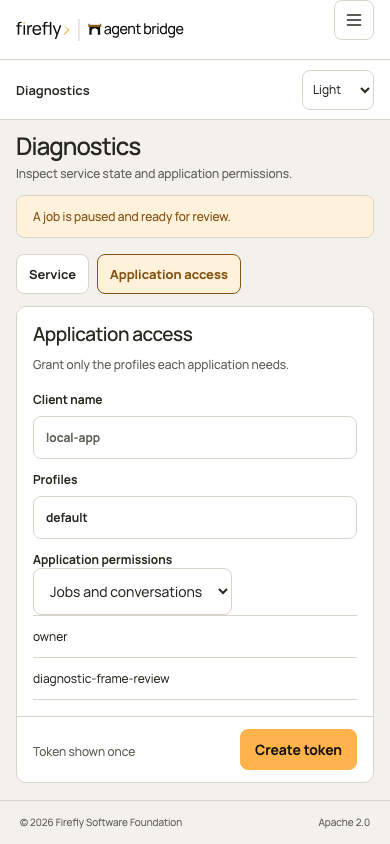
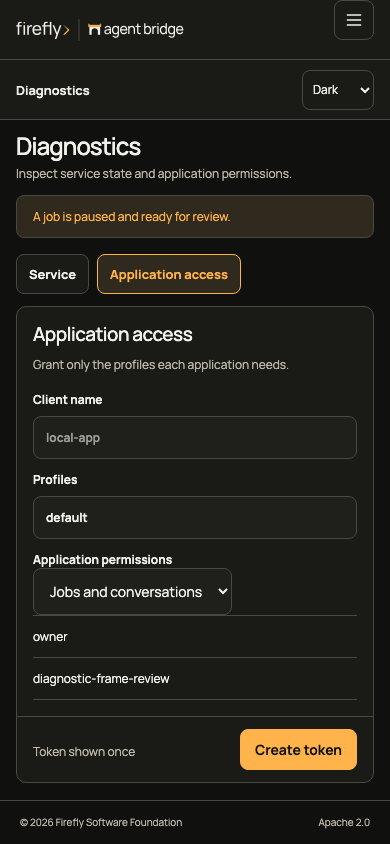
Create a separate token for each trusted application. Choose Jobs and conversations, Read-only inspection, or Jobs and workflows. New tokens start masked; Show and Copy token are explicit actions. Revocation immediately invalidates requests and active event streams. Read-only access hides submission, continuation, administration and image-probe actions.
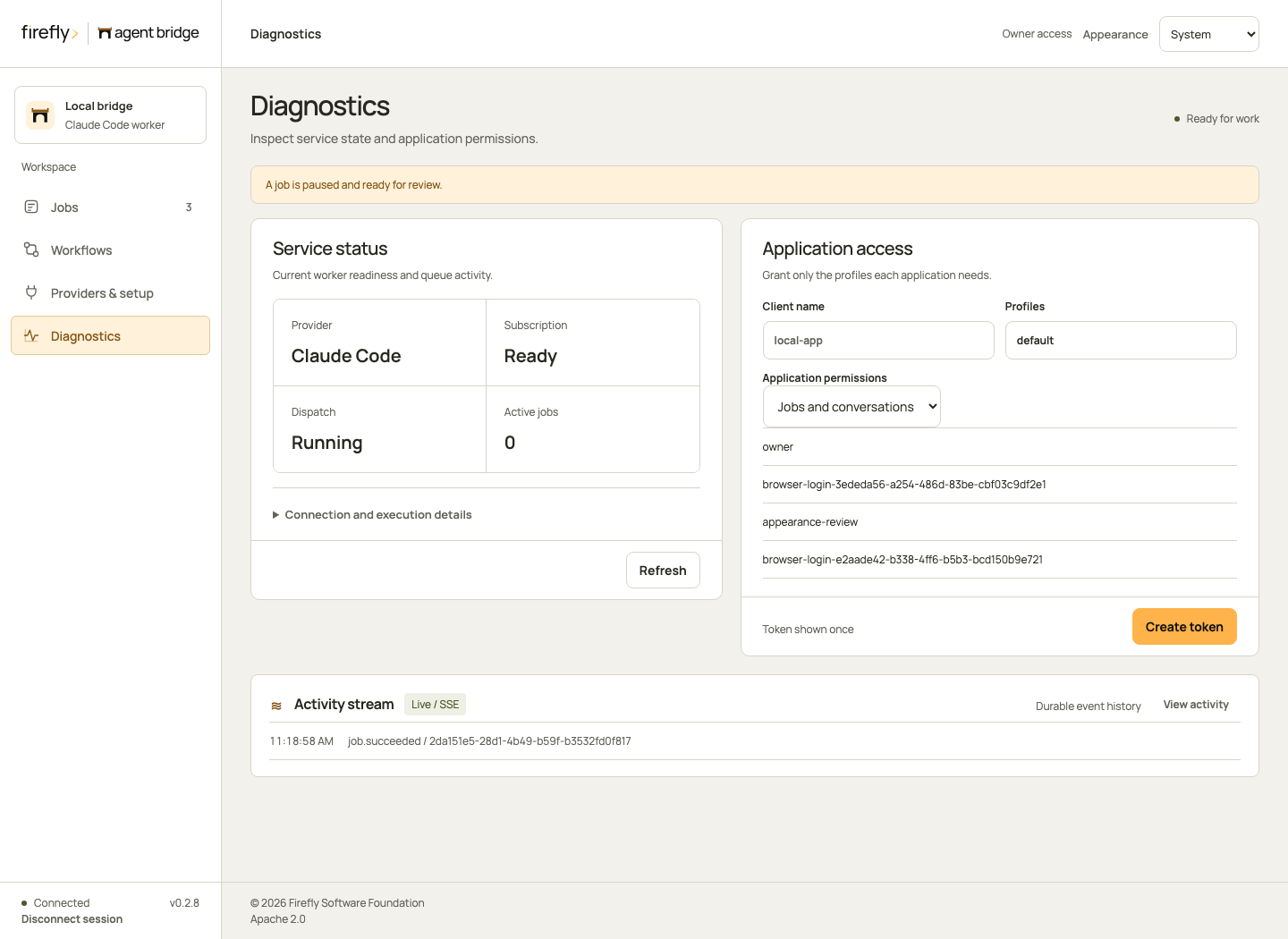
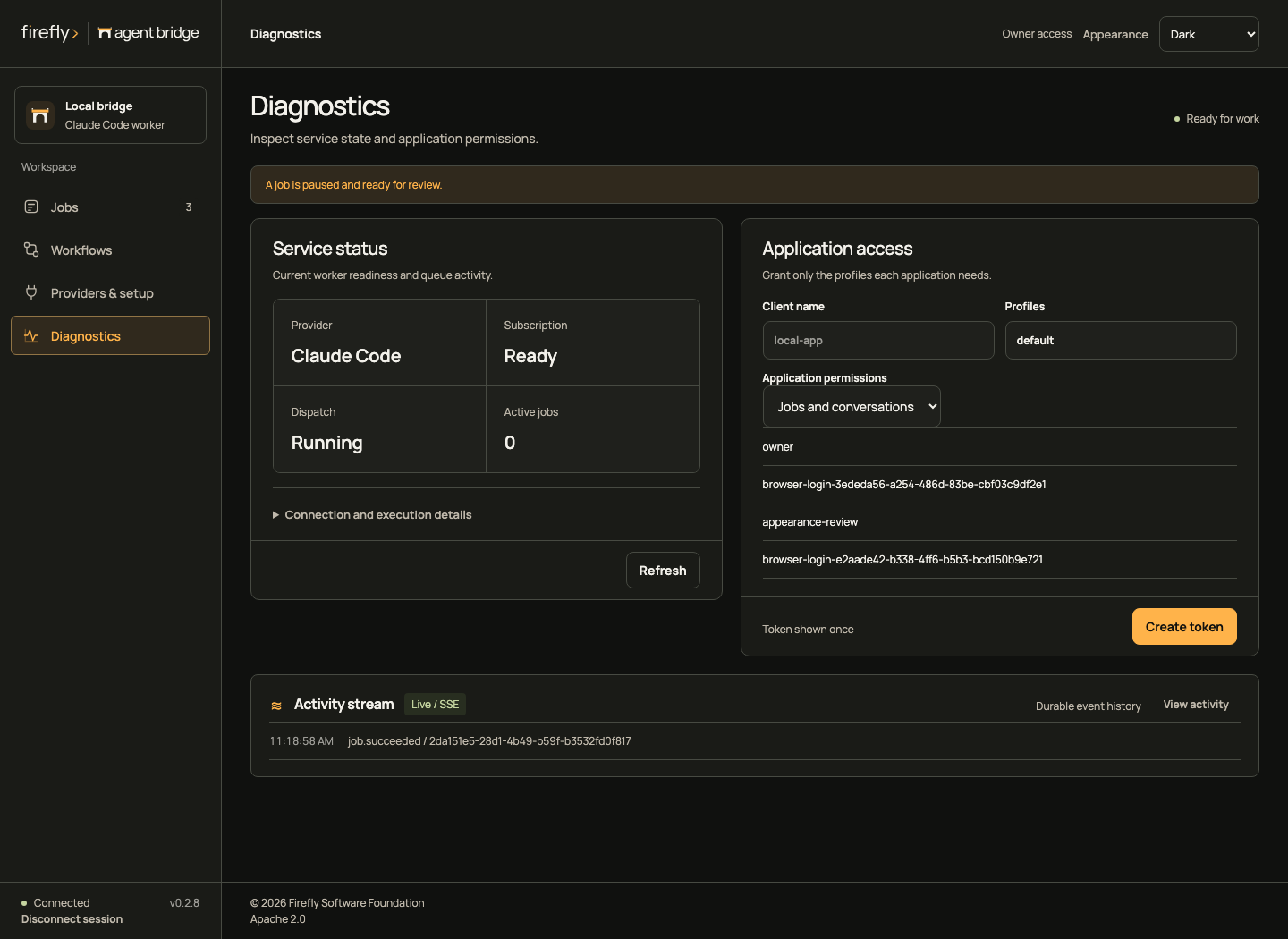
Inspect Service and Application access on a phone
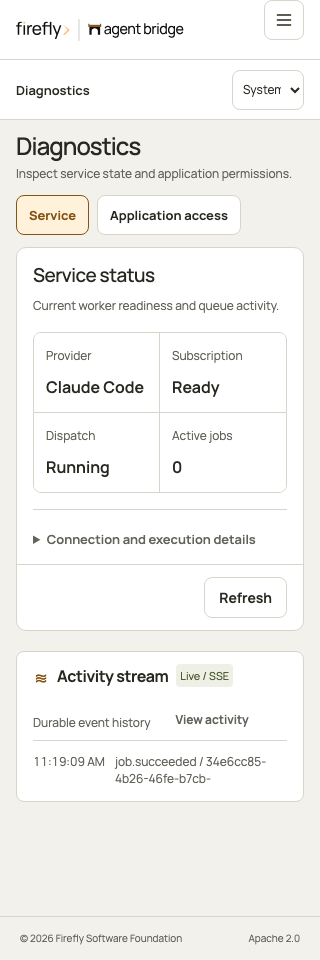
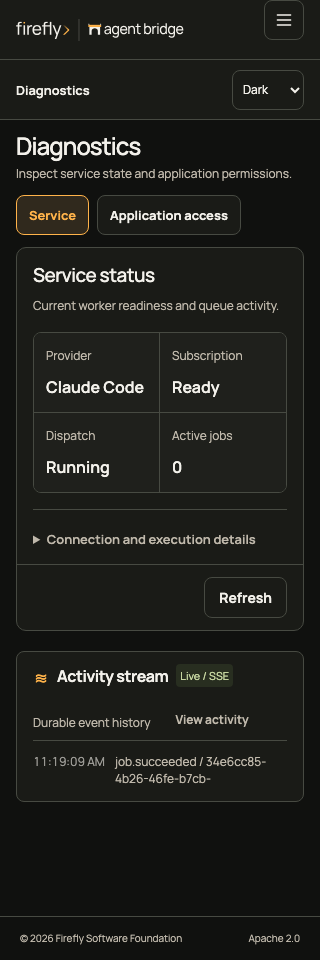
Responsive navigation
Phones use a 60-pixel brand row and a 60-pixel context row. Menu opens a native modal with full navigation rows. Escape returns focus to Menu; selecting a destination closes it and focuses the heading. Resizing to desktop restores the sidebar and closes the dialog.
At narrower widths, select a job to open its details. Back to jobs returns to the queue and stays there during polling. On phones and short windows, the conversation scrolls with the page so you can reach the latest response and continuation form.
Provider setup and Diagnostics use the page scroller, so short screens retain complete fields and readable status. Their action rows follow the content and never cover it. Diagnostics uses Service and Application access tabs on phones. Actions ↓ appears in the context bar when setup or workflow controls are below the visible content, including on short desktop windows. It scrolls to those controls and focuses them without advancing or submitting. Scroll normally to inspect the intervening fields; the global footer remains in its own row. Desktop uses an aligned 64-pixel status and legal footer; the phone footer occupies a separate 44-pixel row with safe-area padding.
Navigate and reach actions on a phone
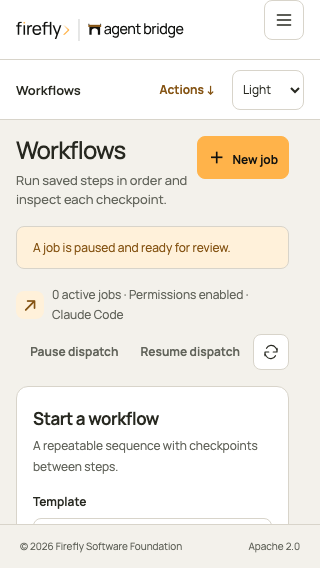
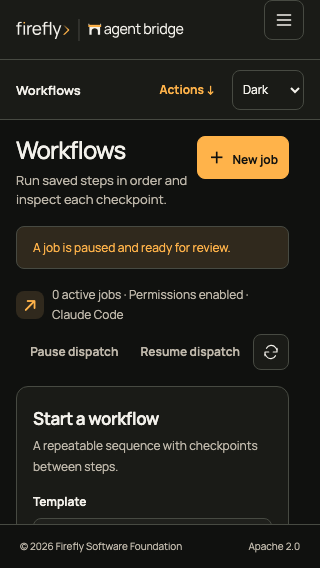
Tablet jobs · Tablet workflows · Mobile diagnostics
Live activity
The activity stream receives authenticated SSE events and reconnects with the last event ID. When retention has removed older events, it refreshes current job state before reconnecting. Tokens stay in tab memory and are never placed in a URL or browser local storage.
Appearance and provider setup
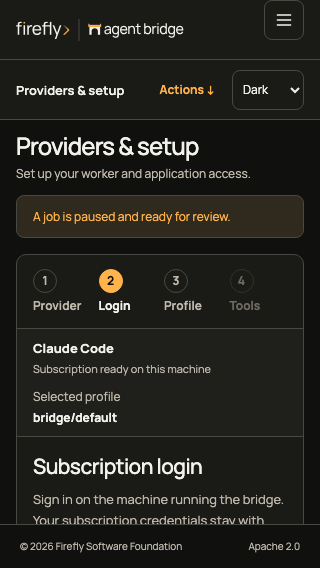
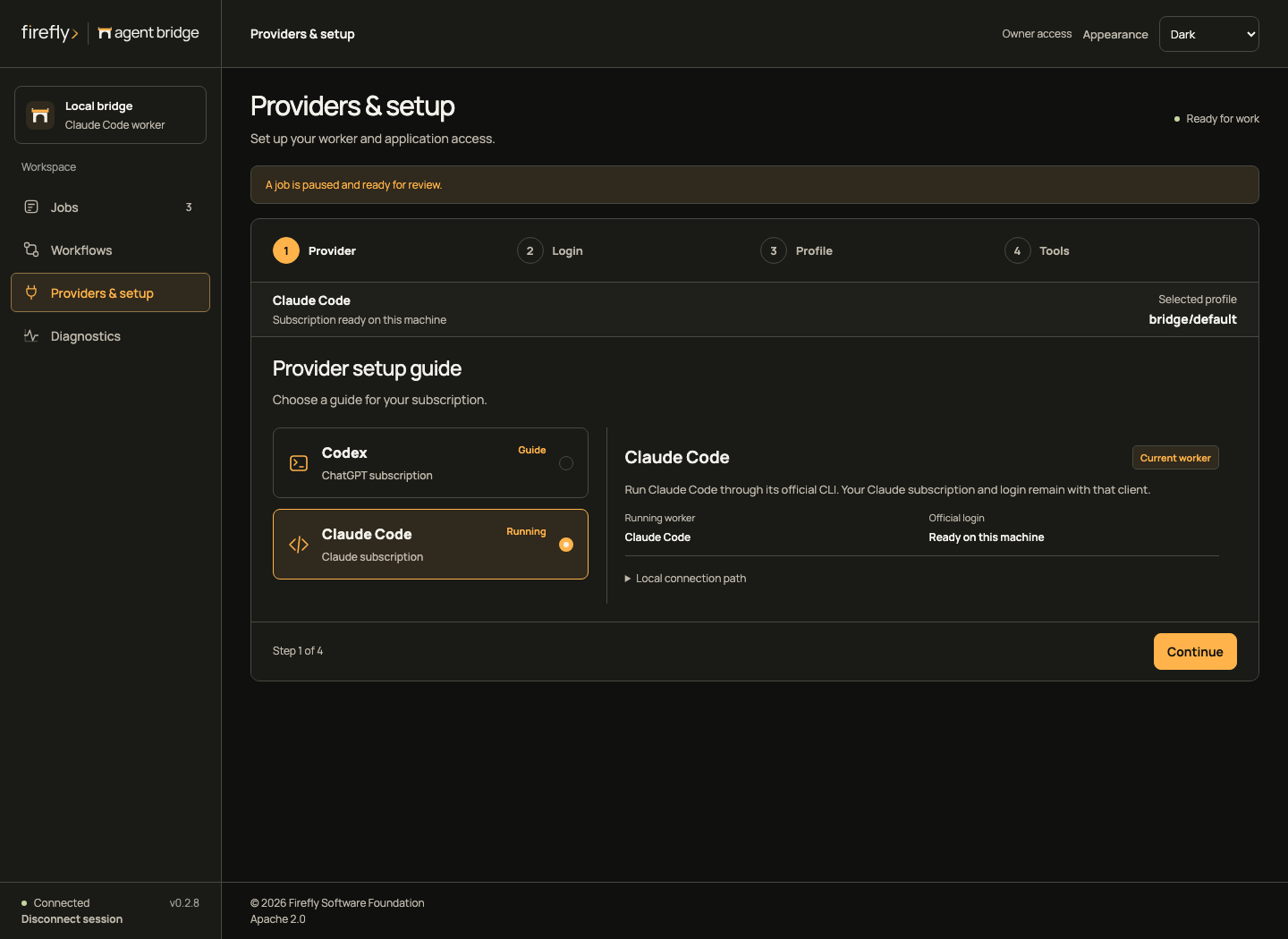
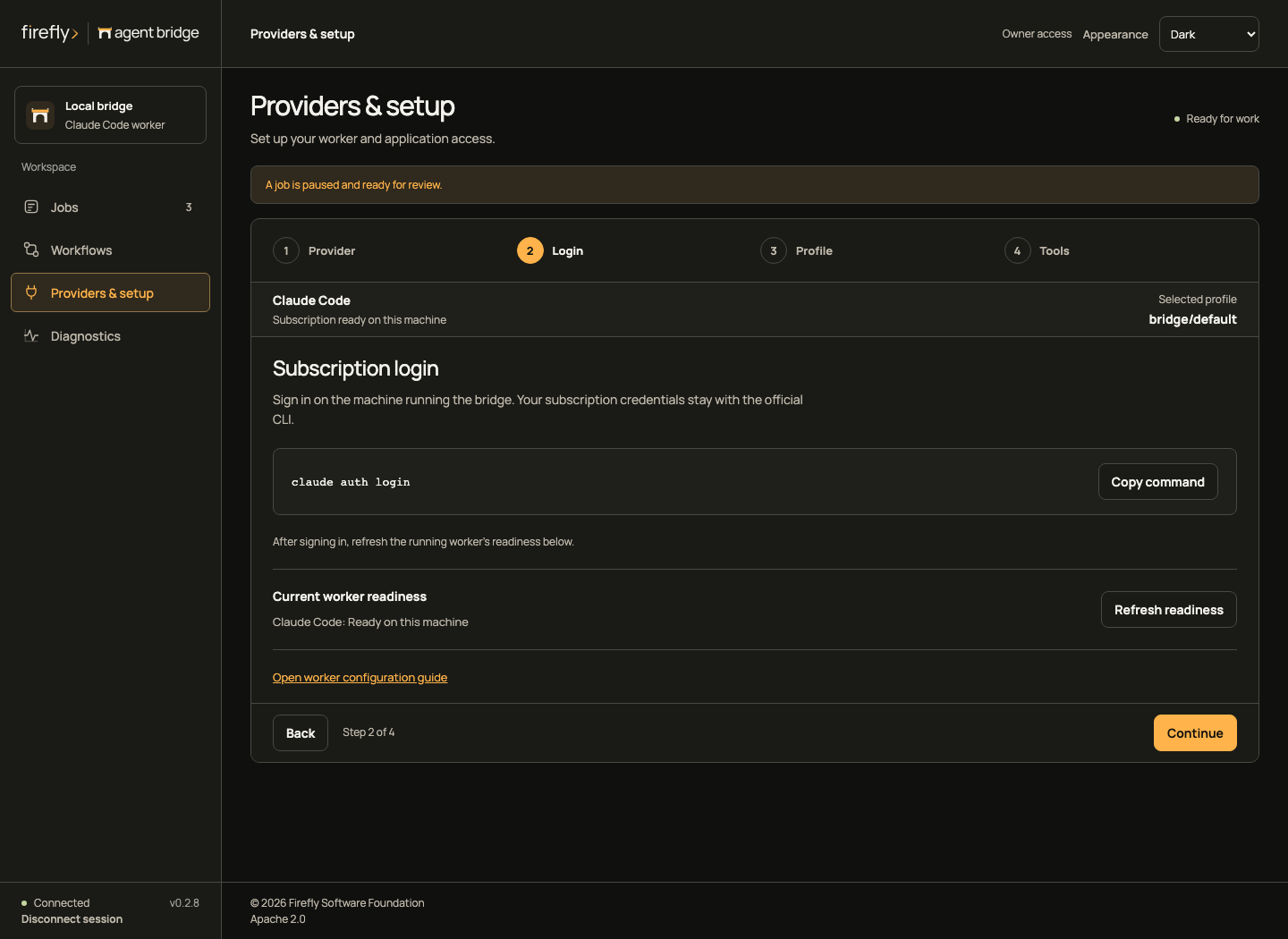
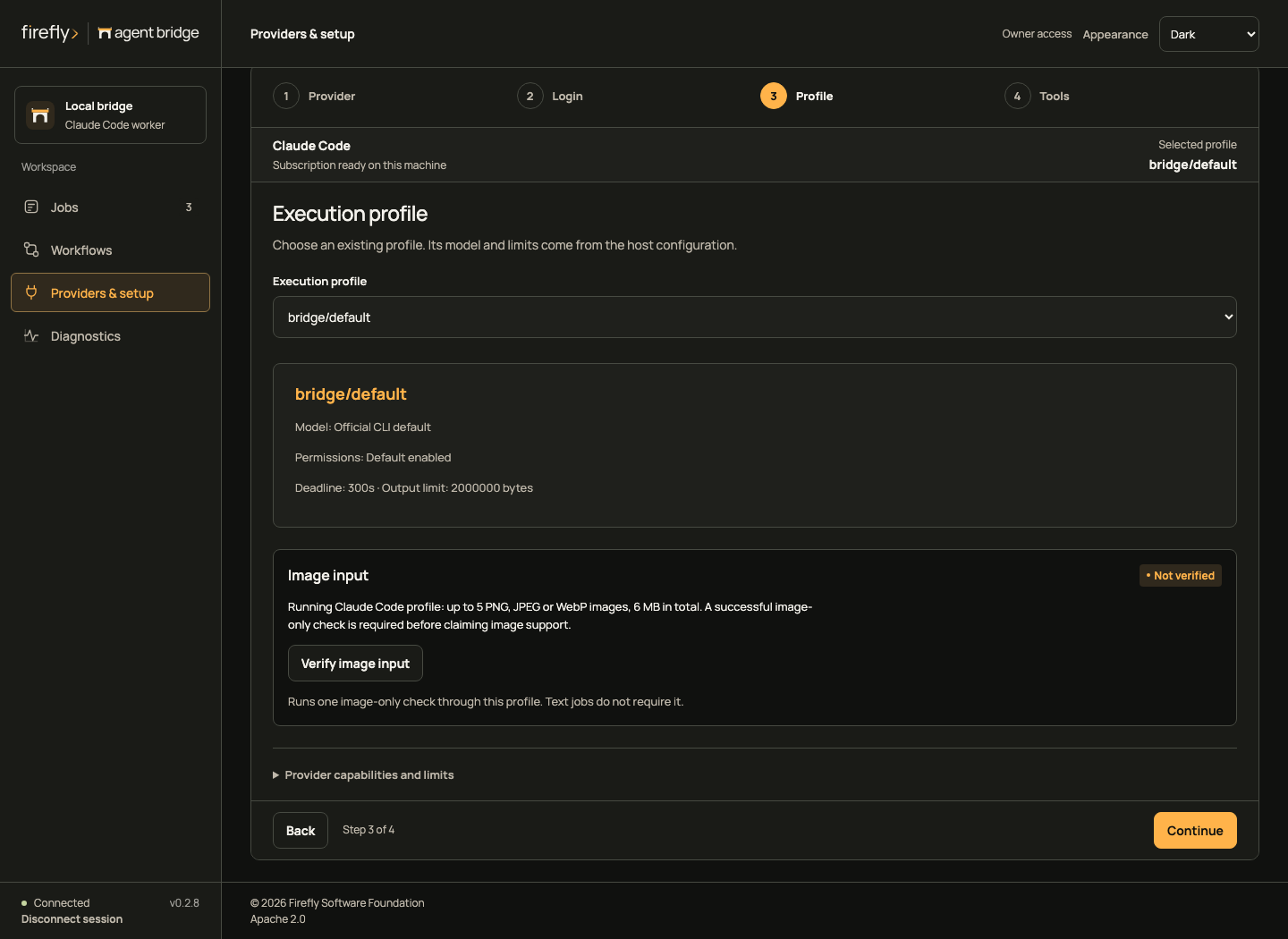
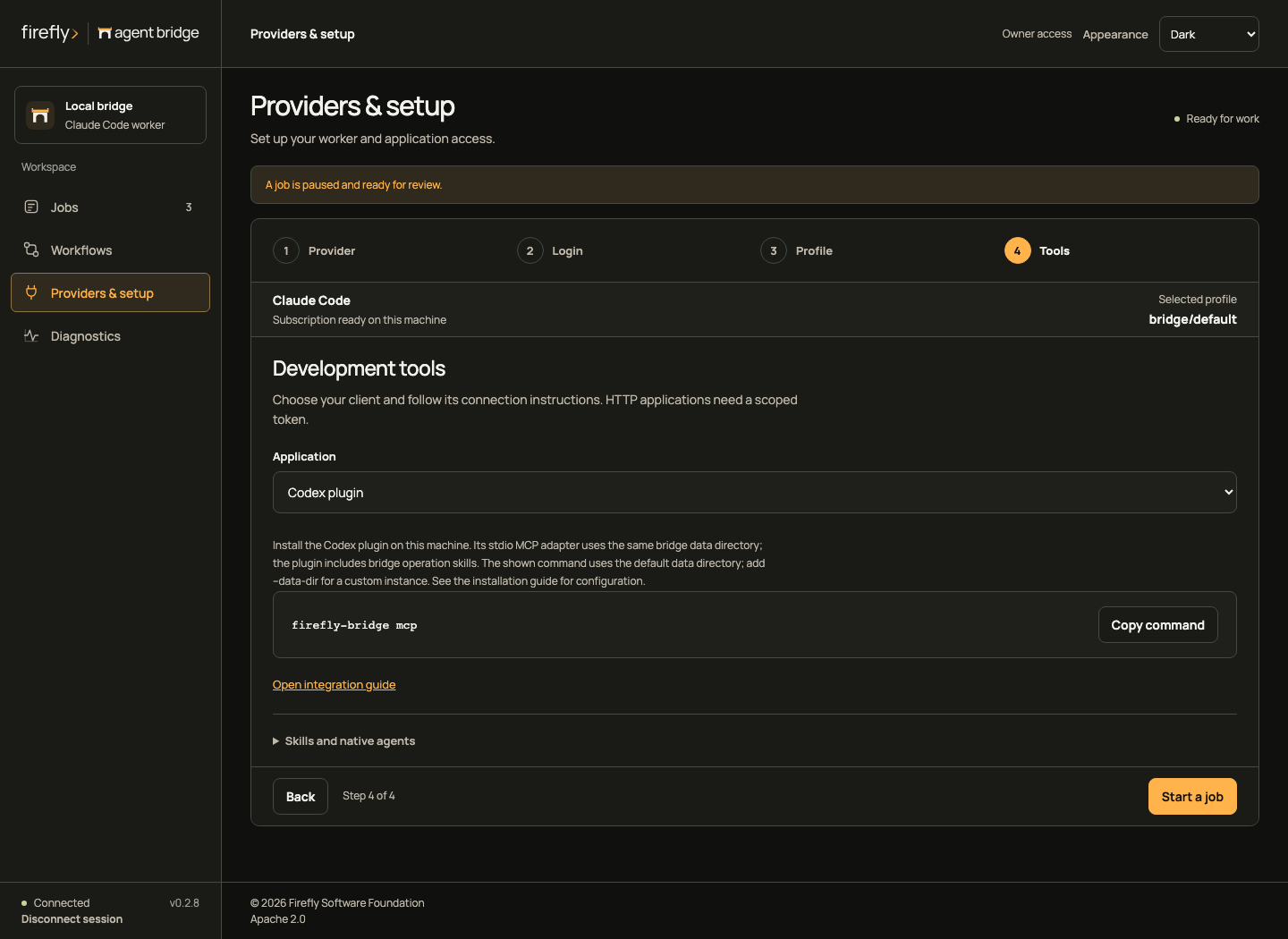
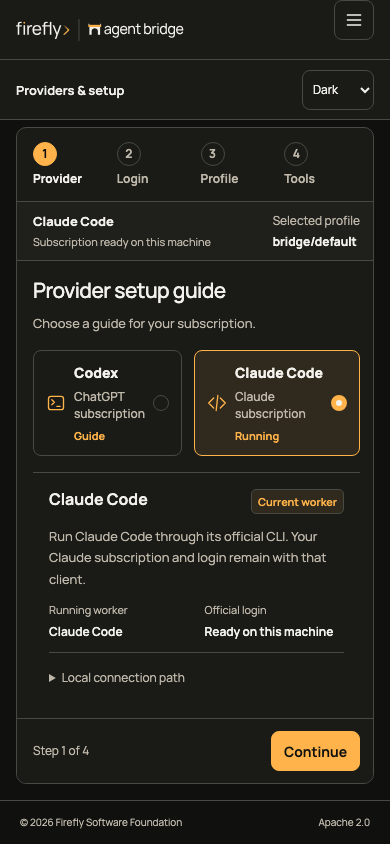
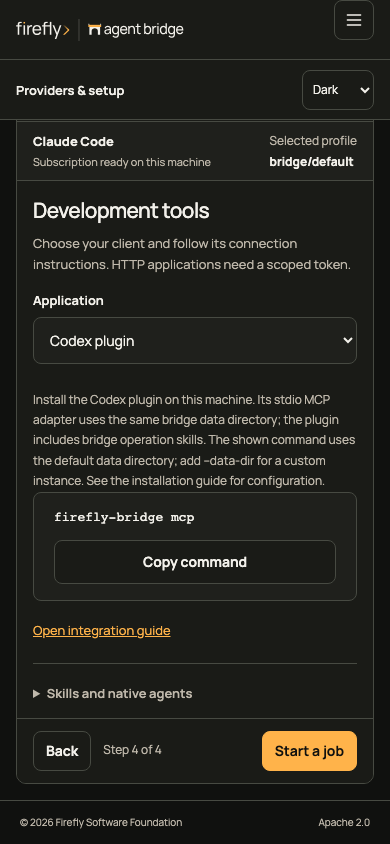
Appearance follows the system by default. Choose Light or Dark to save an explicit preference on this browser. The console stores only that preference; reloading clears authentication. The fixed 76-pixel header, 248-pixel desktop rail, Manrope typography, and amber controls match the Firefly developer suite. Mobile navigation preserves access to every view.
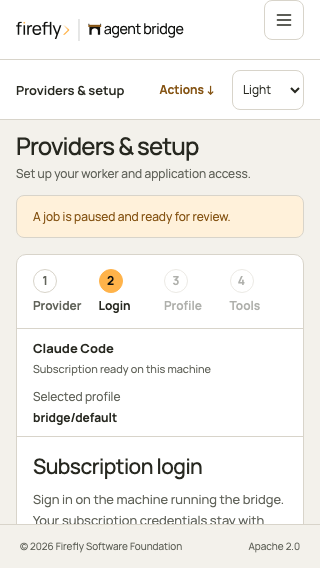
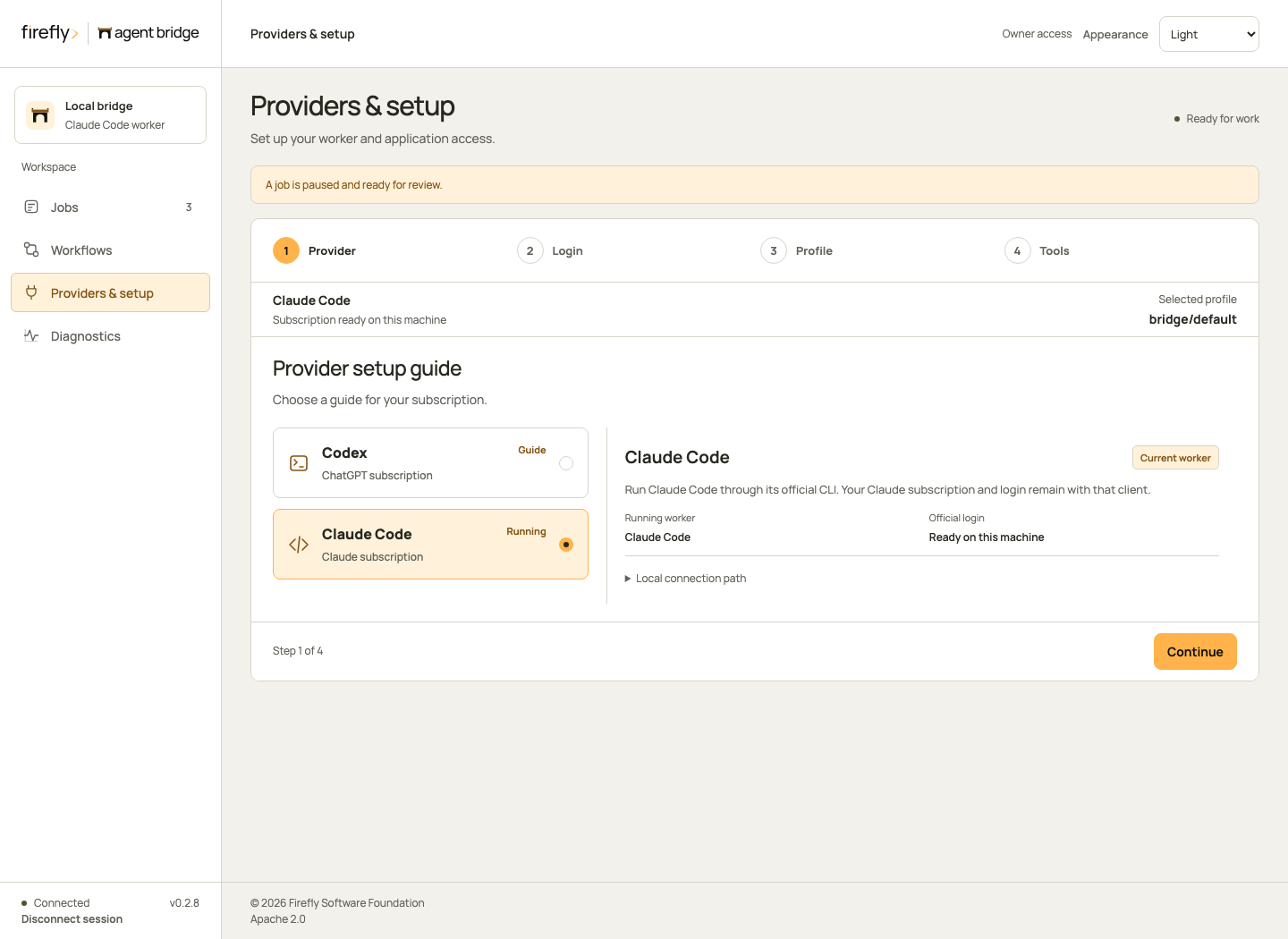
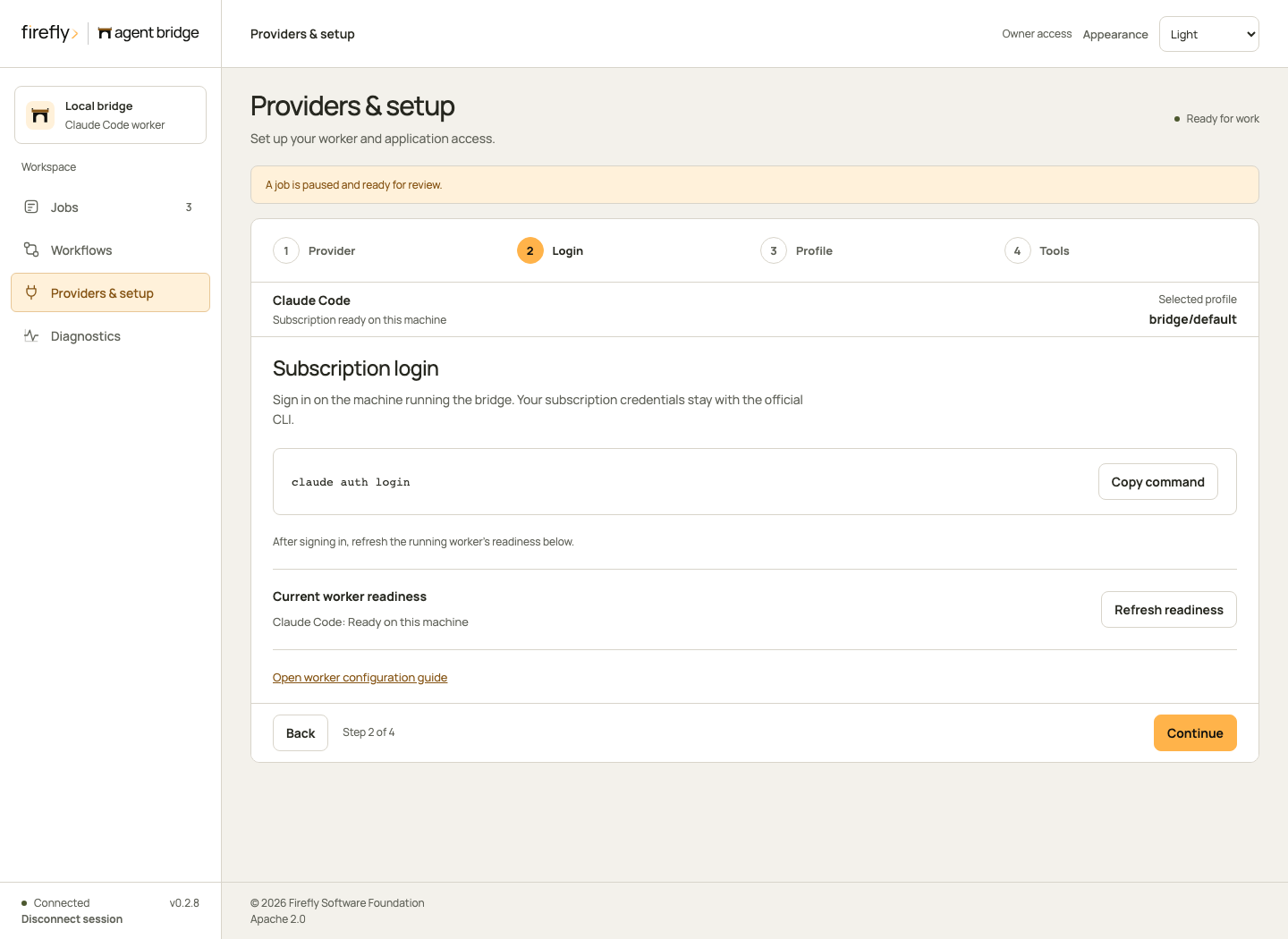
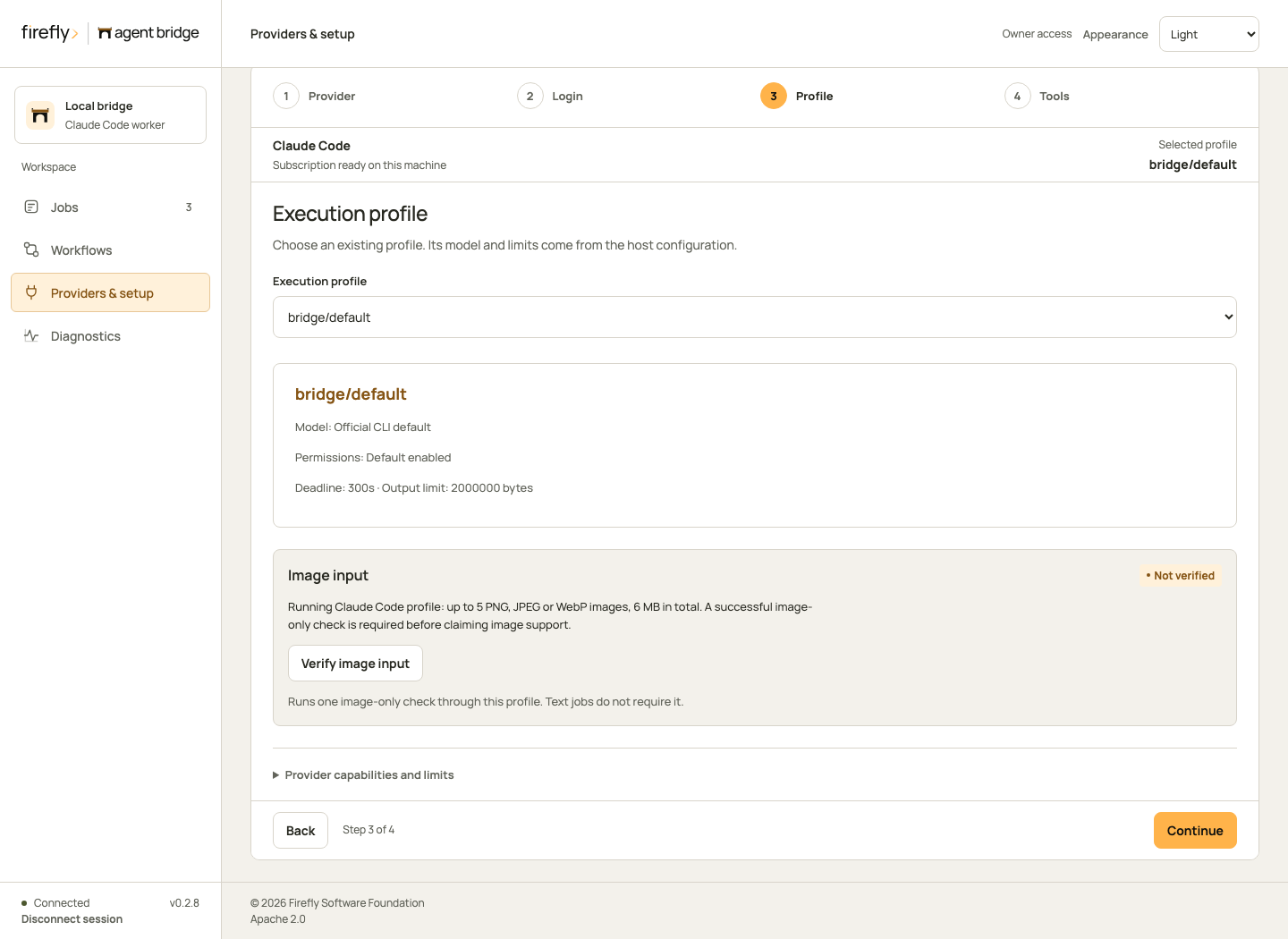
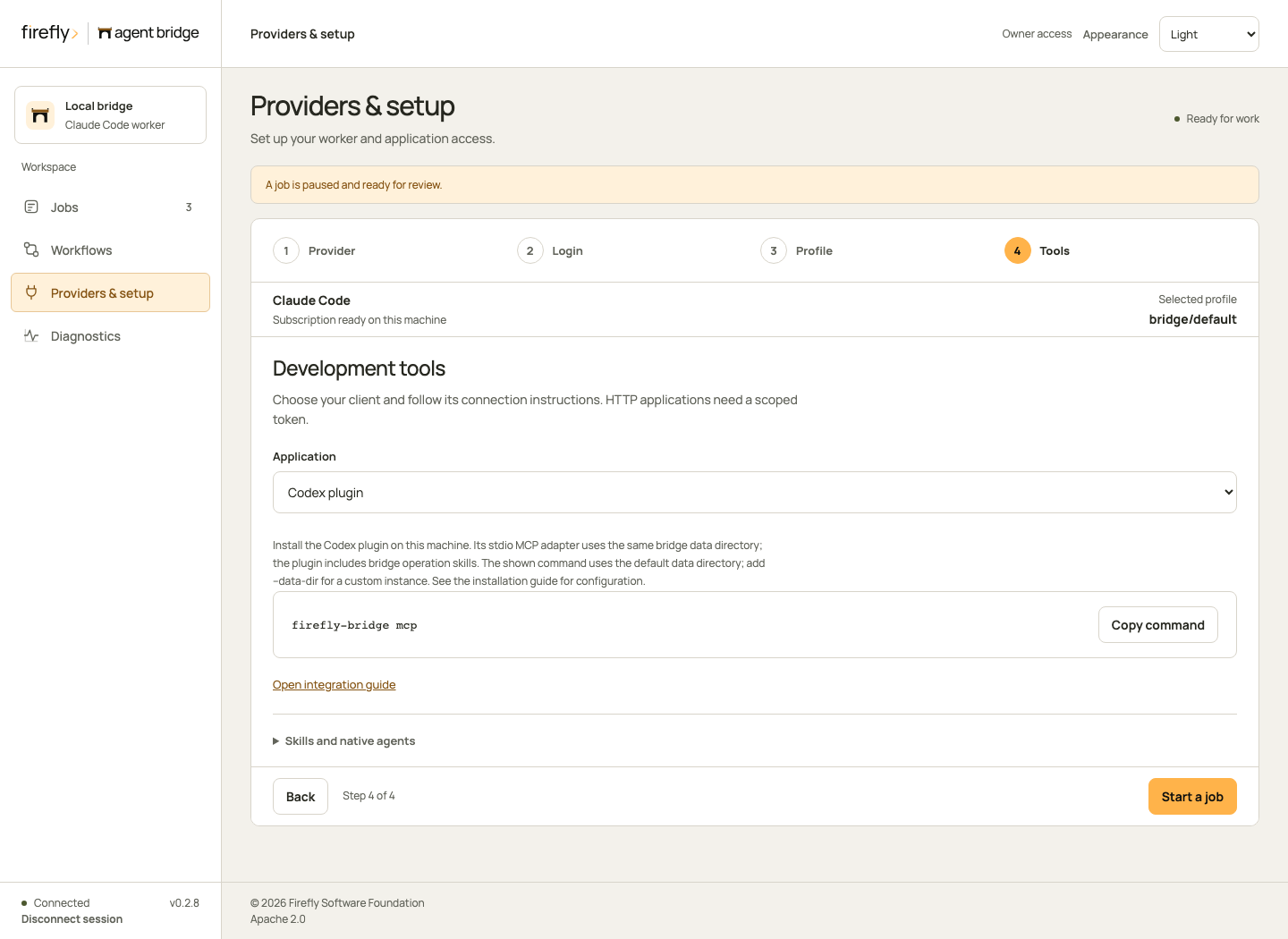
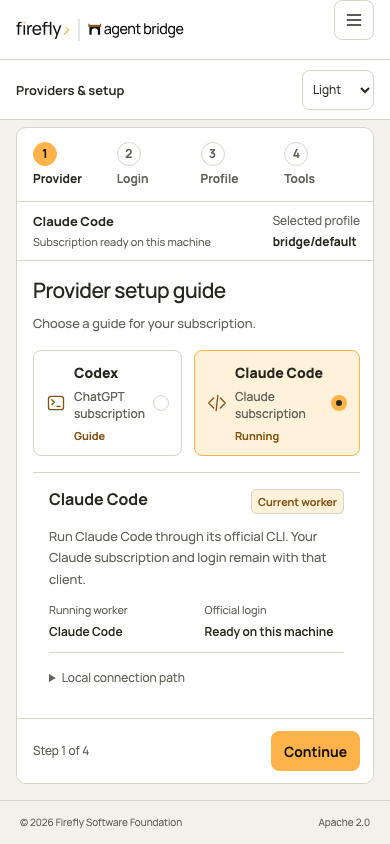
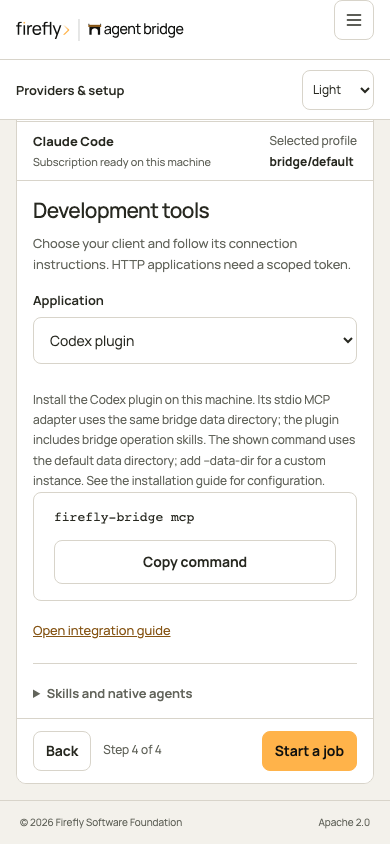
Providers & setup guides you through four focused steps:
- Provider: choose a Codex or Claude Code setup guide. The current running worker stays visible; selecting another guide does not change it.
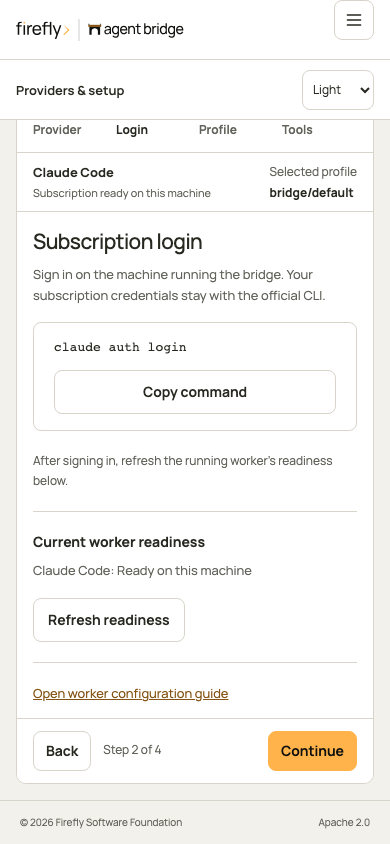
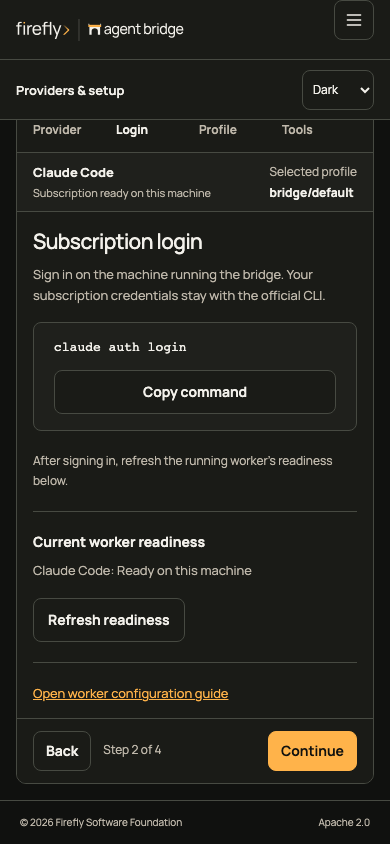
- Login: copy the official login command, run it on the bridge host, then refresh the running worker's readiness. Provider credentials are never entered in this form.
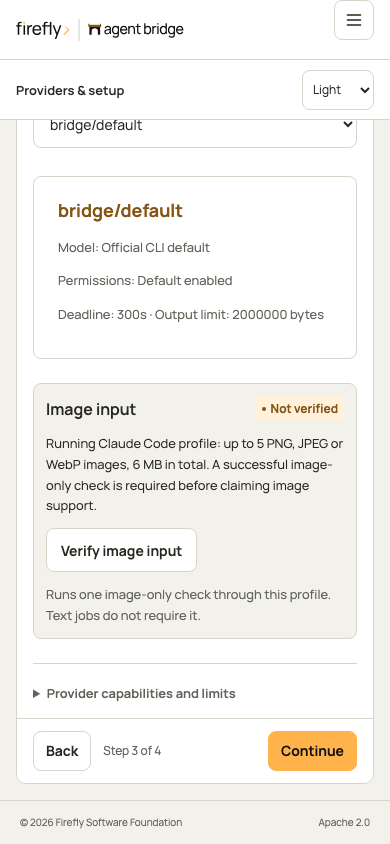
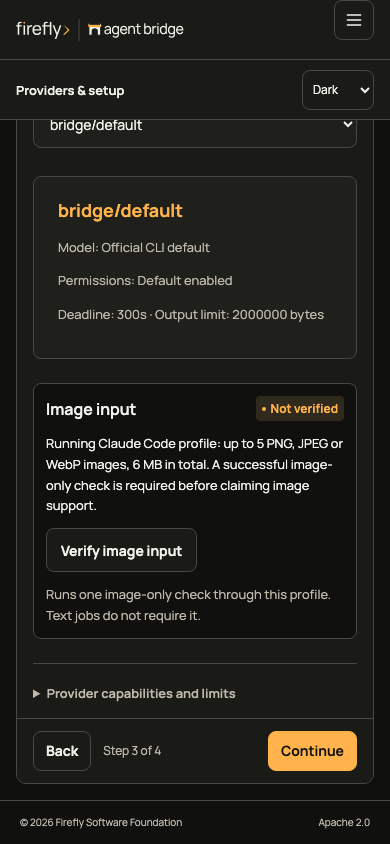
- Profile: choose an existing profile and inspect its effective model, permissions, timeout and output bounds. Image input has a separate verification status. An owner can run one explicit image-only check and inspect its durable job; unverified or failed checks do not block ordinary text jobs.
- Tools: select your application and follow its connection instructions. Codex and Claude plugins use the local stdio adapter. HTTP applications use a scoped bearer token. ChatGPT requires a reachable HTTPS gateway and authentication supported by its workspace; this console does not establish that connection.
The wizard keeps your selected profile when you move back between steps. Earlier visited steps remain accessible. Start a job opens the normal job dialog with that profile; it does not submit work automatically.
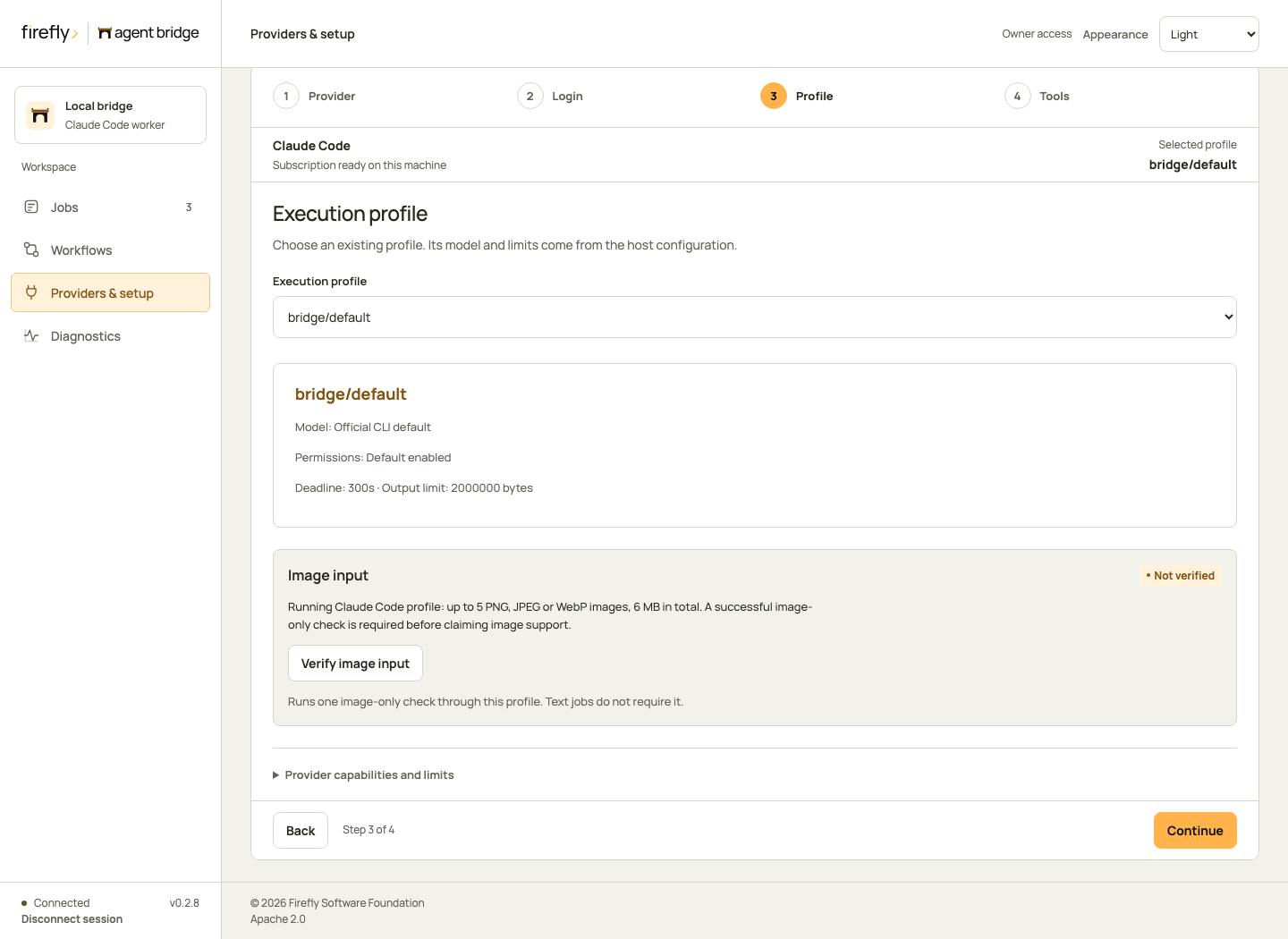
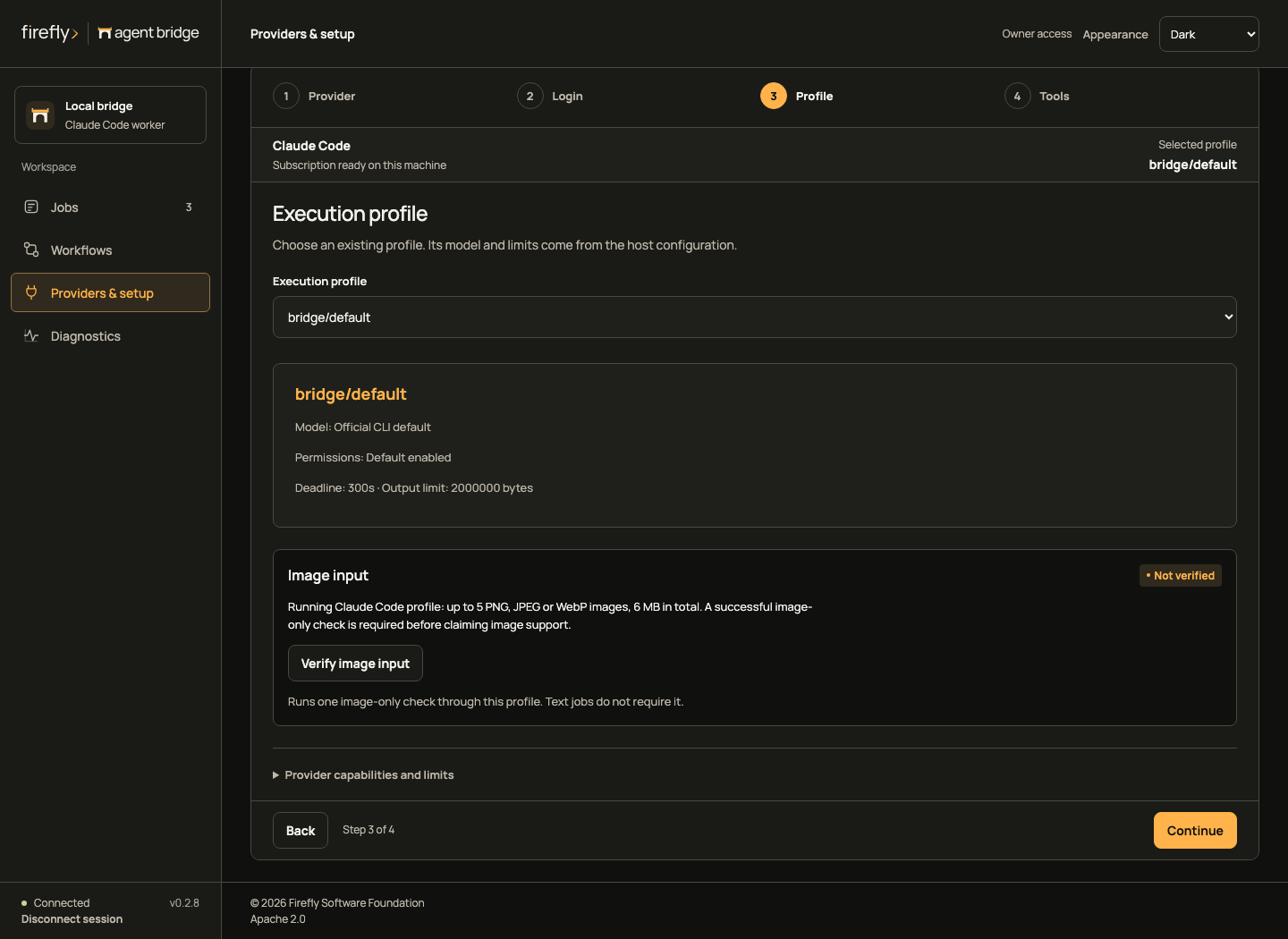
Follow provider setup on desktop
Follow provider setup on a phone
Change worker and profile configuration in the saved file while stopped, restart, then check the effective settings here. The console does not accept provider credentials or rewrite executable paths. Claude tool and agent definitions apply to Claude execution; they do not imply restrictions on Codex.