Work with the knowledge library
The library is the main place to find organizational knowledge. A space contains team folders; folders contain documents and datasets. Technical records such as chunks, tables, snapshots and index versions belong in an item's details rather than the main navigation.
Read a document or download its original
Open a document's filename, or choose Read document from its action menu, to read the version currently available to your account. With the document focused, Shift+F10 opens the same menu; Enter selects its focused action. The reader loads when opened and checks availability before requesting its recorded version and extraction. A failed replacement can leave an earlier version readable. Expand Document version to inspect the source version, original SHA256 and extraction used by the reader.
Extracted text shows recorded text parts, not the original Office or PDF page layout. Choose a part or use Previous parts and Next parts to read further. Source text is displayed as text; embedded HTML is not executed. Preview original displays supported PNG, JPEG, WebP and GIF images locally. For a PDF, choose Prepare PDF, then Open PDF in browser tab. This explicit link opens the verified original in your browser's PDF viewer, separately from the application. It does not provide an in-application PDF renderer or send the file to an external viewer service.
Choose Download original to save the same recorded version. Original transfers are limited to 128 MiB; preparing a PDF or image preview is limited to 16 MiB. A larger source can still have readable extracted text. The reader explains a transfer limit without treating the text as unavailable. Your current access is checked by the service when content or original bytes are requested; changing account or scope clears the reader's local content and prepared links.
If processing has not produced a readable version, the reader explains that status and disables original download. Use the item's separate Details action to inspect its processing status. Datasets retain their existing table exploration and lineage views; this document reader does not add a dataset-original download endpoint. Press Escape to close the reader and return keyboard focus to the filename or action button you used to open it.
Spaces, projects and folders
A space is a knowledge boundary. Its documents and datasets keep that space's identity in both native knowledge engines, and every operation checks the caller's current access. A folder name or a tag does not grant access. Create separate spaces when teams or clients need different permissions; do not rely on sibling folders for confidentiality.
Inside a space, Library projects and nested folders organize content. They inherit the space's permissions. A Library project is different from a chat project, which groups conversations and can enable the owner's shared conversation memory. Moving a Library folder does not move a conversation or publish conversation memory.
The installation can provide system spaces and system folders. System space or System folder identifies these retained defaults. Their names and descriptions can be maintained with the appropriate permission, but their system identity cannot be removed. They cannot be deleted, archived or moved, even through an administrator's API token. Creating a subfolder beneath a system folder does not make the new folder a system folder.
The supplied installation manifest starts with a Company knowledge space, a General Library project and two folders, Documents and Tables. Your administrator can choose localized names before installation. Documents is a useful starting point for reading and search; Tables is a useful starting point for datasets and SQL exploration. These folders organize the same knowledge space. They do not provide separate access controls. The initial provisioning guide explains the complete hierarchy and its protections.
Choose the current destination, then create the next project or folder. Nested collection and corpus folders can contain further folders, documents and datasets. Nesting is bounded so the complete path can always be checked; a rejected depth limit requires a shallower destination. Ordinary empty folders can be deleted. Archive retains ordinary content and hides it until restored.
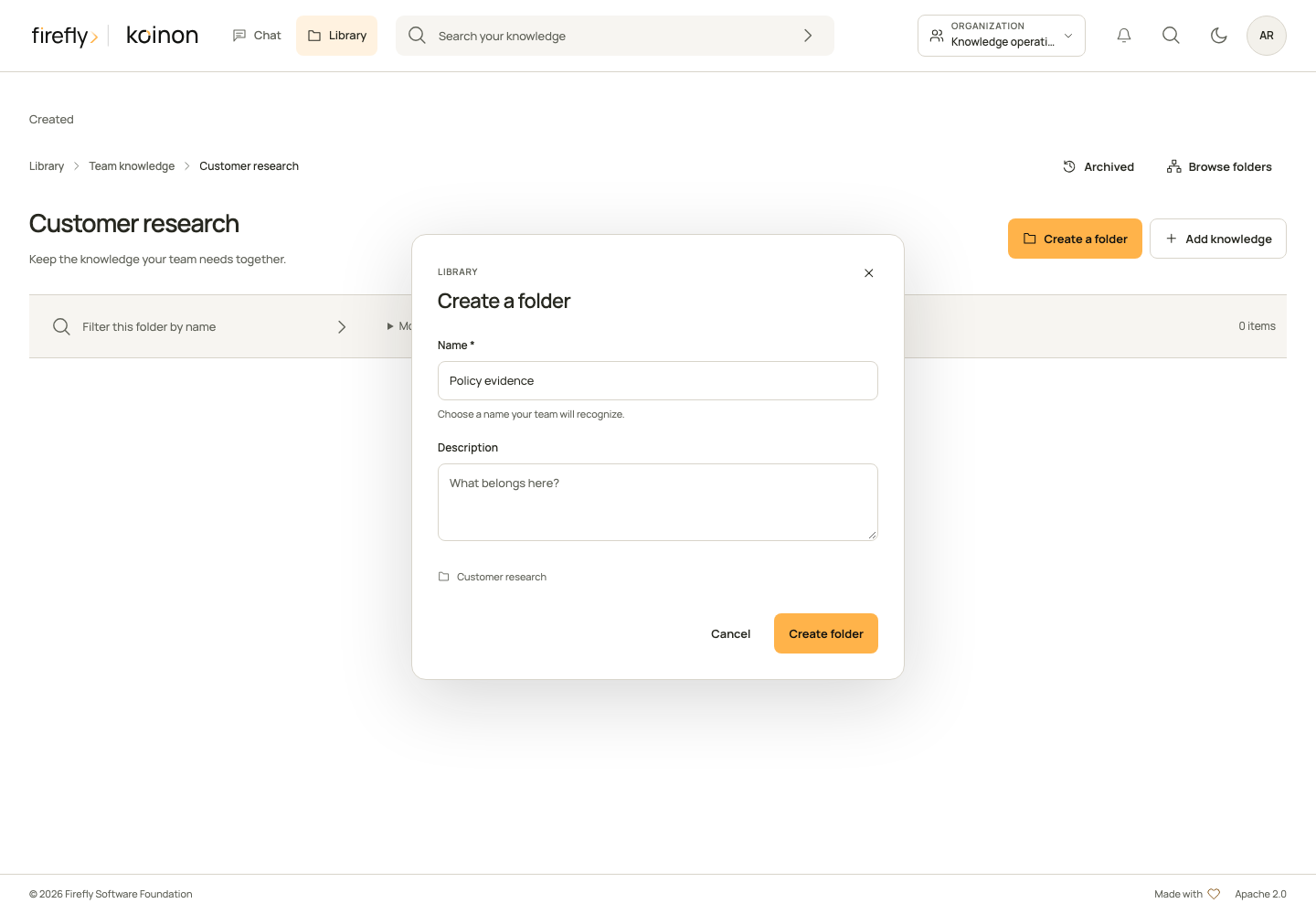
Move a folder safely
Select an ordinary organizational folder and its destination inside the same Library project and space. A move retains the folder and asset IDs, native source bindings, historical versions and previously recorded response evidence. The audit event records the old and new parent. New reads use the current path and current permissions.
The request includes the parent and update timestamp you last observed. If another person changed the folder, reload it and review the destination rather than repeating the old request. Moves reject cycles, archived destinations, excessive nesting and pending processing. Tokens restricted to individual assets cannot move a whole folder; the caller needs current write access to the knowledge space.
A move between spaces or Library projects returns KNOWLEDGE_TRANSFER_REQUIRED. This operation deliberately does not rewrite native scopes, indexes or source provenance. Cross-boundary transfer needs its own reviewed migration; it is not implemented by changing a parent identifier.
At the Library home, the server-paginated list contains spaces only. Open a space to see its projects, then open a project or folder to browse its children. Names in different levels are not peer spaces. Global knowledge search remains a separate action; the home list does not filter a previously downloaded recursive catalog on the client.
Find and open
Right-click a Library row, or use its actions button, to open the actions available for that item. Keyboard users can focus an item and press Shift+F10 or the context-menu key. Choose Open folder to browse, Details to inspect, or Edit details to change the name and description. Editors can also move ordinary nested folders within their current project or archive ordinary items after confirmation. System folders never offer move or archive. The separate information button still opens details directly.
Right-click the unused area of a folder list to create the next space, project or folder, or to add knowledge at the current location. These use the same forms and access checks as the toolbar. The toolbar remains available on touch devices. Press Escape to close the menu and return focus; actions are checked again against the current item and permissions before a form opens.
Choose the organization and space you have access to. Browse folders with the list, breadcrumb or knowledge tree. Search narrows the current context; clear the search to return to the folder. Opening an item and inspecting its details are separate actions, so a details drawer does not interrupt browsing.
A document keeps its source and extracted evidence. A dataset exposes its table and column definitions, immutable snapshots and governed query results. Names are for people; canonical identifiers and source bindings remain on the server.
Read and filter a folder
The list shows each item's name, type and available content details, metadata tags and last update. Folders show the content visible to you. Documents can show recorded pages and file size; datasets can show registered tables and recorded row or column counts. Missing statistics remain unknown. An original upload's size is not the total size of a dataset with several files.
Choose Name, Type & contents or Updated to change the server's ordering. The type column groups resource types; it does not sort by an inferred quantity. On a small screen, use the sort selector. More filters includes format, status, tags and Recently added. Apply the selection to filter the whole folder, including pages you have not opened. Active filter chips show what is applied and let you remove individual conditions.
Format and language labels come from recorded metadata or a supported file suffix. Custom tags keep their display spelling. These labels do not call a model or create new knowledge. Choosing a tag uses its recorded value as the server filter. Folder names alone do not establish a file format.
The page controls keep their labels and values together. Change the page size to return to the first page. Moving to another folder clears the previous folder's filters. Mobile rows retain the name, useful content details and tags without requiring the full desktop grid.
Add knowledge
Start from the destination folder and choose Add knowledge. Review the destination, file and processing mode before uploading. The result shows the observed processing state. Uploading bytes, processing a source and making knowledge searchable are distinct states. A failed provider or unsupported format must produce an actionable error; a request reaching the server is not a successful import.
flowchart LR
  Folder[Current folder] --> Select[Choose a file]
  Select --> Review[Review destination and content type]
  Review --> Upload[Upload]
  Upload --> Processing[Process and persist]
  Processing --> Ready[Open the resulting knowledge]
  Processing --> Failure[Inspect error and recover]
Editors can add and maintain knowledge in their authorized scope. Viewers can read and ask questions. Analysts can also query datasets. A missing permission should explain the action that requires access without exposing information from another organization or space.
Process ordinary uploads through the worker
When queued original storage is configured, Add knowledge registers a bounded file batch, verifies each selected original's SHA-256 in sequence, transfers the originals as raw bodies, and submits the batch to the file-intake worker. The API process receives and stages the bytes; it does not parse those queued documents or tables. A configured queue failure does not switch to synchronous parsing.
To inspect retained work after closing the upload panel or renewing your session, open Uploads in Library. The retained-upload guide explains current-owner and credential boundaries, explicit original checks, revisioned submission and uncertain outcomes. Reopening never resends a file or submits processing automatically.
The panel checks the server's current limits before sending files. The native upper bounds are 128 MiB per original and 512 MiB across the batch; an operator can configure lower bounds. The aggregate limit does not permit a single 512 MiB file. If queued storage is explicitly unavailable, only files within the observed synchronous limit, at most 32 MiB, can use the existing synchronous path. Unknown readiness blocks transfer rather than guessing a limit.
Queued, Extraction complete and cancellation outcomes come from the retained batch. A persisted worker-start record alone does not establish that a worker is still processing it: Processing requires the current native observation. Without that proof, the panel shows Worker state not verified. Current readable, queryable and searchable availability is shown separately from the original batch's outcome. Finishing extraction does not establish vector coverage or activate a search index.
If a transfer or submission acknowledgment is lost, choose Check status. The panel reads the retained batch and originals without sending them again. Reconcile retained original asks the native recovery operation to verify an already retained original; it does not reupload it or blindly repeat parsing. Inspect unfinished or reconciliation-required outcomes before starting different work. A partial synchronous response can also leave native effects, so its uncertain remainder is not automatically retried.
Request cancellation uses the current native batch revision. It stops pending work; already published effects can remain. Closing the panel stops its bounded automatic checks and leaves submitted work running. Keep the panel open while resolving an uncertain upload: its request keys remain bound to the current authenticated client and scope, and are cleared when that identity or scope changes. The batch itself remains on the server. After a page reload, open Library, Uploads to authorize and inspect it again with the current account and credential. The retained-upload panel does not restore old file objects or automatically send a saved action.
Queued storage configuration does not prove worker availability. Operators must run the complete worker role and explicitly enable koinon.knowledge.bulk.worker_enabled in its configuration. The query-batch scheduler has its own query_worker_enabled setting. For an environment-based local launch, scope the flag to the worker command:
PYFLY_KOINON_KNOWLEDGE_BULK_WORKER_ENABLED=true python -m koinon.worker
Do not apply that worker-only environment override to the API process, which rejects enabled background-worker flags. The file-batch capability response identifies the required external worker and configured storage, not a live worker heartbeat. Resource limits, parser supervision and original retention still apply; this interface does not qualify an arbitrary file or establish a universal memory minimum.
Recover processing from a saved original
A file can have a confirmed upload and still need processing attention. In Library, open Uploads, choose Inspect upload for the existing batch, then Inspect recovery on the affected file. This inspection does not upload bytes or automatically run another attempt. It checks the current owner, credential, destination and native processing outcome before offering an action.
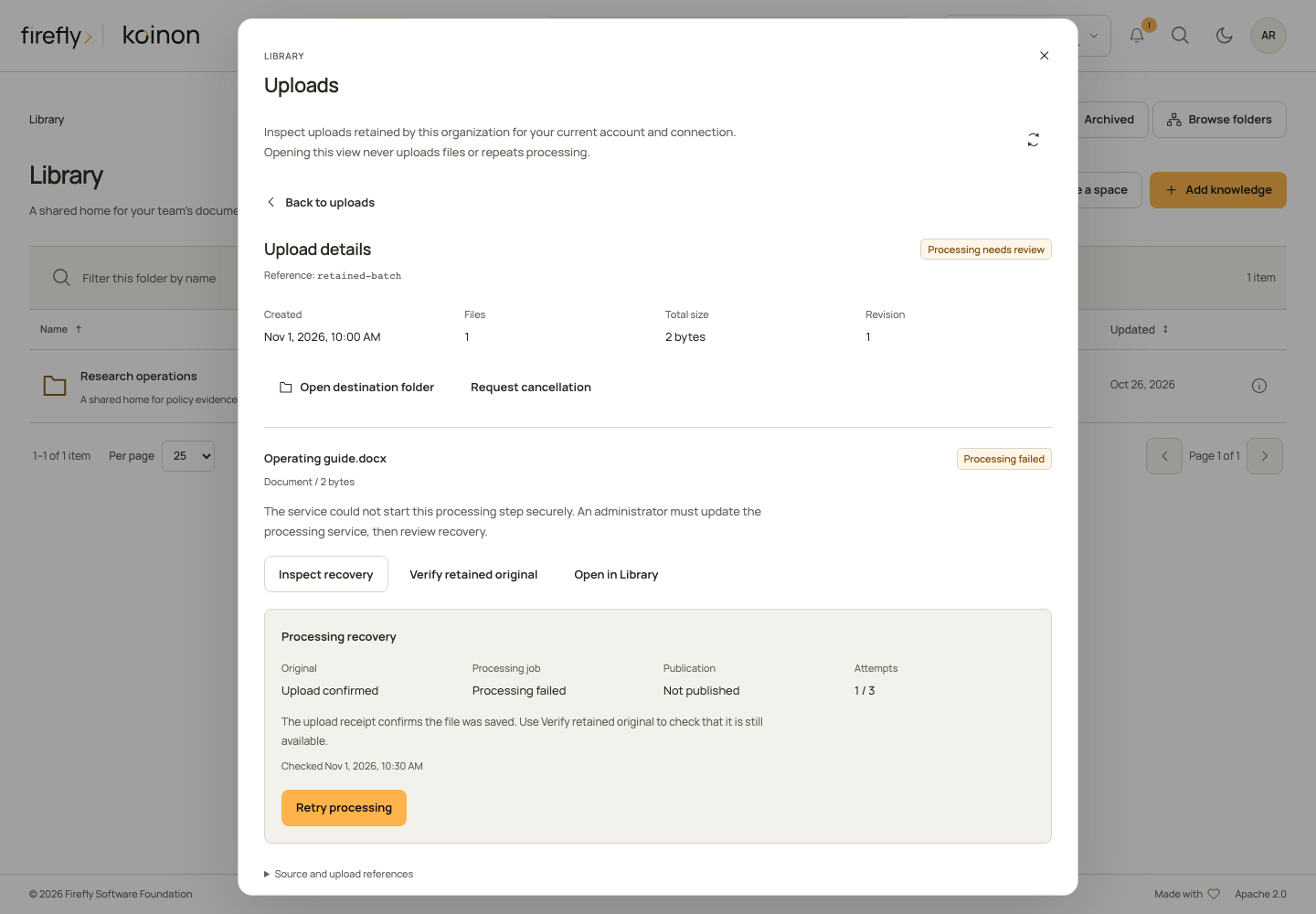
This controlled example shows an upload receipt alongside a failed job and unpublished knowledge. It illustrates the current recovery controls, not a completed import in a live deployment.
Read the three observations separately:
| Observation | What it tells you | Next step |
|---|---|---|
| Upload confirmed | A verified receipt records that the original was saved. It is not a fresh check of the stored object. | Choose Verify retained original if you need to check its current availability. |
| Processing failed | The inspected processing job failed. Earlier native effects may still exist. | Read the explanation and the server-offered recovery action. Do not infer that nothing was committed. |
| Not published, Publication not confirmed, Ready to publish or Import completed | The native observation distinguishes absence, uncertainty, a prepared result and a completed commit. | Review only the offered action; an unknown outcome does not authorize another attempt. |
Retry processing processes the same saved original again and may use configured AI services. It is offered when the native operation is absent, or when a current terminal failure is verified before publication. A verified failure must belong to the current attempt, retain the unchanged native head and original, and have no extraction commit. An admitted operation without that proof stays unconfirmed. The confirmed recovery reuses the same original, native version and job, advances the attempt counter, and checks authority again before publication. Finish publication completes an already prepared result. Record completed import acknowledges a verified existing commit. They are different authorizations. Review the selected action and confirm it once; the server checks its revision and state again. If no action is offered, follow the stated prerequisite or hand the reference to an administrator.
After confirmation, refresh the upload and open the Library item to inspect its current availability. An acknowledgment is not proof that processing or indexing has finished. If the request result is unknown, preserve its exact saved body and key and use Review saved request; reloading never repeats it automatically. The complete recovery walkthrough includes mobile review, permissions, attempt limits and typed examples for Python, TypeScript and Java.
Understand availability
A successful upload records the result of that request. It does not establish that a source is searchable. Library rows and details observe the current native source, extraction or table snapshot separately from catalog metadata.
Documents, datasets, tables and source records show one observed ingestion status rather than a second, potentially older catalog processing marker. Explicit lifecycle labels such as Draft, Disabled and Archived, and other catalog states, remain visible independently. If a replacement fails while an earlier version remains readable, the row keeps both the attention status and the explanation that the observed version is still available. An unavailable observation stays Availability not checked; it does not become ready because catalog metadata says so.
- Text available means that the current document has a recorded extraction and matching text chunks. It does not promise complete extraction of every page or image.
- Searchable additionally requires matching vectors in the active embedding set and its qualified native search index. A queued or running index job can show Queued or Indexing while text remains readable.
- Available to query means that the current dataset or table has an active, recorded snapshot. Provider health and a future query's success remain separate checks.
- Queued and Processing require a durable job record. A synchronous upload does not acquire an invented queue stage. Not checked remains visible when native evidence is absent, unsupported or changes during the observation.
An unsuccessful replacement can leave a serving version available. Details show the observed serving revision separately from the latest recorded replacement or reingestion attempt. Observed version remains available does not authorize retrying a failed operation or establish which effects a failed request committed. Check the retained attempt and current revision before recovery.
Availability reads check current organization, space and asset permissions before and after native observations. They are bounded to the visible items and show an observation time. They are not an execution reservation: a later request checks authority and native state again. Missing native state or revision drift stays unknown instead of falling back to a ready catalog status.
Administrators can open Activity to inspect current knowledge jobs and server-recorded content attempts. The processing list is paginated. Earlier synchronous stages without durable records remain unavailable. Bulk jobs do not offer the generic job cancellation button; cancellation requires the bulk operation's own current batch and revision contract.
Observe availability from an SDK
Use the same authenticated transport and current tenant as the rest of your client. The TypeScript factory is a secondary entry point so ordinary SDK clients do not load processing UI code:
import type { KoinonTransport } from '@fireflyframework/koinon-sdk';
import { createAvailabilityApi } from '@fireflyframework/koinon-sdk/availability';

async function inspect(transport: KoinonTransport, tenantId: string, assetId: string) {
  const availability = createAvailabilityApi(transport);
  const observation = await availability.observe(tenantId, { asset_ids: [assetId] });
  const asset = observation.items[assetId];
  return { observedAt: observation.observed_at, asset };
}
The equivalent Python operations are knowledge_availability and knowledge_processing; Java exposes catalog(tenantId).availability and catalog(tenantId).processing. The generated SDK reference records their typed inputs and outputs. Availability accepts at most 100 unique asset IDs. Administrator processing pages accept at most 50 records and require current jobs-management authority over the complete requested scope; asset-restricted credentials cannot read whole-workspace history.
Maintain and inspect
Keep titles and descriptions recognizable to the team. Inspect original source details, processing state, lineage and references before replacing or retiring knowledge. Dataset query results should identify the snapshot used; source evidence should retain section or page references when supplied by the source format.
Choose the history icon beside a dataset table to open History & lineage. Versions are paginated, and each detail read keeps the selected historical snapshot separate from the current pointer. A missing original record stays visible rather than being inferred from the latest file.
Document details expose extracted chunks with their citation identities and any supplied page or section. Processing offsets describe the emitted chunk stream, including overlap; they are not positions in the original file. Use page or section references when locating evidence in an original document.
The content API checks the current revision before replacing or reingesting knowledge. A document update requires acknowledgment that previous chunk identities will be invalidated. Existing citation rows remain recorded, and the response reports the actual effects. Dataset table updates preserve historical snapshots. If the revision changed, reload the current state and review it before retrying.
Archive keeps the content and its processing state while hiding the item and its descendants from the library. Restore brings them back. A processing job that finishes while an item is archived updates its saved state without making the item visible again.
Append a dataset file through the API
POST /api/v1/tenants/{tenant_id}/datasets/{dataset_id}/files requires a stable Idempotency-Key and accepts exactly one multipart file for an existing dataset. It keeps the dataset identity and appends the file's parsed sheets or sections as new tables, up to 128 tables within the configured upload byte limit. It records a file version, immutable input coordinates and snapshots. Existing table identities and historical snapshots remain retained. The result returns the canonical dataset, file-version and new table identifiers.
The SDK helpers are append_dataset_file in Python, dataset.appendFile in TypeScript and datasets(tenant).appendFile in Java. The caller needs current catalog and ingestion write permissions for the complete ancestry. Datasets with multiple canonical aliases are rejected pending explicit alias reconciliation.
Append takes an exclusive publication claim. Dataset queries and schema reads return DATASET_NOT_READY while intake is pending or failed. Native processing commits sections independently: if a later section or canonical publication fails, earlier native effects may remain. Existing files and snapshots are preserved, but the dataset stays unavailable until its retained file version is reconciled. The same key and exact file return the retained completed receipt after current permissions are checked, without repeating native work. The receipt describes the original completed operation; it is not a fresh dataset-readiness check. A changed payload conflicts, and unfinished keys require reconciliation. There is no automatic retry or public reconciliation helper.
This append endpoint has canonical, native-adapter and HTTP regression coverage. Canonical append locking, cancellation, replay and revocation passed eleven PostgreSQL checks with a controlled native port. Full native/provider append acceptance and recovery remain separate qualification steps. It does not provide asynchronous or bulk intake.
Physical deletion is a separate API operation. It rejects nonempty resources and active workspace memberships. Source retention and storage cleanup use their own domain operations.
Use on a small screen
Navigation and the knowledge tree open as dismissible drawers. Keep the current folder visible when closing them. Open the detail inspector only when needed. Wide dataset results can scroll inside their own region while the page and primary controls remain usable.
Keyboard users should be able to reach search, expand the tree, open a row, inspect details and dismiss dialogs with focus returned to the originating control. Reduced-motion settings disable decorative heartbeat and movement while preserving progress and status information.