Connect the CLI to a platform
Use this guide to point the weave command line at a running Weave
platform: the server your team operates, or the
local platform you started yourself. It is written for
developers and operators who work in a terminal. If you work in Studio, follow
Connect to a platform instead; Studio, the
CLI, and the desktop app share the platforms you save, so you connect once.
Before you start, you need:
- The CLI installed, version 0.1.0a7 or later (see the next paragraph).
- The server address from your administrator, such as
weave.example.com. - An account at your organization's identity provider that your administrator has linked to a Weave person with a role in at least one workspace. What your administrator does describes that side.
Setup takes a few minutes. You do not need PostgreSQL, Keycloak, or any server configuration on your computer.
weave auth setup and saved platforms are new in 0.1.0a7. An alpha6 or
earlier CLI has only weave auth login, status, and logout with an
operator's connection file, which every remote command then needs as well; see
Use a connection file. weave auth --help lists
setup when it is available.
How a connection works
One command connects you. weave auth setup asks the server how people sign
in, shows you the identity provider to review, signs you in, and saves the
result as a profile, the CLI's name for a saved platform: the server address,
the sign-in settings you reviewed, and your workspace (a tenant, project, and
environment). After that, remote commands such as weave runs list need no
address, token, or scope flags.
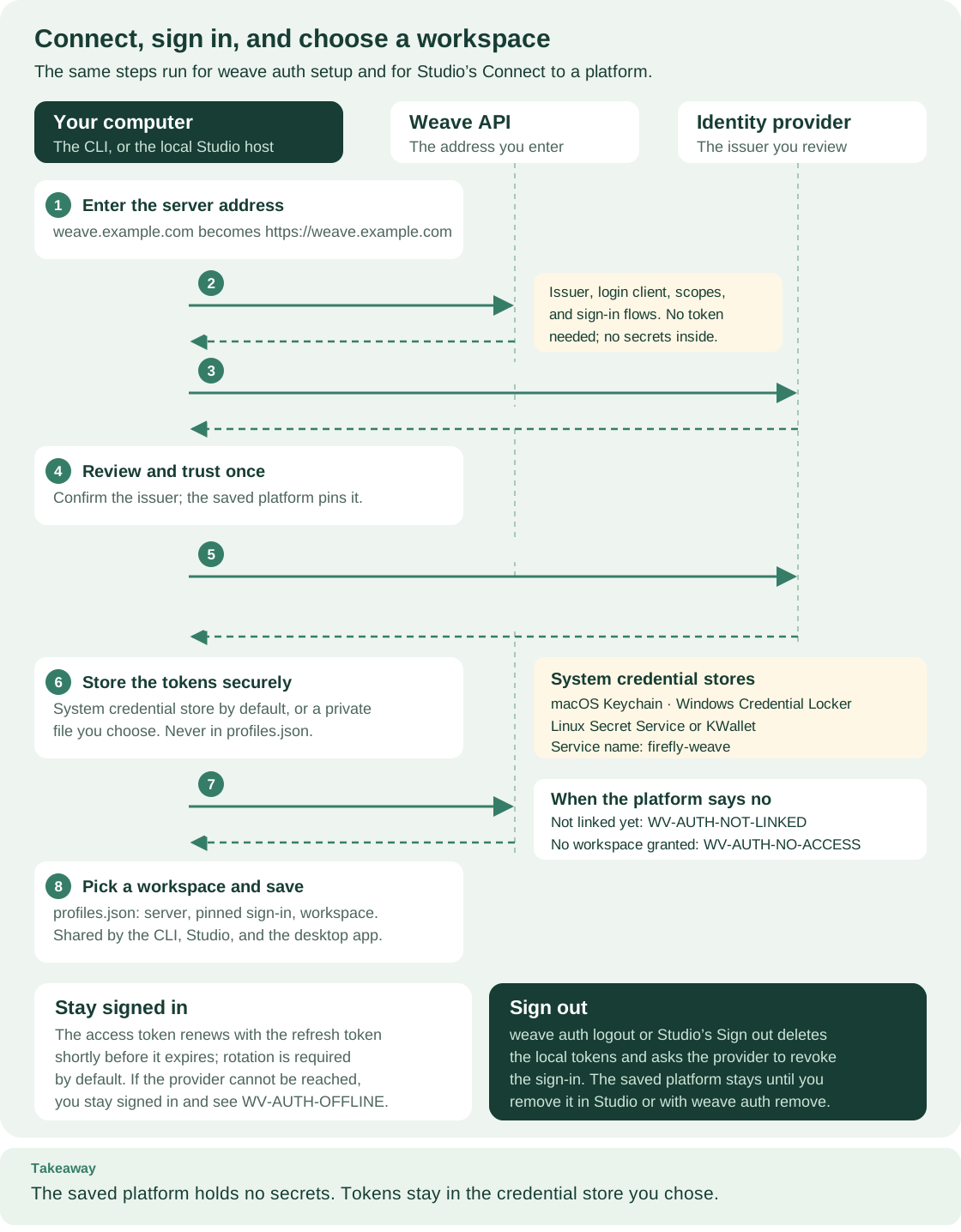
Read the numbered steps from top to bottom: they are the same for
weave auth setup and for Studio. Tokens go to the credential store in step 6.
Only the address, the reviewed sign-in settings, and the workspace reach
profiles.json: weave auth setup saves the platform as soon as you confirm
the review in step 4 and adds the workspace in step 8. The CLI prints four
stages that group these steps: Server is steps 1–2, Review is 3–4,
Sign in is 5–6, and Workspace is 7–8.
Open diagram at full size.
What has been verified. The steps on this page were run against
the local platform's Keycloak 26.7.4, which weave platform setup installs:
browser sign-in (authorization code with PKCE, which ties the browser's answer
to the CLI that started it), sign-in with a code (device flow), silent renewal,
switching account, an account the platform does not know, an account without a
workspace, several saved platforms, and sign-out with revocation. That run kept
its tokens in a private credential file, not in a
system credential store. Entra application tokens have separately been verified
in Azure preproduction; Entra human sign-in and other identity providers remain
unverified. See
Use Microsoft Entra ID or another identity provider.
Choose how you connect
| Your situation | Use | What you get |
|---|---|---|
| You work at a terminal and can sign in yourself | weave auth setup SERVER |
A saved platform; sign-in renews automatically; your workspace is remembered |
| A script, CI job, or service runs the commands | Explicit mode: --base-url, --tenant, and WEAVE_ACCESS_TOKEN |
Nothing is saved on the machine; your pipeline supplies a current token |
| Your operator gave you a connection file, because the server publishes no sign-in settings or you use an alpha6 or earlier CLI | A connection file | The same saved platform, built from the file; with an alpha6 or earlier CLI, you pass the file to every command instead |
| You want to try everything on your own computer first | The local platform | A development account and the same steps against http://127.0.0.1 |
Before you start: what your administrator does
A valid sign-in is not access. Your administrator prepares the platform
once. If you run the local platform, weave platform setup
and weave platform user do all of this for you.
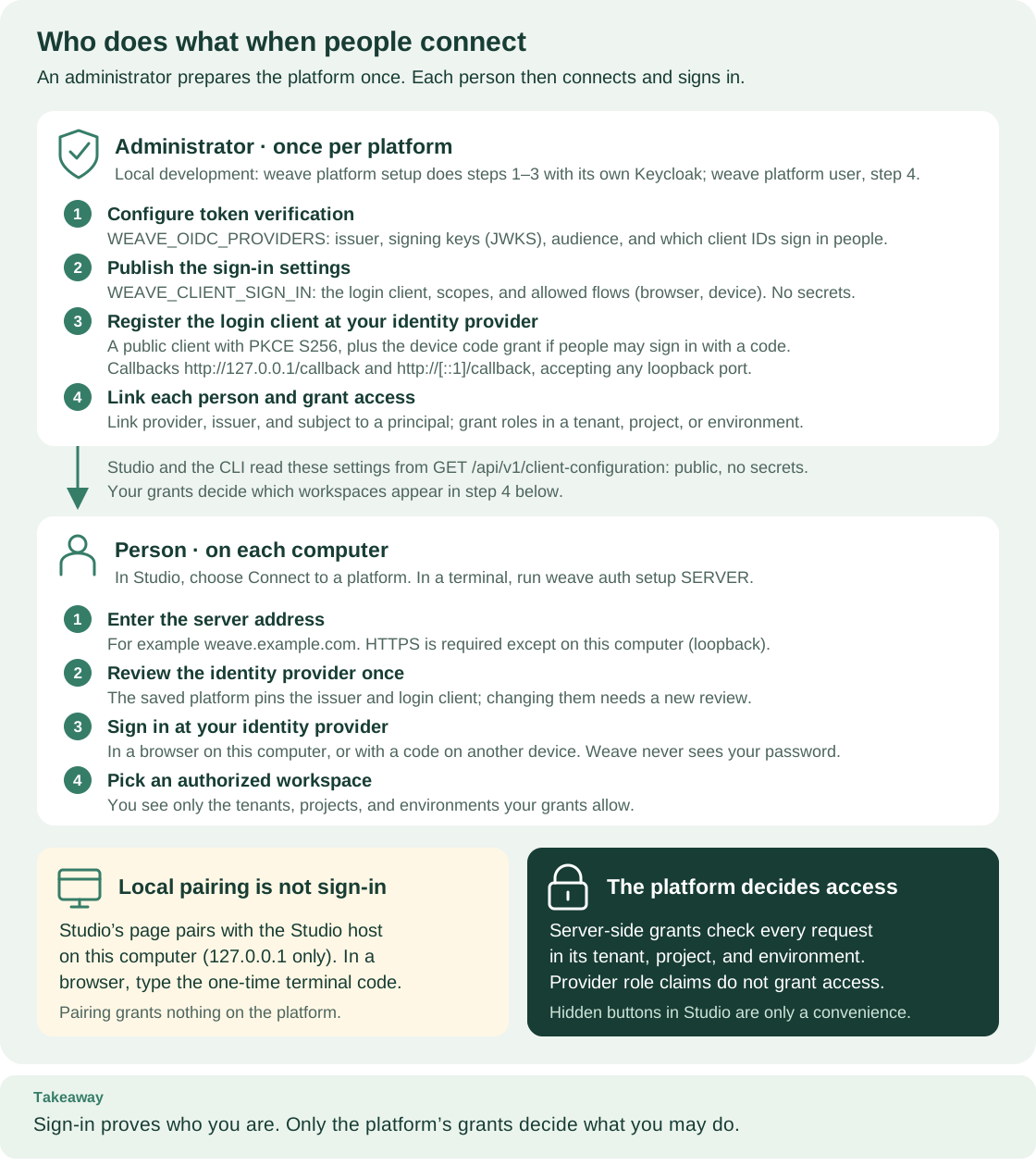
The top band is the administrator's one-time work; the middle band is what each
person does with weave auth setup. The boxes at the bottom explain that pairing
a browser tab with Studio's local host grants nothing, and that the platform
decides access. Open diagram at full size.
-
Configure token verification for your organization's identity provider, as described in Use your own identity provider. Register a public login client at that provider: authorization code with PKCE
S256, the device grant if people may sign in with a code, and the port-free loopback callbackshttp://127.0.0.1/callbackandhttp://[::1]/callback. Register the public login client lists every requirement. -
Publish the sign-in settings people use, with the server variable
WEAVE_CLIENT_SIGN_INand, optionally, a friendlyWEAVE_DISPLAY_NAME. This illustrative value offers one option for a provider configured ascorp-oidc; it is not a preset for a named product:# One sign-in option: a public login client of the provider "corp-oidc" in WEAVE_OIDC_PROVIDERS. export WEAVE_CLIENT_SIGN_IN='[{"provider_id":"corp-oidc","display_name":"Corporate sign-in","client_id":"weave-cli","scopes":["openid","profile","email"]}]' # The name people see during setup (at most 100 printable characters). export WEAVE_DISPLAY_NAME="Acme Weave"Expected: the API starts normally. An invalid value stops startup with an error that includes
Invalid WEAVE_CLIENT_SIGN_IN configuration.client_idmust be ahumanclient of that provider, and no field can hold a secret. Publish sign-in settings for people lists every field. -
Check what people will receive. The API publishes these settings without authentication:
# Read the public sign-in settings exactly as weave auth setup does.
curl -fsS https://weave.example.com/api/v1/client-configuration
Expected: a JSON object with
"service": "firefly-weave", yourdisplay_name, and onesign_inentry per option. The issuer comes from the server's provider configuration, never from the request. -
Create a Weave person, link their identity-provider account, and grant roles in a tenant, project, and environment, as described in Give people the right access. You can also do this after the person's first sign-in: setup prints the issuer, provider ID, and subject you need.
-
Give the person the server address, such as
weave.example.com. They do not need UUIDs, a client ID, or a token.
If you cannot publish sign-in settings, give people a connection file instead.
Set up your first connection
1. Run setup
Setup turns the server address into a saved platform you can sign in to. Run it in an interactive terminal so it can ask you to review the identity provider:
# Use the address your administrator gave you; https:// is added when you leave out the scheme.
weave auth setup weave.example.com
Setup prints four steps on standard error and asks only what it cannot decide:
- Step 1 · Server checks the address and reads the server's public sign-in
settings. Plain
http://is accepted only forlocalhost,127.0.0.1, and[::1]. Paths, user names, link-local addresses, and cloud metadata addresses are refused; private network addresses are allowed. - Step 2 · Review shows the platform, the sign-in provider, the identity
provider's address, the sign-in methods your administrator allows, and the
login client with its scopes. It asks
Name for this platform(with a suggestion) and thenTrust IDENTITY_PROVIDER to sign you in to SERVER? [y/N]. Answeryonly if that identity provider address is the one your organization uses. The platform is saved as soon as you confirm. - Step 3 · Sign in opens your browser. Without a usable browser, it shows an address and a code to enter on any device instead.
- Step 4 · Workspace picks your only workspace automatically, or shows a numbered list of Tenant / Project / Environment entries to choose from.
Here is a real run against the local development platform. It answered the
review with --name local --yes, used --flow browser --no-browser to print
the browser sign-in address instead of opening it, and kept its tokens in a
private credential file. Ports, IDs, and the random values in the address
differ on every run, and the run's temporary folder is shown as the default
macOS location.
Step 1 of 4 · Server
Contacting http://127.0.0.1:API_PORT ...
Found Local Weave platform at http://127.0.0.1:API_PORT.

Step 2 of 4 · Review
Checking the identity provider at http://localhost:KEYCLOAK_PORT ...
  Platform:          Local Weave platform (http://127.0.0.1:API_PORT)
  Sign-in provider:  Local Keycloak (development)
  Identity provider: http://localhost:KEYCLOAK_PORT
  Sign-in methods:   browser on this computer, code on another device
  Login client:      weave-cli (scopes: openid)
  Profile name:      local
Trust confirmed with --yes.
Saved platform 'local' to /Users/YOUR_USER/Library/Application Support/Firefly Weave/profiles.json (server address, identity provider and workspace choice only; no passwords or tokens).

Step 3 of 4 · Sign in
Open this address in a browser on this computer to sign in:
  http://localhost:KEYCLOAK_PORT/realms/weave/protocol/openid-connect/auth?response_type=code&client_id=weave-cli&redirect_uri=http%3A%2F%2F127.0.0.1%3ACALLBACK_PORT%2Fcallback&scope=openid&state=RANDOM_STATE&code_challenge=RANDOM_CHALLENGE&code_challenge_method=S256
Waiting for you to finish signing in (Ctrl+C cancels)...
Done (0s).
Signed in as alice.

Step 4 of 4 · Workspace
Using the only workspace available: first-run-TENANT_SUFFIX / first-project / local
Workspace: first-run-TENANT_SUFFIX / first-project / local
The sign-in address carries a one-time state and a PKCE code_challenge.
After you sign in, the identity provider returns to a temporary listener on
127.0.0.1:CALLBACK_PORT of the computer that runs the CLI. Then setup prints
its summary on standard output. With the default credential store, it reads:
Platform 'local' is set up and active.
  Server:      http://127.0.0.1:API_PORT
  Signed in:   yes, as alice
  Workspace:   first-run-TENANT_SUFFIX / first-project / local
  Saved to:    /Users/YOUR_USER/Library/Application Support/Firefly Weave/profiles.json (no passwords or tokens)
  Credentials: system credential store
Next:
  weave studio
  weave auth status --profile local --check
Expected: exit status 0 and an active platform. If setup stops, its last lines say what was saved and the command that continues from there.
2. Confirm the connection
A plain status only reads what is saved on your computer. --check also asks
the platform whether it accepts your sign-in:
# Show what is saved on this computer: the platform, your account, and the workspace.
weave auth status
# Also ask the platform whether it accepts your sign-in, and count your workspaces.
weave auth status --check
Expected: both commands exit with status 0. The first printed the following in
the verified run; its last line read file: and the credential file's path
there, and with the default store it reads as shown:
Platform:          local (active)
Server:            http://127.0.0.1:API_PORT
Identity provider: http://localhost:KEYCLOAK_PORT
Sign-in:           signed in as alice (until YYYY-MM-DD HH:MM TZ, renews automatically)
Workspace:         first-run-TENANT_SUFFIX / first-project / local
Credentials:       system credential store
--check also contacts the platform, adds verified with the platform to the
sign-in line, and adds a Workspaces you can use count.
3. Make a read-only request
Reading the project catalog proves that the server, your sign-in, and your workspace work together, without changing anything:
# A read-only request: the server, sign-in, and workspace all come from the saved platform.
weave remote catalog --output json
Expected: a JSON catalog of the project's definitions and exit status 0. An empty catalog is valid for a new project. Read access does not imply permission to publish, activate, or run; ask your administrator for the roles you need.
Try it on the local platform
Use this path to practice both roles, administrator and person, on one computer. The verified run described in How a connection works used this path.
-
Start the platform as described in Start a local platform:
weave platform setup, keepweave platform startrunning in one terminal, then runweave platform demoin another. -
As the administrator, create a development person who can sign in:
# Creates a Keycloak account, a linked Weave person, and demo-workspace roles; prints the password once.
weave platform user --username alice
Expected:
Username, a generatedPasswordshown once, the granted roles, and the next command,weave auth setup http://127.0.0.1:API_PORT. The password is never saved. The default roles can author, publish, activate, run, inspect runs, and work on human tasks.Will you create integration connections, as in Call a REST API without code, or reviewer groups for human tasks?
--rolereplaces the defaults, and an existing username is never changed, so create the person with every role now instead: -
As that person, run the printed
weave auth setupcommand and sign in with the username and password in the Keycloak page that opens.
A Keycloak realm from an earlier setup is kept as it is.
weave platform start adds the port-free loopback callbacks that browser
sign-in needs to such a retained realm, but not the newer setting that puts
your username in the ID token. Setup may then show your account's subject ID
instead of your username; only the display is affected.
What is saved, and where
Saved platforms never contain passwords or tokens. Only the platform's
address, the sign-in settings you reviewed, your workspace choice, and a hint of
the last account you signed in with are written to profiles.json:
| Operating system | File |
|---|---|
| macOS | ~/Library/Application Support/Firefly Weave/profiles.json |
| Windows | %APPDATA%\Firefly Weave\profiles.json |
| Linux and other systems | $XDG_CONFIG_HOME/firefly-weave/profiles.json, or ~/.config/firefly-weave/profiles.json when XDG_CONFIG_HOME is unset |
| Any system | $WEAVE_CONFIG_HOME/profiles.json when you set WEAVE_CONFIG_HOME to an absolute path |
The CLI, Studio, and the desktop app share this file. WEAVE_CONFIG_HOME
gives a script or a second identity its own set of platforms. On macOS and
Linux the folder is created with mode 0700 and the file with mode 0600, and
looser modes are tightened. On Windows the file relies on your user profile's
permissions. Symbolic links are refused. Every change replaces the file
atomically under a lock (profiles.json.lock), so two commands cannot overwrite
each other. The file holds at most 64 platforms and 1 MiB. A file that does not
parse stops every weave auth command with WV-PROFILE-STORE and is never
rewritten automatically. Studio keeps its start preference in studio.json in
the same folder.
This profiles.json comes from the local-platform run and holds one platform.
Ports, IDs, and timestamps are replaced, and credential_store and
credential_file show the default store instead of the run's private file:
{
  "version": 1,
  "active": "local",
  "profiles": {
    "local": {
      "name": "local",
      "login": {
        "provider_id": "local-keycloak",
        "issuer": "http://localhost:KEYCLOAK_PORT/realms/weave",
        "client_id": "weave-cli",
        "target": "http://127.0.0.1:API_PORT",
        "account": "local",
        "scopes": ["openid"],
        "trusted_endpoint_origins": [],
        "allow_loopback_http": true,
        "timeout": 10.0,
        "login_timeout": 300.0,
        "require_refresh_rotation": true
      },
      "source": "server",
      "display_name": "Local Weave platform",
      "provider_name": "Local Keycloak (development)",
      "flows": ["browser", "device"],
      "workspace": {
        "tenant_id": "TENANT_UUID",
        "project_id": "PROJECT_UUID",
        "environment_id": "ENVIRONMENT_UUID",
        "tenant_name": "first-run-TENANT_SUFFIX",
        "project_name": "first-project",
        "environment_name": "local"
      },
      "account": {
        "subject": "SUBJECT_UUID",
        "display_name": "alice",
        "issuer": "http://localhost:KEYCLOAK_PORT/realms/weave",
        "provider_id": "local-keycloak"
      },
      "credential_store": "native",
      "credential_file": null,
      "created_at": "CREATED_AT",
      "updated_at": "UPDATED_AT"
    }
  }
}
Credentials live in your operating system's credential store by default,
under the service name firefly-weave. Each platform has its own record, keyed
by a SHA-256 hash of its provider ID, issuer, login client, server address, and
platform name. Only these stores are accepted:
| Operating system | Credential store |
|---|---|
| macOS | Keychain |
| Windows | Windows Credential Locker |
| Linux | An unlocked Secret Service (for example GNOME Keyring) or KWallet |
Other keyring backends, such as plain-text files, are refused with
WV-AUTH-STORE. On macOS and Linux the CLI also keeps empty lock files in
~/.weave-credential-locks. The Windows and Linux stores are covered by unit
tests only in this release; they have not been checked on real Windows or Linux
desktops.
If no credential store is available, for example on a headless Linux server, save the platform with a private file instead. The folder must already exist, belong to you, and have mode 0700; no part of the path may be a symbolic link:
# Create a private folder for the credential file (umask 077 makes it owner-only).
umask 077
mkdir -p "$HOME/.weave-credentials"
chmod 700 "$HOME/.weave-credentials"
# Save the platform with an explicit credential file; tokens are written there, never to profiles.json.
weave auth setup weave.example.com --name work --credential-store file \
  --credential-file "$HOME/.weave-credentials/work.json"
Expected: the summary shows Credentials: file: followed by that path. The
file holds the access and refresh tokens in owner-only JSON (mode 0600), next to
a work.json.lock file. The file store is available on macOS and Linux only. To
move an existing platform to a file, run the same command with its name and
--replace.
Everyday commands
| Task | Command |
|---|---|
| See the active platform and its sign-in | weave auth status |
| Check the sign-in and workspaces with the platform | weave auth status --check |
| List saved platforms (never reads credentials) | weave auth profiles |
| Show the sign-in state of every platform | weave auth status --all |
| Sign in again | weave auth login |
| Sign in with a code on another device | weave auth login --flow device |
| Print the sign-in address instead of opening a browser | weave auth login --no-browser |
| Sign in with another account | weave auth login --switch-account |
| Choose another workspace | weave auth workspace |
| Make another platform the active one | weave auth use NAME |
| Use another platform for one command | --profile NAME, or WEAVE_PROFILE=NAME |
| Sign out | weave auth logout |
| Forget a platform | weave auth remove NAME |
Commands that take --profile NAME act on that platform, else on
WEAVE_PROFILE, else on the active platform. Names ignore letter case. The CLI reference
lists every option.
Sign in again or with a code
Your sign-in renews by itself while the identity provider allows it. When it can no longer renew, remote commands stop with a message naming the command to run:
Expected: Signed in to 'NAME' (SERVER) as ACCOUNT. and exit status 0.
--flow auto (the default) uses the browser when one can open on this computer,
and otherwise a code. --flow browser and --flow device choose explicitly, and
--flow pkce is another name for browser. Your administrator decides which
methods a platform allows. Asking for another one stops with WV-AUTH-FLOW
before anything is sent. --no-browser prints the address instead of opening
it; with --flow auto it chooses a code when the platform allows one. A new
sign-in replaces the current one, so if you cancel weave auth login or it
fails, you are signed out of that platform until you sign in again.
Work over SSH or without a browser
Browser sign-in returns to a temporary listener on 127.0.0.1 of the computer
that runs the CLI, so the browser must run on that same computer. Over SSH,
sign in with a code: open the printed address on any device and enter the code.
When the platform allows codes, --flow auto chooses one by itself if
SSH_CONNECTION or SSH_TTY is set, on Linux without DISPLAY or
WAYLAND_DISPLAY, or when no browser can be started. A code sign-in looks like
this real output; the code changes every time:
To sign in, open this address in a browser on any device:
  http://localhost:KEYCLOAK_PORT/realms/weave/device
and enter this code:
  ABCD-EFGH
Waiting for you to approve the sign-in (Ctrl+C cancels)...
Switch account
# Ask the identity provider to show its sign-in page again, even when you are already signed in there.
weave auth login --switch-account
Expected: the provider asks for an account, and the CLI reports the new one.
Switching uses the browser, because only a browser sign-in can ask the provider
to prompt again (prompt=login). On a platform that allows only codes, the CLI
explains how to choose the account in your browser instead. The platform keeps
one sign-in at a time; the new account replaces the previous one.
Change workspace
# Show the workspaces this account can use and pick one by number (interactive terminals only).
weave auth workspace
Expected: Workspace for 'NAME': TENANT / PROJECT / ENVIRONMENT. In a script,
pass all three of --tenant, --project, and --environment. --clear
forgets the saved workspace. The list comes from the platform, so it shows only
workspaces where you hold a grant.
Work with several platforms
Run weave auth setup once per platform with a different --name. Each
platform keeps its own sign-in, so signing out of one never touches another.
# Save a second platform without making you sign in again on the first one.
weave auth setup weave.staging.example.com --name staging
# Switch the active platform back to the first one.
weave auth use local
# Run one command against the other platform without switching.
weave runs list --profile staging --output json
Expected: Now using 'local' (SERVER). after use. Setup always makes the new
platform active. Without --name, setup suggests a name made from the server's
display name or host, numbered when it is taken (such as acme-weave-2), so
running it again creates another platform; pass --name NAME --replace to
update an existing one instead.
Your saved platform keeps the sign-in settings you reviewed. The CLI does
not re-read them from the server. If your administrator changes the identity
provider or login client, run weave auth setup SERVER --name NAME --replace
and review them again.
Sign out and remove a platform
# Remove the local credentials and ask the identity provider to revoke the sign-in.
weave auth logout
Expected: Signed out of 'local' (SERVER); the identity provider revoked the
sign-in. In the verified run, the JSON result reported
"remote_revocation": "confirmed". Revocation is the default; --no-revoke only
removes the local credentials. When the provider offers no revocation endpoint
or does not answer, the message says that revocation could not be confirmed.
The saved platform and its workspace stay, so weave auth login brings you
back.
# Forget the platform and sign out of it; --yes skips the question in scripts.
weave auth remove staging --yes
Expected: Removed 'staging'. You are signed out of it. --keep-credentials
forgets the platform but leaves its stored credentials. Without --yes, the
command asks first, and outside a terminal it stops with WV-AUTH-INPUT.
How remote commands choose a platform
Every remote command (remote, definitions, runs, connections,
human-tasks, and the other API families) works in one of two modes.
Explicit mode applies when you pass --auth-config FILE, type
--base-url, or have WEAVE_BASE_URL set without typing --profile. Nothing
saved is used:
- the server is
--base-urlorWEAVE_BASE_URL, or the connection file's server when only--auth-configis given; - the credentials are
WEAVE_ACCESS_TOKEN, or the sign-in made with that connection file; --tenant(orWEAVE_TENANT_ID) is required, plus--projectand--environment(orWEAVE_PROJECT_IDandWEAVE_ENVIRONMENT_ID) when the operation needs them.
Profile mode applies otherwise. The platform is --profile NAME, else
WEAVE_PROFILE, else the active platform. Its server, sign-in, and workspace
are used. A scope flag replaces its own level and every level below it, so you
never mix levels from different tenants or projects:
| You pass | Tenant | Project | Environment |
|---|---|---|---|
| No scope flags | Saved | Saved | Saved |
--environment E |
Saved | Saved | E |
--project P |
Saved | P |
Only from --environment |
--tenant T |
T |
Only from --project |
Only from --environment |
In profile mode, WEAVE_TENANT_ID, WEAVE_PROJECT_ID, and
WEAVE_ENVIRONMENT_ID count as these flags. One exception protects you from a
leftover shell: when you type --profile while WEAVE_BASE_URL is set, that
address and the inherited scope variables are ignored. Typing --profile
together with --base-url or --auth-config is a usage error (exit status 2).
# Return this shell to profile mode after an earlier explicit-mode session.
unset WEAVE_BASE_URL WEAVE_ACCESS_TOKEN WEAVE_TENANT_ID WEAVE_PROJECT_ID WEAVE_ENVIRONMENT_ID
# Use the saved workspace, but another environment of the same project.
weave runs list --environment YOUR_OTHER_ENVIRONMENT_UUID --output json
Expected: runs from that environment, if you hold a grant there. When nothing
can be resolved, the command prints WV-CLI-CONFIG with the fix, for example
No platform is selected. Run 'weave auth setup SERVER' to connect, or pass
--base-url and --tenant.
, and exits with status 2.
Scripts and CI (explicit mode)
Use explicit mode where no person can sign in, or when you must not save a platform. With a supplied token, the CLI saves nothing and never renews it; your pipeline must supply a current one.
Use a supplied access token
# Read the values your operator supplied; in CI, set them from pipeline variables instead.
printf 'Weave API origin: '; read -r WEAVE_BASE_URL
printf 'Tenant UUID: '; read -r WEAVE_TENANT_ID
printf 'Project UUID: '; read -r WEAVE_PROJECT_ID
printf 'Environment UUID: '; read -r WEAVE_ENVIRONMENT_ID
export WEAVE_BASE_URL WEAVE_TENANT_ID WEAVE_PROJECT_ID WEAVE_ENVIRONMENT_ID
# Prompt for the token without echoing it or keeping it in shell history.
export WEAVE_ACCESS_TOKEN="$(python3 -c 'import getpass; print(getpass.getpass("Access token: "))')"
weave remote catalog --output json
Expected: the same JSON catalog as above. The three IDs are UUIDs returned by
Weave; a project name cannot replace them. WEAVE_ACCESS_TOKEN is read only in
explicit mode without --auth-config. When you finish, run
unset WEAVE_ACCESS_TOKEN.
Run in a CI pipeline
A pipeline signs in as an application, not as a person. It cannot answer a browser sign-in, so it uses a token from the identity provider's client-credentials flow. Set it up once with your administrator:
- Register a confidential client for the pipeline in your identity provider (step 1 of identity setup).
- Add that client to the API's trust profile as
applicationinclients(step 2). - Create a Weave principal with
{"kind": "application"}, link thesubof the pipeline's token to it, and grant only the roles the pipeline needs, for exampledeveloperto publish andoperatorandviewerto start and read runs (People and access). - Store the client's credential in your CI system's secret store. Each job
requests a token with it and exports it as
WEAVE_ACCESS_TOKEN.
A job then runs remote commands in explicit mode without any prompt. This example starts one run and waits for a final state; the request file is built as in the CLI tutorial:
# Stop at the first failure, and fail fast if a variable is missing.
set -eu
: "${WEAVE_BASE_URL:?}" "${WEAVE_TENANT_ID:?}" "${WEAVE_PROJECT_ID:?}" "${WEAVE_ENVIRONMENT_ID:?}" "${WEAVE_ACCESS_TOKEN:?}"
# Derive the idempotency key from the commit, so a retried job never starts a second run.
weave runs start --request run-request.json --idempotency-key "run-$CI_COMMIT_SHA" \
  --output json > run.json
RUN_ID="$(python3 -c 'import json; print(json.load(open("run.json"))["id"])')"
# Poll for at most five minutes.
for attempt in $(seq 1 60); do
  STATUS="$(weave runs read "$RUN_ID" --output json | python3 -c 'import json,sys; print(json.load(sys.stdin)["state"]["status"])')"
  case "$STATUS" in
    succeeded) exit 0 ;;
    failed|cancelled|timed_out|suspended) echo "Run $RUN_ID is $STATUS" >&2; exit 1 ;;
  esac
  sleep 5
done
echo "Run $RUN_ID did not finish in time" >&2
exit 1
Expected: the job exits 0 when the run succeeds. Replace CI_COMMIT_SHA with
your CI system's commit variable. A suspended run waits for an operator's
decision (incident operations). Remote
commands exit 1 for a denied request and 3 for a network or platform failure;
see exit codes.
This recipe follows the CLI and API contracts; linking an application principal
end to end has been run only for the local host application, as in
the manual local setup.
Use a connection file
A connection file is a non-secret JSON sign-in configuration from your
operator. Use one when the server publishes no sign-in settings
(WV-CONNECT-NO-SIGN-IN). This illustrative file shows the shape; take every
value from your operator:
{
  "provider_id": "corp-oidc",
  "issuer": "https://login.example.com/realms/weave",
  "client_id": "weave-cli",
  "target": "https://weave.example.com",
  "account": "work",
  "scopes": ["openid", "profile", "email"]
}
The CLI reference describes every field. The preferred way is to save it as a platform:
# Import the operator's file instead of asking the server; review and sign-in work as before.
weave auth setup --auth-config /absolute/path/to/connection.json
Expected: the same four steps, with Connection file and Provider id in the
review. target must be an exact https:// origin (http:// only on
loopback) and cannot point at link-local or metadata addresses. The saved
platform's name replaces account.
You can also use the file directly in explicit mode. This is the only way to
sign in with an alpha6 or earlier CLI, and it still works in 0.1.0a7. In this
mode, login, status, and logout print JSON only, and every remote command
needs the file and the scope variables from
Use a supplied access token, without
WEAVE_ACCESS_TOKEN. A 0.1.0a7 CLI takes the server from the file's target;
an alpha6 or earlier CLI also needs WEAVE_BASE_URL:
# Sign in with the file; a code sign-in prints its address and code on standard error.
weave auth login --auth-config connection.json
# Pass the same file to each remote command; WEAVE_TENANT_ID and the other scope variables must be set.
weave remote catalog --auth-config connection.json --output json
Expected: "authenticated": true from login, then the catalog. With a
connection file, --flow auto uses a code when the provider offers one. A
browser sign-in opens the browser without printing its address unless you add
--no-browser.
Run setup without questions
Every question in weave auth setup has a flag, so the same setup runs from a
provisioning script:
# Save and sign in without prompts; someone must still complete the sign-in shown on standard error.
weave auth setup weave.example.com --name work --yes --flow device \
  --tenant YOUR_TENANT_UUID --project YOUR_PROJECT_UUID \
  --environment YOUR_ENVIRONMENT_UUID --output json
Expected: one JSON document on standard output with profile, server,
active, authenticated, account, workspace, saved, and next.
--no-login saves the platform without signing in; --skip-workspace signs
in without choosing a workspace; --provider ID picks an option when the server
offers several.
Output, exit codes, and interruptions
Results go to standard output; everything else goes to standard error. The
weave auth commands print text by default. With --output json they print
exactly one JSON document on standard output and nothing else, and prompts, the
sign-in address, the code, and guidance stay on standard error. Remote commands
always print JSON on standard output.
Questions appear only in an interactive terminal. weave auth asks
questions only when standard input and standard error are both terminals and
the output is text. Otherwise a missing answer stops the command with
WV-AUTH-INPUT and names the flag to pass, as in this real run:
{"authenticated": false, "code": "WV-AUTH-INPUT", "flag": "SERVER", "message": "Missing input: pass SERVER. Questions are only asked in an interactive terminal.", "profile": null, "saved": false, "server": null, "workspace": null}
| Exit status | Meaning | Examples |
|---|---|---|
| 0 | Success | Signed in; auth status while the sign-in is valid or can renew; setup for an account without a workspace yet (notice: WV-AUTH-NO-ACCESS) |
| 1 | Sign-in or permission problem | Not signed in, denied, cancelled, WV-AUTH-NOT-LINKED, the platform refused the request |
| 2 | Input or local configuration | WV-AUTH-INPUT, WV-CONNECT-INSECURE, WV-AUTH-FLOW, WV-AUTH-STORE, WV-PROFILE-*, WV-CLI-CONFIG, usage errors |
| 3 | Server, identity provider, or network | WV-CONNECT-UNREACHABLE, WV-CONNECT-NOT-WEAVE, WV-AUTH-OFFLINE, server errors |
Ctrl+C stops cleanly. The command prints Cancelled. and exactly what was
already saved, exits with status 1, and never shows a traceback. This real run,
with the platform name replaced, was interrupted while waiting for a code
sign-in:
Waiting for you to approve the sign-in (Ctrl+C cancels)...
Stopped (126s).
Cancelled.
Platform 'work' is saved, but you are not signed in.
Sign in later with: weave auth login --profile work
With --output json, standard output carries
{"authenticated": false, "code": "WV-AUTH-CANCELLED", "message": "Cancelled.", "profile": "work", "saved": true, ...}.
A cancelled sign-in never stores credentials.
If something goes wrong
Failures print a plain message, the next step, and a Support code on
standard error. Find the code here:
| Support code | What it means | What to do |
|---|---|---|
WV-CONNECT-ADDRESS, WV-CONNECT-INSECURE, WV-CONNECT-BLOCKED |
The address is malformed, uses http:// for a remote host, or is link-local or metadata |
Enter a host such as weave.example.com; use https:// |
WV-CONNECT-UNREACHABLE, WV-CONNECT-TIMEOUT |
The server did not answer | Check the address, VPN, and network; ask whether the API is running |
WV-CONNECT-TLS |
The server's certificate could not be verified | See the TLS note below |
WV-CONNECT-REDIRECT |
The address redirects elsewhere | Enter the printed destination directly if you trust it |
WV-CONNECT-NOT-WEAVE |
Something answered, but not a Weave API | Use the API's origin, not the Studio, docs, or identity-provider address |
WV-CONNECT-INCOMPATIBLE |
The server is a version this CLI cannot use | Install the CLI version that matches the server |
WV-CONNECT-NO-SIGN-IN |
The server publishes no sign-in settings | Ask for sign-in settings or a connection file |
WV-CONNECT-PROVIDER |
The proposed identity provider could not be checked or offers no allowed method | Ask your administrator to check the provider's address and login client |
WV-AUTH-NOT-LINKED |
You signed in, but the platform does not know your account | Send the printed issuer, provider ID, and subject to your administrator |
WV-AUTH-NO-ACCESS |
Your account has no grant in any workspace | Ask for a role, then run weave auth workspace |
WV-AUTH-WORKSPACE |
The tenant, project, and environment you passed are not yours | Run weave auth workspace to see the ones you can use |
WV-AUTH-REQUIRED, WV-AUTH-DENIED |
The sign-in expired, was revoked, or was refused | Run weave auth login; the error names the platform |
WV-AUTH-EXPIRED |
The sign-in was not completed in time | Run the command again and finish within 5 minutes (the default login_timeout) |
WV-AUTH-OFFLINE |
The identity provider could not be reached to renew the sign-in | Check your network; your sign-in is kept |
WV-AUTH-STORE |
The credential store is locked, missing, or not private | Unlock it, or use a credential file |
WV-AUTH-FLOW |
Your administrator does not allow that sign-in method | Leave out --flow, or use the other method |
WV-AUTH-DEVICE-UNAVAILABLE |
The identity provider does not offer code sign-in | Use --flow browser on a computer with a browser |
WV-AUTH-TRUST, WV-AUTH-PROVIDER |
The identity provider uses an insecure address or endpoints on other hosts, or answered unexpectedly | Ask your administrator to check the provider against these requirements |
WV-AUTH-SUPERSEDED |
Another sign-in or sign-out for this platform ran at the same time | Run the command again |
WV-AUTH-CONFIG |
A connection file cannot be read or is not valid, or the client extra is missing |
Check the file against the connection file fields; install the client extra |
WV-AUTH-INPUT |
A required answer is missing outside a terminal | Pass the flag named in flag |
WV-PROFILE-NONE, WV-PROFILE-NOT-FOUND |
No platform is active, or none has that name | Run weave auth profiles, then weave auth use NAME or weave auth setup SERVER |
WV-PROFILE-NAME |
The platform name is not allowed | Use 1 to 64 letters, digits, spaces, dots, hyphens, or underscores, starting with a letter or digit |
WV-PROFILE-EXISTS |
A saved platform already has that name | Choose another --name, or pass --replace |
WV-PROFILE-STORE |
profiles.json cannot be read or written safely |
Check the folder's owner and mode; move a damaged file aside |
WV-CLI-CONFIG on a remote command |
No platform or workspace is selected | Follow the printed command, such as weave auth workspace --profile NAME |
TLS and proxies. The CLI checks certificates against the public certificate
authorities bundled with it and never turns checking off. For the server check,
the identity provider, and API requests, it does not read HTTP_PROXY,
HTTPS_PROXY, SSL_CERT_FILE, or SSL_CERT_DIR. A server whose certificate
comes from a private authority, or that is reachable only through a proxy,
therefore fails with WV-CONNECT-TLS or WV-CONNECT-UNREACHABLE in this
release.
Use Microsoft Entra ID or another identity provider
Human sign-in remains unverified for Entra ID. Browser and device-code sign-in have been tested end to end against the local platform's Keycloak 26.7.4. Separate Azure preproduction checks verified Entra application tokens for a host application and an independent worker; these do not verify a person's interactive sign-in. Test with one account before you roll out. Your administrator configures the server side by following Use your own identity provider.
For Microsoft Entra ID, read Microsoft Entra ID (human sign-in not verified) first. The built-in token verifier has accepted real Entra application tokens; the human account, consent, browser/device flow, refresh, and sign-out paths still need their own acceptance checks.
Whatever the provider, the CLI checks these points while it connects and signs in. Each failure has its own support code:
| The CLI requires | When it is missing |
|---|---|
ISSUER/.well-known/openid-configuration reports exactly the same issuer and lists authorization_endpoint and token_endpoint |
WV-CONNECT-PROVIDER during setup, or WV-AUTH-TRUST or WV-AUTH-PROVIDER |
Every provider endpoint, and the code sign-in's verification_uri, is on the issuer's origin or in trusted_endpoint_origins |
WV-AUTH-TRUST |
| HTTPS, except a local-development provider on a loopback server | WV-AUTH-TRUST |
A public client: authorization code with PKCE S256, and loopback redirects http://127.0.0.1/callback and http://[::1]/callback accepted on any port |
The provider shows an error page instead of returning to the CLI |
| The device authorization grant, for code sign-in | WV-AUTH-DEVICE-UNAVAILABLE, or setup lists only the browser |
A refresh token, renewed with a new one each time unless require_refresh_rotation is false |
WV-AUTH-REQUIRED when the access token expires |
| An access token the server's verification profile accepts | WV-AUTH-NOT-LINKED or a 401 on every request |
A revocation endpoint is optional; without it, sign-out reports that revocation
could not be confirmed. An ID token issued to the login client (its aud
includes the client ID) gives the CLI the account details it shows: the name
from preferred_username, email, or name, or else the subject. Without one,
the CLI shows unknown account, and WV-AUTH-NOT-LINKED cannot print the
subject your administrator needs to link you.
Next steps
You now have a saved platform: the CLI knows the server, keeps your sign-in in a credential store, and sends every remote command to your workspace. Continue with one of these:
- Write, check, and simulate workflow files with the authoring lab.
- Publish, activate, and run a workflow from the terminal with the CLI tutorial; start at its prerequisites, which list the files and roles it needs.
- Draw and run workflows in Studio; it reconnects to your active platform.
- Call a REST API from a workflow without writing code: Call a REST API without code.
- Claim and complete approvals with human tasks.
- Integrate your application with the Python SDK tutorial; your code can reuse this saved platform.
- Look up every
weave authoption in the CLI reference.