Simulate a workflow run without side effects
Simulation runs a compiled workflow step by step with fixed inputs, mocked action results, and a virtual clock. It uses the same runtime reducer as real runs, but it never calls a connector, worker, secret provider, or network. Use it to see which path a run takes, what each step produces, and how waits, signals, and human decisions behave, before you publish anything.
Who it is for. Process designers simulating in Studio, and authors and
integrators who script simulations from the CLI or Python. What you need. A
compiled artifact: follow workflow authoring,
which creates .local/tutorial/compiled/compiled-artifact.json and
.local/tutorial/simulation-request.json. The CLI needs only the base
installation. Allow 15 minutes.
What simulation does not prove. A successful simulation does not show that workers are running, connections are ready, or external systems behave as your mocks claim. For a durable run with a database and history, use the local platform or the standalone tutorial.
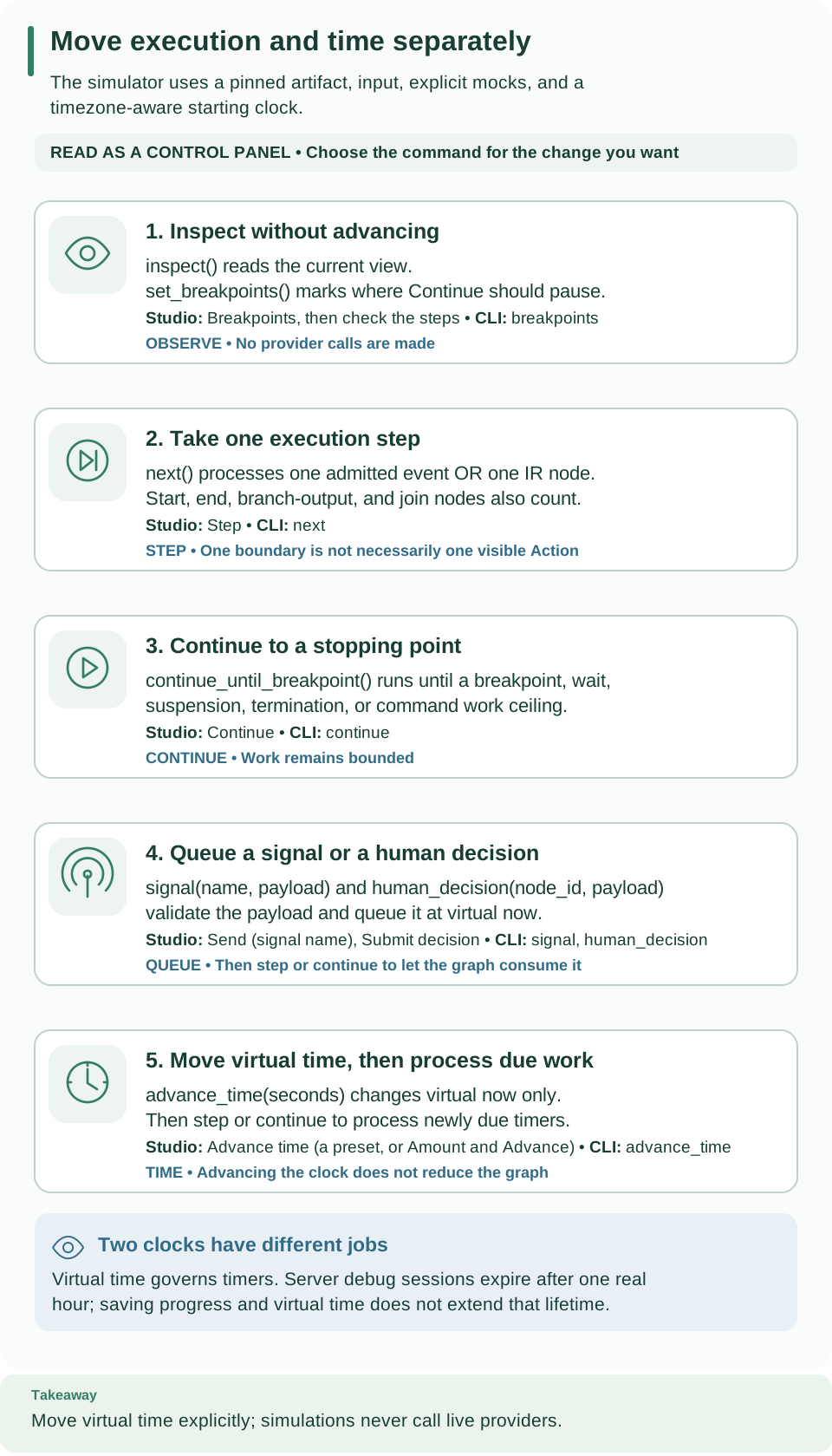
Read the diagram as a control panel, not a sequence. Choose what you want to change: observe, take one step, continue, queue a signal, or move virtual time. Queuing a signal and moving time do not advance the graph by themselves; follow either with a step or continue. Virtual time and a server session's real-time expiry are independent. Open diagram at full size
Simulate in Studio
In Studio, select Simulate on a workflow. Studio needs a connected platform
and an account with permission to simulate (the developer role grants it),
because it creates a real debug session on the platform (see
Server sessions).
- In Simulate this workflow, enter the run input under Workflow input. When the workflow calls actions, enter under Action results the result each action should return (its mock). Select Skip this action to leave an action without a result; the simulation stops when it reaches it.
- Select Start simulation. The Simulation panel opens beside the canvas, in the inspector's place, and shows the status, the simulated time, and the current steps after Now at. The canvas highlights the current step, draws the path taken in color, marks finished steps with a check, and dims steps not reached. Editing is paused until you select Stop simulation.
- Use Step and Continue to move on. To stop at chosen steps, open Breakpoints and check them; Continue pauses before each one. When the run waits, the panel's main button matches the wait: Submit decision for a human task, the send button under Send a signal, or a duration under Advance time.
- Read Step results, Workflow output, and Activity. Start over returns to the setup.
Simulate is unavailable until Studio is connected to a platform and your account may simulate in the workspace; select it and Studio says why under the toolbar.
This panel is new in 0.1.0a7; an alpha6 or earlier Studio does not have it. The Studio guide describes the panel; the rest of this page explains the commands it sends and how to run them yourself.
Run the echo artifact from the CLI
-
Simulate to the end. The request file holds the exact compiled artifact, the
mocks, theinput, and a timezone-aware starting timenow:# Run the echo artifact until it finishes; nothing outside this process is called. weave workflow simulate .local/tutorial/simulation-request.jsonExpected:
Simulation succeeded; 1 accepted facts; 4 boundaries.and exit code0. Without a command file, the CLI continues until a breakpoint, a wait, a suspension, or the end. -
Pause, step, and continue. A breakpoint pauses before a named node so you can inspect its input and the current variables. Save this as
.local/tutorial/commands.json:[ {"kind": "breakpoints", "node_ids": ["echo"]}, {"kind": "continue"}, {"kind": "next"}, {"kind": "continue"} ]# Apply the commands in order within one invocation and print the final view as JSON. weave workflow simulate .local/tutorial/simulation-request.json \ --commands .local/tutorial/commands.json --output jsonExpected:
"status": "succeeded"and"output": {"message": "Hello, Weave"}insidevariables. The firstcontinuepauses beforeecho,nextexecutes it, and the lastcontinueruns to the end. -
Try a failure. Change
input.messagein the request to a number and run step 1 again. Expected: exit code1andWV-DEBUG-REQUEST: Invalid or over-budget simulation request., because the input violatesinputSchema. Restore the string afterward.
With a command file, the CLI applies only your commands; it does not continue on
its own first. It exits 1 when the request is invalid or over budget, or when
the final status is failed, suspended, or timed_out.
Mock actions, send signals, decide tasks, and move time
A mock is the fixed result an action returns instead of running. The
onboarding example from workflow authoring
calls an action, then waits for a customer-approved signal for up to one day.
-
Compile it from the repository root:
# Compile the onboarding workflow against its teaching catalog and export the artifact.
weave workflow compile examples/definitions/customer-onboarding.workflow.yaml \
  --catalog tests/fixtures/catalog/onboarding.lock.json --strict \
  --directory .local/onboarding --output json
Expected:
ok: trueand.local/onboarding/compiled-artifact.json. -
Create the request with Python 3.12 or later. Save this as
.local/make-onboarding-simulation.pyand run it withpython3 .local/make-onboarding-simulation.py:import json from pathlib import Path request = { "artifact": json.loads(Path(".local/onboarding/compiled-artifact.json").read_text()), "mocks": {"action:onboarding.check-customer@1.0.0": {"eligible": True}}, "input": {"customerId": "demo"}, "now": "2026-01-01T00:00:00Z", } Path(".local/onboarding-request.json").write_text(json.dumps(request)) Path(".local/onboarding-approve.json").write_text(json.dumps([ {"kind": "continue"}, {"kind": "signal", "name": "customer-approved", "payload": {"approved": True}}, {"kind": "continue"}, ])) -
Stop at the wait. Without commands, the simulation continues until the signal step waits:
# Continue until the run waits for the customer-approved signal.
weave workflow simulate .local/onboarding-request.json --output json
Expected:
"status": "waiting"with"active_nodes": ["approval"]. A wait is not a failure. -
Send the signal, then continue:
# Queue the approval at virtual now, then let the run consume it.
weave workflow simulate .local/onboarding-request.json \
  --commands .local/onboarding-approve.json --output json
Expected:
"status": "succeeded"and"output": {"accepted": true}. -
See a timeout. Replace the signal command with
{"kind": "advance_time", "seconds": 86400}and run step 4 again. Expected:"status": "timed_out"and atimed_outevent, because the signal did not arrive strictly before its one-day deadline.
You explored the declared contract without installing the action's implementation.
Command reference
| Command | Fields | Effect |
|---|---|---|
breakpoints |
node_ids: complete node IDs |
Replace the breakpoint set; use IDs from weave workflow explain, including synthetic ones such as @join:ID |
next |
— | Process one boundary: one admitted event or one node |
continue |
— | Run until a breakpoint, a wait, a suspension, the end, or the command's work ceiling |
signal |
name, payload |
Validate the payload against the signal's schema and queue it at virtual now |
human_decision |
name: the human task step ID; payload: {"decision": ..., "data": {...}} |
Validate the decision and form data, then queue the completion |
advance_time |
seconds: whole number, zero or more |
Move virtual time forward |
signal, human_decision, and advance_time return the current view without
advancing the graph. Follow them with next or continue. The CLI's --help
lists every command except human_decision, which works the same way.
Mock keys. Use action:EXACT_REFERENCE, such as
action:onboarding.check-customer@1.0.0, for every call to that action, or
node:NODE_ID for one action node. A node mock wins over an action mock. Unknown
keys and results that violate the pinned action or implementation output schema
are rejected before the simulation starts. A JSON list is one ordinary result.
There is no scripting of retry outcomes and no live fallback: an action without a
mock stops the simulation with WV-DEBUG-MISSING_MOCK.
Read the debugger view
Every command returns a view:
| Field | How to use it |
|---|---|
status |
queued, running, paused (at a breakpoint), waiting, succeeded, failed, suspended, cancelled, or timed_out |
selected_node |
The next ready node, or null when none is ready |
active_nodes |
Outstanding waits and tasks |
current_nodes |
selected_node and active_nodes together |
variables |
Current run data: input, step outputs under steps, and the final output |
diagnostics |
Debugger errors, such as a missing mock |
events |
Accepted facts, such as started, task_completed, or signal_received |
boundary, boundaries |
The last boundary processed, and all of them in order |
now |
Virtual time; waiting in your shell does not change it |
To continue from a wait, send the expected signal or decision, or advance virtual time, then continue. An unknown breakpoint ID is rejected.
Use the Python library
Embedders use the Simulator class. Run this from a source checkout with
uv run python, after creating the echo artifact:
from datetime import UTC, datetime
from pathlib import Path
from firefly_weave.compiler.api import import_artifact
from firefly_weave.operations.debug.simulator import Simulator

artifact = import_artifact(
    Path(".local/tutorial/compiled/compiled-artifact.json").read_bytes()
)
sim = Simulator(artifact, mocks={}, input={"message": "Hello, Weave"},
                now=datetime(2026, 1, 1, tzinfo=UTC))
sim.set_breakpoints({"echo"})
paused = sim.continue_until_breakpoint()
assert paused.status == "paused" and paused.selected_node == "echo"
stepped = sim.next()
saved = sim.serialize()
sim = Simulator.restore(saved)
finished = sim.continue_until_breakpoint()
assert finished.status == "succeeded"
print(finished.variables["output"])
Expected: {'message': 'Hello, Weave'}. serialize() and restore() preserve
progress and virtual time; restoring starts no worker and changes no real run.
The methods are inspect, set_breakpoints, next,
continue_until_breakpoint, signal, human_decision, advance_time,
command (one command object), serialize, and restore. Creating a simulator
and inspecting it execute no nodes. Signal and decision data is validated before
it is queued.
Server sessions
A debug session is a simulation stored on the platform, so Studio and other
clients can drive it across requests. Routes are project-scoped under
/api/v1/tenants/{tenant}/projects/{project}:
| Request | Body | Result |
|---|---|---|
POST /debug/sessions |
The same {artifact, mocks, input, now} request |
{id, revision, created_at, expires_at, view}, starting at revision 1 |
GET /debug/sessions/{id} |
— | The current session |
POST /debug/sessions/{id}/commands |
One command from the table above | The next revision; requires If-Match with the current revision, for example "1" |
From the CLI, the typed commands are weave runs debug create --request FILE,
weave runs debug read ID, and
weave runs debug command ID --revision N --request FILE. They use your saved
platform and workspace; see
how remote commands choose a platform.
Saved platforms are new in 0.1.0a7; with an alpha6 or earlier CLI, these
commands use explicit mode only.
Who may use a session. Only its creator, with a current project simulate
capability (the developer role). No environment, activation, connection grant,
or worker release is needed. Each command locks the session, reloads current
grants, checks expiry by database time and the revision, then commits exactly one
new revision.
| Rule | Value |
|---|---|
| Lifetime | One hour from creation; virtual time and reads never extend it |
| Live sessions | At most 4 per creator and 16 per project; 1,000 retained per project |
| Stale revision | HTTP 409 WV-DEBUG-REVISION |
| Expired session | HTTP 410 WV-DEBUG-EXPIRED |
| Session size | 64 MiB serialized |
A new process restores the stored session; the server keeps no in-memory simulator. The exact source envelope and source map are pinned, and filenames are labels, never server file access. Expired sessions are retained until an operator removes them with retention; nothing purges them automatically.
How execution advances
- Boundaries. Each
nexteither admits one simulated event or reduces one node. Start, end, branch-output, and join nodes are visible boundaries too. Admitting an event increases the accepted sequence once; nodes never create extra receipts. - Actions. Reducing an action node prepares an isolated task. The mocked completion is a later event, released only after that event's node queue has drained.
- Breakpoints use complete node IDs, including synthetic ones, and stop before effects. Continuing from a breakpoint consumes that stop once.
- What is saved. Ordered ready queues, event IDs, virtual timestamps, and
boundary history survive serialization. Server IDs and wall-clock metadata are
outside the comparable
view. - Rollback. If evaluation fails or an output is classified, every partial node change and command from that event is rolled back, while the prepared overall deadline is kept. Real runs drain this same reducer atomically; there is no second implementation of mapping or control flow.
- Time order. When several deadlines are due, the overall timeout wins, then signal timeouts, then duration waits ordered by due time and node ID. A signal must be accepted strictly before its deadline; at the deadline it is too late. Duration waits never wake early.
- Suspension. A suspension keeps the same deferred-event barrier as real runs.
Kernel incidents leave the session
suspended; a missing mock is a debugger failure and never creates a real worker incident.
Limits
These operator-owned defaults (DebugLimits) apply to the CLI, the library, and
server sessions:
| Limit | Default |
|---|---|
| Node reductions | 10,000 |
| Simulated events | 10,000 |
| Commands | 10,000 |
| Pending signals | 1,000 |
Boundaries per continue |
10,000 |
| Total virtual time | 366 days |
| Serialized session (artifact, mocks, state, queues, histories) | 64 MiB |
Source, compiler, and payload limits still apply. Authors cannot change these
limits through the workflow or a request; local embedding can pass its own
DebugLimits.
Simulation can need more room than a real run. A valid workflow can exceed
the session budget: in a measured case, 80 transforms copying a 900,002-byte
input reached 65,767,814 serialized bytes after 37 boundaries, and the next
command was rejected by the 67,108,864-byte ceiling. WV-DEBUG-LIMIT is a
debugger capacity error, not a sign that the workflow is invalid. A rejected
command keeps its starting state and server revision; continue that reaches its
work ceiling returns its progress so another command can resume.
Secrets. Secret-marked values are rejected at the same admission points as in real runs; no masked value is executed. Unmarked data remains the author's to classify and the operator's to protect. Errors never include rejected payloads or fingerprints.
Next steps
- Studio: Simulate a run: the same commands from the editor.
- Compile workflows and read the results: produce the artifact and find node IDs.
- Human tasks: assignments and decisions on a real platform.
- Recorded history and offline replay: check a real run after it happened.
Troubleshooting
| What you see | Why | What to do |
|---|---|---|
WV-DEBUG-REQUEST from the CLI |
The request file is not valid JSON, misses a field, or its input or mocks violate a schema | Check artifact, mocks, input, and a now with a time zone |
WV-DEBUG-COMMAND |
The command file is not a JSON array, or a command lacks the field its kind needs, such as a signal without name |
Check each command against the command reference |
WV-DEBUG-MISSING_MOCK, status failed |
An action has no mock (in Studio, Skip this action was selected) | Add an action: or node: mock with a valid result |
WV-DEBUG-MOCK-KEY |
A mock key names no action node in this artifact | Use action:EXACT_REFERENCE or node:NODE_ID from weave workflow explain |
WV-DEBUG-MOCK-OUTPUT |
The mock does not match the action's output schema | Fix the mocked result |
Status waiting |
The run waits for time, a signal, or a person | Send the signal or decision, or advance time, then continue |
WV-DEBUG-SIGNAL |
No step waits for a signal with that name | Use the name declared on the Wait for signal step |
WV-DEBUG-HUMAN-TASK |
That human task is not waiting for a decision now | Continue until it is active, and use its step ID as name |
WV-DEBUG-STATE |
The simulated run already finished | Start a new simulation |
WV-DEBUG-BREAKPOINT |
A breakpoint names a node that does not exist | Use complete IDs from weave workflow explain |
WV-DEBUG-TIME |
advance_time was negative or not a whole number |
Use whole seconds, zero or more |
WV-DEBUG-LIMIT |
A simulation limit was reached | Use a smaller input, or advance time in smaller amounts |
HTTP 409 WV-DEBUG-REVISION |
The session changed in another window or request | Read it again and send the current revision |
HTTP 410 WV-DEBUG-EXPIRED |
The session is older than one hour | Start a new session |
HTTP 429 WV-OPERATION-CAPACITY when creating a session |
You already have 4 live sessions, the project has 16, or the project retains 1,000 sessions, expired ones included | Wait until a live session expires, at most one hour after it was created; at the 1,000 limit, ask an operator to remove expired sessions with retention |