Install and use the Studio desktop app
The desktop app is Studio in its own window: the same workflow editor, task inbox, and connection steps, packaged with its own private local host. You install one file and start it like any other app; you need no Python or Node.js. This page is for process designers and anyone who prefers an app to a browser tab. It shows you how to verify and install the app, connect it to a platform, and export your work. Installing takes about 10 minutes.
What you need: a 64-bit computer running macOS 11 or later (Apple silicon or Intel), Windows, or Linux with WebKitGTK; permission from your organization to install unsigned or ad-hoc-signed apps; and, to publish and run workflows, the server address of a Weave platform.
Desktop app or browser? Both run the same Studio. They differ in how you start them:
| Desktop app | Studio in a browser | |
|---|---|---|
| Install | One installer for your operating system | The weave CLI plus the matching browser bundle |
| Start | Open Firefly Weave Studio | Run weave studio, open the printed address, and type the pairing code |
| Pairing with the local host | Automatic | A one-time code from the terminal |
| Sign-in page | Opens in your default web browser | Opens in a new browser tab |
| Files from Save to file | Saved to your Downloads folder | Downloaded by the browser |
Choose an installer
Choose a matching installer actually attached to the
v0.1.0a14 release.
The desktop product version is 0.1.0-alpha.14; its bundled Python host is
0.1.0a14. macOS bundles use ad-hoc signing for resource integrity; they are
not Developer ID signed and not notarized. Windows installers remain unsigned.
Build and frozen-host smoke checks do not establish interactive GUI testing on
every operating system. Your organization's installation policy still applies.
| Computer | Target | Installer filename |
|---|---|---|
| macOS Apple silicon | aarch64-apple-darwin |
firefly-weave-studio-0.1.0-alpha.14-aarch64-apple-darwin.dmg |
| macOS Intel | x86_64-apple-darwin |
firefly-weave-studio-0.1.0-alpha.14-x86_64-apple-darwin.dmg |
| Windows x64 | x86_64-pc-windows-msvc |
firefly-weave-studio-0.1.0-alpha.14-x86_64-pc-windows-msvc.exe or .msi |
| Linux x64 | x86_64-unknown-linux-gnu |
firefly-weave-studio-0.1.0-alpha.14-x86_64-unknown-linux-gnu.deb or .AppImage |
Download the chosen installer and its target's checksum inventory,
weave-studio-TARGET-SHA256SUMS, from that same release. The matrix describes
filenames, not a promise that every asset is already available. If your matching
asset is absent, use the browser installation
instead. Alpha4 Python releases do not contain Studio or desktop installers.
Do not use the alpha5 macOS installers. Their outer application bundle lacked its resource seal, causing macOS to report that the application was damaged. Alpha6 added explicit ad-hoc bundle signing and a strict verification gate for both the built application and the application enclosed in its DMG, and alpha14 keeps them. Download the matching alpha14 asset rather than attempting to bypass the alpha5 failure. Ad-hoc integrity does not establish publisher trust or Gatekeeper acceptance.
What is packaged
The application embeds the compiled Studio web application and a frozen Python host, so you do not install Python or Node.js. It is built with Tauri, which draws the window with your operating system's web view: on Windows the installer downloads and runs the WebView2 bootstrapper when WebView2 is missing, and Linux needs the distribution's WebKitGTK runtime. See the official Tauri prerequisites for details.
How the app protects your sign-in:
- The window shows only its own host. Its pages always come from the app's
private host on
127.0.0.1, on a random port. The window never opens your platform's API or your identity provider. - Platform calls go through the host. The host calls the platform for the window, using the same narrow Studio bridge as Studio in a browser.
- Sign-in happens in your default web browser, which the host opens for you. Tokens stay in the host and your credential store and never reach the window.
- The window gets no file, shell, or dialog access. The native shell grants its web content none of these commands.
- Pairing stays private. The app pairs the window with its host at the window's exact local address, without putting a pairing code in a URL or writing tokens to logs.
This follows Tauri's sidecar model and capability boundary.
Install on macOS
- Open Apple menu → About This Mac. Choose the Apple silicon DMG for an Apple chip, or the Intel DMG for an Intel processor.
- Download the DMG and matching
weave-studio-TARGET-SHA256SUMSrelease asset. -
In Terminal, enter the download directory and calculate the file's checksum. For Apple silicon:
# Inspect the downloaded installer without opening it.
cd ~/Downloads
shasum -a 256 firefly-weave-studio-0.1.0-alpha.14-aarch64-apple-darwin.dmg
# Show the expected digest for this exact filename.
grep 'firefly-weave-studio-0.1.0-alpha.14-aarch64-apple-darwin.dmg$' weave-studio-aarch64-apple-darwin-SHA256SUMS
Both displayed digests must match. For Intel, replace
aarch64-apple-darwinwithx86_64-apple-darwinin both filenames. Stop if the digest differs. 4. Open the verified DMG, then drag Firefly Weave Studio on the left into Applications on the right. The cream and forest installer shows the destination and a gold arrow. 5. After copying, verify the installed bundle’s resource integrity in Terminal:# Check the copied app without launching it. Stop if verification fails. codesign --verify --deep --strict --verbose=4 "/Applications/Firefly Weave Studio.app"Expected: the last two lines end with
valid on diskandsatisfies its Designated Requirement. -
Open Studio from Applications after verification succeeds, then eject the installer volume. The app is ad-hoc signed, not Developer ID signed, and not notarized. macOS may still require manual approval allowed by your organization’s policy. If that policy does not permit it, use the browser installation. Do not remove quarantine or disable system protections to bypass a refusal.
The background is maintained as desktop/artwork/dmg-background.svg with its
Finder-compatible PNG alongside it. Tauri's DMG settings define the window and
icon positions; the artwork does not replace the actual app or Applications icons.
Install on Windows
Choose the x64 EXE for an interactive setup, or MSI when your organization
uses Windows Installer deployment. Install one format, not both. Download its
matching weave-studio-x86_64-pc-windows-msvc-SHA256SUMS inventory first.
# Inspect the downloaded EXE before running it.
Set-Location "$HOME\Downloads"
Get-FileHash .\firefly-weave-studio-0.1.0-alpha.14-x86_64-pc-windows-msvc.exe -Algorithm SHA256
# Compare the digest with the line for this exact filename.
Select-String -Path .\weave-studio-x86_64-pc-windows-msvc-SHA256SUMS -Pattern 'firefly-weave-studio-0.1.0-alpha.14-x86_64-pc-windows-msvc.exe$'
Expected: Get-FileHash prints a Hash value, and Select-String prints the
inventory line for the same file. For MSI, substitute .msi in both commands.
Compare the two digests without regard to letter case; stop on a mismatch. Double-click the verified installer, complete its
setup, then open Firefly Weave Studio from the Start menu. The installer may
need network access to provision WebView2. Unsigned-installation warnings remain
subject to your organization's policy. The MSI's internal version is 0.1.14, a
monotonic Windows Installer counter; the displayed product remains alpha14.
Install on Linux
Choose the x64 DEB for a Debian/Ubuntu system, or AppImage for a portable
application where your distribution supports its runtime. Download the matching
weave-studio-x86_64-unknown-linux-gnu-SHA256SUMS inventory.
# Enter the download directory, verify this exact file, then install only on success.
cd ~/Downloads &&
  grep 'firefly-weave-studio-0.1.0-alpha.14-x86_64-unknown-linux-gnu.deb$' weave-studio-x86_64-unknown-linux-gnu-SHA256SUMS | sha256sum --check &&
  sudo apt install ./firefly-weave-studio-0.1.0-alpha.14-x86_64-unknown-linux-gnu.deb
Expected: sha256sum prints the file name followed by OK, and only then does
apt install the package. Open Firefly Weave Studio from your desktop
application launcher. For AppImage:
# Verify this exact portable file; a failed or missing checksum prevents launch.
cd ~/Downloads &&
  grep 'firefly-weave-studio-0.1.0-alpha.14-x86_64-unknown-linux-gnu.AppImage$' weave-studio-x86_64-unknown-linux-gnu-SHA256SUMS | sha256sum --check &&
  chmod +x firefly-weave-studio-0.1.0-alpha.14-x86_64-unknown-linux-gnu.AppImage &&
  ./firefly-weave-studio-0.1.0-alpha.14-x86_64-unknown-linux-gnu.AppImage
Linux requires the distribution's WebKitGTK runtime, and AppImage execution may require its FUSE compatibility package. If the launcher reports a missing runtime, use the distribution-supported package installation or the browser fallback. Connecting to a platform also needs a running, unlocked Secret Service or KWallet; see Where sign-ins are stored. Working locally needs neither.
First launch
An alpha6 or earlier app works differently. Saved platforms, sign-in through your web browser from inside the app, automatic re-pairing, and exports to your Downloads folder arrived in 0.1.0a7. Install the alpha7 app to follow these steps.
- Open Firefly Weave Studio. A window shows Starting Studio… while
the app starts its private local host. If the host exits or is not ready
within 45 seconds, the app stops it and shows
Studio host did not become ready. Check the selected profile and application bundle. - The Studio window replaces it and pairs with its host by itself. Unlike Studio in a browser, you never type a pairing code. If the pairing page stays open, quit and reopen Firefly Weave Studio.
- While no platform is saved, Studio asks How do you want to work?
- Work locally: draw, import, and validate workflows on this computer. You need no account, server, or credential store. Studio remembers the choice and opens in local authoring next time.
- Connect to a platform: opens the connection steps in Connect to a platform.
In local authoring, the platform menu at the top right shows Local
authoring and Create and edit on this computer. On Home, use New
workflow or Import workflow. Studio lists the workflows you edit in this
window under Workflows → On this computer; to keep one after you quit the
app, use Save to file. Publishing and running need a platform.
To change what happens at launch, open Settings → Platforms, go to Starting Studio, and choose Ask how to work or Start with local authoring under When Studio opens. Studio asks only while no platform is saved. Once a platform is saved, every launch reconnects to the active one, or starts in local authoring when no platform is active; see Saved platforms and reconnecting.
Connect to a platform
The desktop app uses the same four connection steps as Studio in a browser: Server, Review, Sign in, and Workspace. Start them from Connect to a platform on Home, in the platform menu at the top right, or in Settings, where Add platform adds another one. The Studio guide describes each step, and your administrator prepares the server as described in identity setup.
- Server: enter the address your administrator gave you, for example
weave.example.com, and select Continue. Studio connects to remote servers only over HTTPS. Platforms you saved before are listed above the field. - Review: check the platform, server, and identity provider. Select I trust this server and identity provider only if you recognize them, then select Continue. Studio saves the platform.
- Sign in: select Sign in with your browser. Studio shows Studio opened the sign-in page in your web browser. Sign in there, then return to the app; the Studio window continues by itself.
- Workspace: choose where Studio publishes and runs your work, then select Start working.
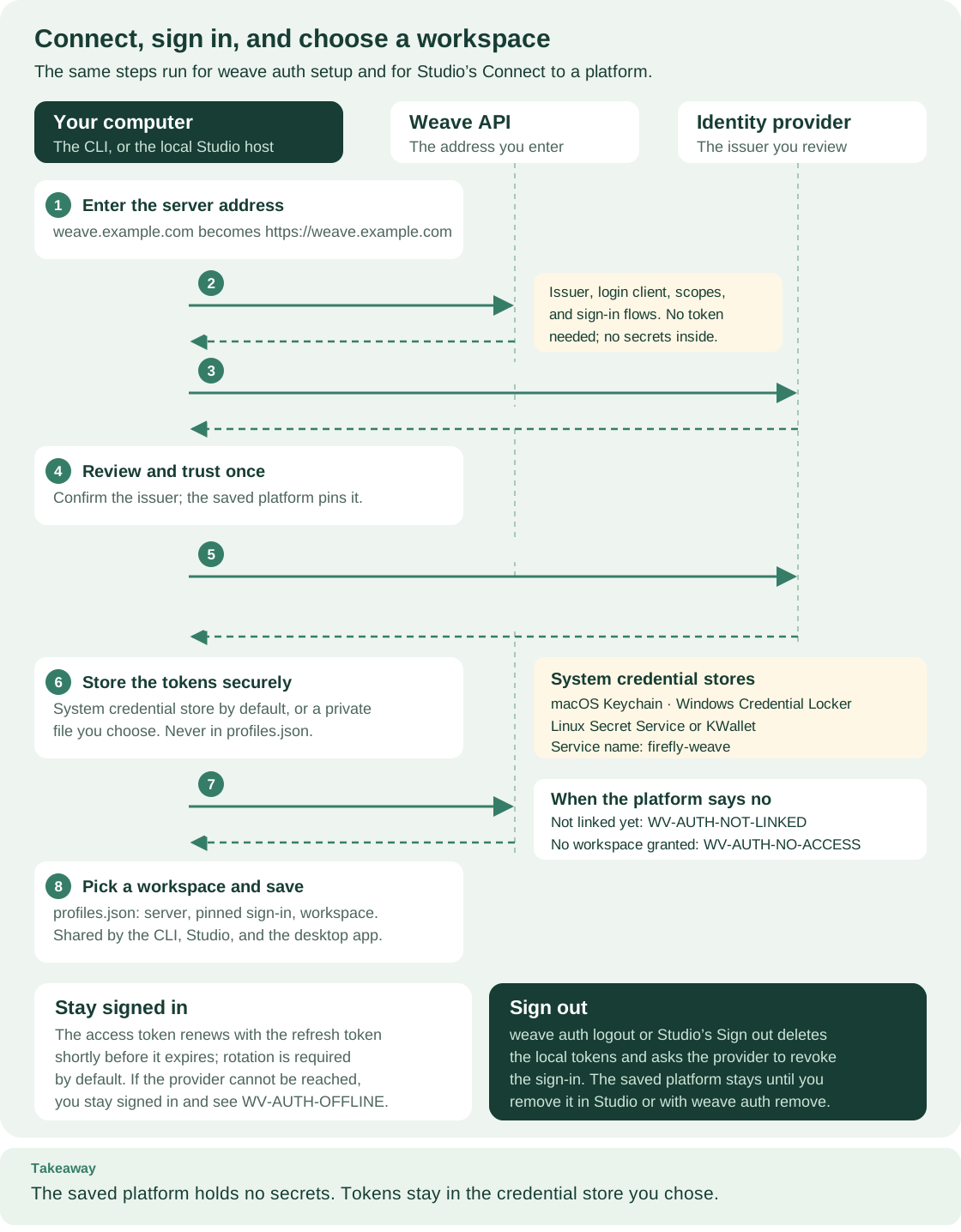
In the desktop app, Your computer is the app's own local Studio host, and the
browser in step 5 is your default web browser. Studio already saved the platform
to the same profiles.json that the CLI uses when you continued from
Review; step 8 adds your workspace to it.
Open diagram at full size.
Sign-in happens in your web browser, not in the Studio window. The Studio
window shows only pages from its own local host, so it never loads the identity
provider. The host opens the sign-in page in your default browser. After you
sign in, the browser returns to a one-time address on this computer
(http://127.0.0.1 with a free port), where the host finishes the sign-in. Your
password goes only to the identity provider. Tokens go from the host to the
credential store and never reach the Studio window.
- Open again opens the same sign-in page once more, for example after you closed the browser tab.
- If the browser cannot be opened, Studio shows
Studio couldn't open your web
  browser. Copy the address and paste it into your browser.
Select Copy next to Sign-in address, then paste the address into a browser on this computer. - Use a code instead appears when your administrator allows sign-in with a code. Studio shows the code with Copy code and also opens the code page in your default browser. You can enter the code on this or any other device, such as your phone. When your administrator allows only codes, the button reads Sign in with a code.
- Cancel sign-in stops waiting. Quitting the app also cancels a sign-in that is still waiting.
If the platform does not know your account yet, the Workspace step shows
You signed in, but this platform doesn't recognize your account yet with
Details for your administrator. Select Copy details, send them to your
administrator, then select Check again. At a later launch the same problem
appears below the top bar as You signed in, but NAME doesn't recognize your
account yet. with See details. An administrator links your account as
described in
Give people the right access.
Saved platforms and reconnecting
The desktop app, Studio in a browser, and the weave CLI share one list of
saved platforms. A platform you save in the app appears in weave auth
profiles, and a platform saved with weave auth setup appears under
Platforms in Settings. The list lives in profiles.json and never
holds passwords or tokens; What is saved, and where
gives its location on each operating system.
The active platform is shared too. Switch to this platform, in
Settings → Platforms, changes the platform that CLI commands use next.
weave auth use NAME changes the platform the app opens at its next launch. After Work locally, no platform is active, so CLI commands need
--profile NAME or weave auth use NAME again.
# List saved platforms; * marks the active one that the desktop app reconnects to.
weave auth
profiles
Expected: a table with NAME, SERVER, WORKSPACE, and ACCOUNT columns, a
* before the active platform, and * active platform. Switch with: weave auth
use NAME. The command never reads credentials. With no saved platform it prints
No saved platforms. Connect with: weave auth setup SERVER.
Every launch reconnects to the active platform. The app starts its host with your saved platforms. The host restores the active platform with its workspace, and renews the stored sign-in when it can, so you do not repeat the connection steps. When something needs your attention, a message appears below the top bar:
| What you see | What to do |
|---|---|
Your session for NAME expired. Sign in again to publish, run, and manage work. You can keep working locally. |
Select Sign in again, then sign in as in step 3 above |
Studio couldn't reach NAME. You can keep working locally. |
Check your network or VPN, then select Try again |
Studio can't use this computer's credential store. Unlock or set up the system keychain, then try again. |
Unlock your keychain or keyring, then select Try again; see Where sign-ins are stored |
Choose a workspace on NAME to publish and run work. |
Select Choose workspace |
The workspace you used on NAME is no longer available to your account. |
Select Choose workspace, or ask your administrator to restore the grant |
The sign-in settings for NAME changed on the server. Review them before you use it again. |
Select Review, and trust the new settings only if your administrator expected the change |
WEAVE_CONFIG_HOME moves the saved platforms to another folder, as described
in client configuration.
The app reads it only from the environment it starts in. An app opened from
Finder, the Start menu, or a desktop launcher normally uses the default folder.
Where sign-ins are stored
Tokens stay in your operating system's credential store, under the service
name firefly-weave, with one record per platform. The app accepts only these
stores:
| Operating system | Credential store | What it needs |
|---|---|---|
| macOS | Keychain | Your keychain, which macOS normally unlocks when you sign in |
| Windows | Windows Credential Manager (Credential Locker) | Nothing extra |
| Linux | Secret Service (for example GNOME Keyring) or KWallet | A running keyring service, unlocked in your desktop session |
Other keyring backends, such as plain-text files, are refused with
WV-AUTH-STORE. New platforms saved from the app always use the system store.
Linux needs an unlocked keyring before you sign in. Without one, Studio shows the credential store message above and cannot keep a sign-in. Unlock the keyring, or start your desktop's keyring service, then select Try again. On a system without a keyring, save the platform with the CLI and a private credential file, as described in What is saved, and where. The app then uses that file for that platform. The file store works on macOS and Linux only.
macOS can ask before the app reads a sign-in that another program saved. A
platform you signed in to with the CLI was stored by a different program, so
macOS can ask whether the app's host may use the firefly-weave keychain item.
It can ask again after you install a new build, because the app is ad-hoc
signed. Allow it only for a Firefly Weave Studio you started yourself.
To sign out, use Sign out in the platform menu or in Settings → Platforms. The platform stays saved. The remove item in a platform's ⋯ menu in Settings → Platforms, such as "Remove staging", forgets the platform and signs you out of it on this computer.
When the local Studio session ends
The Studio window and its local host share a session of up to eight hours. This session is separate from your platform sign-in. When it ends, the app pairs the window again by itself: Studio reloads, and the app sends its pairing code to the window's own local address. The host hands that code to the app privately at launch. The code is never shown, never placed in a URL, and kept out of reach of the page's scripts. It works again and again, but only while that host runs. Your platform sign-in and workspace are not affected.
- Unsaved edits are kept. If the open workflow has edits, Studio does not
reload. It shows
Your Studio session ended. Export your workflow to keep your
  edits, then quit and reopen Firefly Weave Studio.
Select Save to file, which is in the toolbar's More menu while you are connected, then quit and reopen the app. - If automatic pairing cannot finish, Studio shows
Your Studio session
  ended and the desktop app could not pair again automatically. Quit and reopen
  Firefly Weave Studio.
The app makes at most a few automatic pairing reloads a minute. The host stops accepting the code after ten wrong attempts, until it restarts.
Use the native menu
| Menu item | What it does |
|---|---|
| Studio → Choose platform profile… | Restarts Studio with a legacy Studio profile file you pick; see Open a legacy profile file |
| Studio → Sign in to selected platform… | Signs in with a code to the platform of that profile file. With saved platforms, it tells you to sign in from the platform menu instead |
| Studio → Reopen Studio | Restarts the local host with your saved platforms and reconnects the active one. Use it to leave a profile file, or after the host stopped |
| Studio → Quit Studio | Closes the app, its local host, and any sign-in still waiting |
| View → Reload Studio… | Reloads the Studio window after you confirm; Command-R on macOS, Ctrl+R elsewhere |
On macOS, the first menu appears under the application name, Firefly Weave Studio. The Edit menu has the system's standard undo, redo, cut, copy, paste, and select-all commands.
Restarting or reloading discards edits you have not exported. Reopen
Studio and Choose platform profile… first ask you to confirm in a
Restart Studio dialog. Reload Studio… asks in a Reload Studio
dialog: Reloading Studio discards edits you have not exported. Export unsaved
workflows first.
Open a legacy profile file
Studio profile files created by weave studio configure, described in
Older connection files,
still open in the app. Saved platforms are simpler, so use this only when your
team hands out such files.
- Choose Studio → Choose platform profile…, confirm the Restart Studio
dialog, and pick the profile
.jsonfile. - Choose Studio → Sign in to selected platform…. This item signs in with a code only. The app opens the sign-in page in your default browser and shows the address and code in a dialog. Keep Studio open until you finish.
- When the app shows
Signed in. Choose View → Reload Studio to load your
   current permissions.
, choose View → Reload Studio….
While a profile file is open, the connection lives only in memory, and Settings cannot save or switch platforms. Choose Studio → Reopen Studio to return to your saved platforms. If your identity provider does not allow sign-in with a code, save the platform with the connection steps instead. To import an administrator's connection file there, use Use a connection file under Advanced in the Server step.
Export workflows
The desktop app saves exports to your Downloads folder. In the workflow
designer, Save to file saves two files: the definition, for example
orders.yaml, and its canvas layout, orders.layout.json. Screen readers
announce Saved orders.yaml and orders.layout.json to your Downloads folder.
when the save starts; a save that then fails shows a native error dialog.
Studio's other download buttons, such as Download .action.yaml, save to
Downloads in the same way.
Existing files are never overwritten. When a file with the same name
already exists, the new file gets a number, for example
orders (1).layout.json. On some systems the number comes before the last
extension instead, as in orders.layout (1).json. The announcement still names
the original file.
Names are cleaned before saving:
- Only the file name is used; any folder part is dropped.
- Control characters, text-direction control characters, and characters that
some systems forbid in names (
/ \ < > : " | ? *) become_. - Leading and trailing dots and spaces are removed.
- Only the
.json,.yaml,.yml,.txt, and.csvextensions are kept, in lowercase. Any other name gets.txtadded, sopayload.exeis saved aspayload.exe.txt. - Windows device names such as
CON,NUL, orCOM1get a leading_, and names are shortened to at most 128 bytes.
Only Studio's own exports are saved. A download that does not come from the
Studio window's local address is refused with Studio blocked a download that
did not come from this Studio window.
A failed save shows a native error dialog:
| Message | What to do |
|---|---|
Studio could not find your Downloads folder, so the export was not saved. |
Make sure your user account has a Downloads folder, then export again |
Studio could not save NAME to your Downloads folder. Check that Firefly Weave Studio may use that folder in your system privacy settings, then export again. |
Allow Firefly Weave Studio to use the Downloads folder in your privacy settings. The same message appears when 999 numbered copies of that name already exist |
Studio could not save NAME to your Downloads folder. Check that the folder is available, then export again. |
Check that the folder exists, is writable, and has free space |
If the download cannot start at all, Studio opens Save your exported files instead. It shows each file's contents with a copy button, so you can save them with a text editor.
Untested platform cases. On macOS 11.0 to 11.2 the webview lacks the download support the app relies on, so an export may save nothing even though the confirmation appears; use macOS 11.3 or later, or the browser installation. macOS may ask whether Firefly Weave Studio can use your Downloads folder the first time you export. On Windows, WebView2 may ask whether to allow the second of the two files.
Window size
The Studio window opens at 1440 × 900 logical pixels and can shrink to a minimum of 600 × 500. Both sizes count the inside of the window, without the title bar. In the designer, the navigation shows icons only to give the canvas room; when the window is 1280 pixels wide or narrower, it does so on every page. At 1024 pixels or narrower, Insert step opens the step palette, and at 767 pixels or narrower, the step inspector opens over the canvas.
Closing Studio and interrupted requests
Closing the native application terminates only its own host and sign-in processes. A closed parent control pipe also stops an orphaned host. Submitted API changes may already have completed; reconcile server state before retrying an interrupted request.
What has been verified
Native shell and host. The native shell's unit tests cover its origin policy, download naming and placement, and the pairing script. The pairing script also ran against simulated page scripts that try to read the code. Saving both export files was checked in a macOS WebKit test harness that used Studio's content policy, not in the packaged app. The host's unit tests cover reusable desktop pairing, saved platforms, and reconnecting at launch.
Sign-in. Browser sign-in (PKCE) and sign-in with a code (device flow) were verified with the CLI against the local Keycloak development platform; see Connect the CLI to a platform. The Studio connection steps use the same host code as the desktop app; the Studio guide states their verification status.
Packaged app on macOS. On an Apple silicon Mac, the app was built from this
source as a .app (not a DMG). The bundle checks and the frozen-host smoke test
passed, both for the built host and for the copy inside the app. Then, by hand
in the app, against a local platform with Keycloak 26.7.4
and the login Keychain:
- the window paired by itself;
- the connection assistant checked the server, showed the sign-in settings for review, signed in with a code (device flow), and saved the chosen workspace;
- Home showed the platform's runs;
- after quitting and reopening, Studio was signed in again without asking;
- Save to file wrote the workflow and its layout to Downloads;
- removing the platform signed out and deleted the Keychain item.
Browser sign-in (PKCE) from the app and the DMG were not part of this run.
Not verified. The app has not run under Windows WebView2 or Linux WebKitGTK, so exports and opening the browser are untested there. The Windows and Linux credential stores are covered by unit tests only. Microsoft Entra ID and other identity providers have not been verified; see Use Microsoft Entra ID or another identity provider.
If something goes wrong
| What you see | What to check next |
|---|---|
Studio host did not become ready. Check the selected profile and application bundle. |
Reinstall the installer that matches your computer. If you chose a profile file, check it. If you started the app from a terminal, remove any PYFLY_* variables from that environment |
The local Studio host stopped. Choose Studio → Reopen Studio to continue. |
Export unsaved workflows if the window still responds, then choose Studio → Reopen Studio |
Wait for Studio to finish opening before signing in. |
Wait for the Studio window, then choose the menu item again |
Sign in from the platform menu at the top of the Studio window. This menu item signs in only after you open a profile file with Choose platform profile. |
With saved platforms, sign in from the platform menu or Settings |
Sign-in did not complete. Check the selected OAuth configuration and device-flow support. |
Check the profile file's connection settings. If its identity provider does not allow sign-in with a code, save the platform with the connection steps instead |
Settings shows Studio can't read the saved platforms file on this computer. Check that it isn't damaged or locked by another program. |
Studio started in local authoring. Check profiles.json with weave auth profiles; a damaged file reports WV-PROFILE-STORE and is never rewritten automatically |
Settings shows This Studio was started with a connection file, so saved platforms aren't available. |
In the desktop app, choose Studio → Reopen Studio |
| The sign-in page did not appear | Select Open again, or copy the Sign-in address into a browser on this computer |
Next steps
- Draw and validate your first workflow in local authoring.
- Choose and configure each step with the step reference open next to the editor.
- Save, publish, activate, and run once you are connected to a platform.
Build from source
This section and the next are for contributors, and for anyone who needs features that are newer than the latest installer. You do not need them to install a released app.
Build on the target operating system and architecture: PyInstaller does not cross-freeze the host. Install Rust, Node 24 and uv, plus the platform prerequisites linked above. From the repository root:
# Install the locked host and Studio dependencies.
uv sync --locked --extra studio
# Add PyInstaller, which freezes Python so users need no Python installation.
uv pip install pyinstaller==6.16.0
# Build the browser assets that the host embeds.
cd studio
npm ci
npm run build
# Return to the repository root and freeze the current native host.
cd ..
uv run --no-sync python desktop/scripts/build_sidecar.py
Verify the frozen binary, replacing TARGET with rustc -vV's host triple
(and adding .exe on Windows):
# Check the frozen host's readiness, pairing, and shutdown.
uv run --no-sync python desktop/scripts/smoke_sidecar.py \
  desktop/src-tauri/binaries/weave-studio-host-TARGET
# Check the native shell's origin, download, and pairing policy.
cargo test --locked --manifest-path desktop/src-tauri/Cargo.toml
# Build the native shell and the installers for this operating system.
cd desktop
npm ci
npm run build
Expected: the smoke test prints Frozen host readiness, assets, pairing,
connection assistant, compiler and owned shutdown passed, and cargo test
reports no failures. The smoke test checks ready-only startup, packaged assets, pairing,
the connection endpoints, compiler availability and owned shutdown. It runs the
host with a fresh private WEAVE_CONFIG_HOME, so it never reads your saved
platforms or credentials. Build outputs are under
desktop/src-tauri/target/release/bundle; they are ignored, not source artifacts.
The official Weave symbol is used for application icons.
Platform artifacts and signing
The Desktop installers GitHub Actions workflow builds each host natively:
| Target | Runner | Installer artifacts |
|---|---|---|
| Apple Silicon macOS | macos-15 |
.app, .dmg |
| Intel macOS | macos-15-intel |
.app, .dmg |
| Windows x64 | windows-2022 |
NSIS .exe, WiX .msi |
| Linux x64 | ubuntu-22.04 |
.deb, .AppImage |
Artifacts are retained per workflow run and are not automatically released.
macOS bundles are ad-hoc signed; Windows remains unsigned. A workflow artifact
label containing unsigned is not a statement that the macOS resource seal is
absent. Windows/macOS/Linux matrix outcomes must be checked
before claiming those installers work. Building against Ubuntu 22.04 sets a concrete
Linux baseline; an AppImage does not imply compatibility with every distribution.
The macOS integrity gate verifies the outer resource seal and both native
executables using codesign --verify --deep --strict --verbose=4. It checks
Contents/_CodeSignature/CodeResources and repeats verification against the app
inside a read-only DMG mount before collecting release assets. From a matching
source checkout, you can run that same gate on an explicitly downloaded DMG:
# Verify resource integrity without launching the application.
# Replace the path with the actual alpha14 installer you downloaded.
.venv/bin/python desktop/scripts/verify_macos_bundle.py /path/to/firefly-weave-studio-0.1.0-alpha.14-aarch64-apple-darwin.dmg
The build also smoke-tests the frozen host after Tauri signs it. Hardened runtime remains enabled, with one library-validation exception so the PyInstaller host can load its bundled Python library and extensions without an Apple Team ID. The exception grants no native webview IPC and does not bypass Gatekeeper.
This is a packaging-integrity check, not a Gatekeeper or notarization test. A source checkout is needed only for this contributor verification command; ordinary installation follows the checksum and platform steps above.
Opt-in Developer ID signing and notarization
The regular Desktop installers workflow continues to build ad-hoc macOS installers. The separate Notarized macOS installers workflow is prepared for trusted release tags only. It is opt-in and retains verified artifacts; it does not publish a release or replace existing downloads. The published alpha13 installers remain ad-hoc signed and unnotarized. Preparing this workflow does not change their trust status, and no Apple submission has been verified yet.
An organization maintainer must first have an active Apple Developer Program membership, a Developer ID Application certificate with its private key, and an App Store Connect API key permitted to use notarization. An Apple Development certificate, an App Store distribution certificate, or a certificate without its private key is not sufficient. See Apple's notarization requirements and Tauri's macOS signing guide.
Create the GitHub environment macos-release-signing, require a release
maintainer's approval, prevent self-approval where available, and restrict its
deployment rules to reviewed release tags. Keep these credentials in that
environment, not repository-wide secrets, source files, issue comments, or
workflow inputs:
| Environment secret | Value |
|---|---|
APPLE_CERTIFICATE |
Base64-encoded .p12 containing the Developer ID Application certificate and private key |
APPLE_CERTIFICATE_PASSWORD |
Password protecting that .p12 |
APPLE_SIGNING_IDENTITY |
Exact Developer ID Application: Organization (TEAMID) identity |
APPLE_TEAM_ID |
The certificate's ten-character Apple team ID |
APPLE_API_ISSUER |
App Store Connect team API issuer UUID |
APPLE_API_KEY |
App Store Connect API key ID |
APPLE_API_PRIVATE_KEY |
Full private .p8 key contents |
The workflow deliberately supports team API keys with an issuer. It does not silently fall back to Apple ID/password authentication. Missing credentials name only the missing variables and stop the build. Never print the private key or certificate password while diagnosing a failed run.
After this workflow exists on main and on the reviewed release tag, dispatch it
at that tag and explicitly enable notarize:
# Replace this example with the exact reviewed tag that contains the workflow.
gh workflow run desktop-notarized.yml --ref v0.1.0a14 -f notarize=true
Approve the protected environment only after checking the tag and commit. Both macOS jobs independently require the canonical repository, a manual dispatch, the version-matching tag, and identical workflow, checkout, and tag commit IDs. Branch dispatches, pull requests, and fork workflows cannot enter the signing job. The ordinary installer workflow never receives these secrets.
Each native job imports exactly the expected Developer ID identity into a unique
temporary keychain. It preserves the original keychain search list and removes
the keychain, certificate, and private key on completion or failure; an
always() cleanup step also handles interrupted jobs on the disposable runner.
Secrets are passed only to the signing step and are excluded from retained
artifacts. Do not run this workflow on persistent self-hosted runners.
The frozen PyInstaller host is signed during freezing, including the binaries
embedded in its one-file archive. The pinned PyInstaller enables hardened
runtime and secure timestamps with the supplied identity; the build passes the
existing entitlements explicitly. Tauri signs the nested host and application
with the same Developer ID, notarizes the app, and staples its ticket before
creating the DMG. The helper then signs and submits the DMG separately, requires
Apple's Accepted result, and staples the installer ticket. An uncertain or
failed submission stops the job; it is not automatically retried.
Before collection, the gate verifies both executable signatures, the outer resource seal, the expected team, secure timestamps, hardened runtime, and the absence of a debugging entitlement. It validates the app and DMG tickets, assesses both with Gatekeeper, and repeats the app checks inside the read-only DMG mount. The mounted app must contain the exact verified executable bytes. The signed frozen host must also pass its offline startup smoke test.
Only then can the separate *-notarized artifact contain build metadata with
signing: developer-id, unsigned: false, and notarized: true, alongside the
commit, tag, team, DMG submission ID, hashes, and checksum inventory. Verify both
native target jobs and their receipts before publishing. Never infer that an
existing *-unsigned artifact or download became notarized because a newer
workflow exists. If Apple rejects a submission, inspect its submission ID through
Apple's notarization tools privately, correct the reported cause, and start a
new reviewed run; do not bypass the ticket gate.
For Windows, configure a trusted signing certificate or an approved signing service following Tauri Windows signing. Windows publisher signing is not implemented here. Ad-hoc signing protects bundle integrity but does not make an installer a trusted production download.