Manage runs and business cases
A workflow is a reusable definition. A run is one execution of an activated workflow version, with its own input, state, tasks, and history. Studio and the CLI call it a run; BPM tools call it a process instance. This page shows you how to start runs that belong to the same business case, find them again, see why one is waiting, and archive or delete finished runs.
Who this is for: operators and process owners who look after running work,
and developers who start runs from a product. It takes about 15 minutes.
What you need: Studio or the CLI connected to a platform (see
Connect Studio or
connect the CLI), an activated workflow version, and the
roles described in each step: viewer to read runs, operator to start, pause,
and archive them, and execution_manager to delete them permanently.
Release status. Business keys, archive, restore, and purge are also part
of alpha6. The CLI examples use the saved platform from
weave auth setup, new in 0.1.0a7. With an alpha6 or earlier CLI, add the
workspace and sign-in options that each command's --help lists. In an alpha6
or earlier Studio, Run input (JSON) is a plain JSON text box instead of the
input form described below.
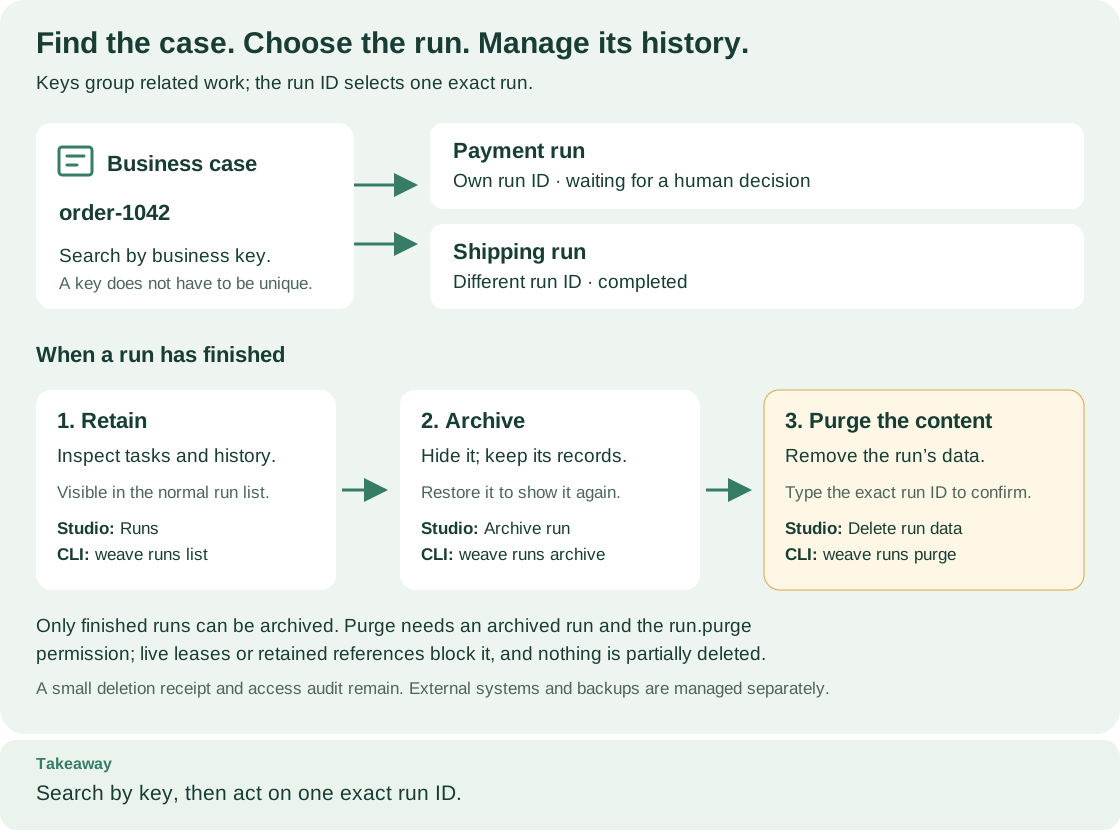
Read the top row from left to right: one business key, order-1042, groups two
runs, and each run keeps its own run ID. The bottom row is what you can do once
a run has finished: keep it, archive it, and, after a retention review, purge
it. Open diagram at full size.
1. Choose identifiers with different jobs
Every run gets a run ID. You can add keys that connect it to your business.
| Identifier | Example | What it does |
|---|---|---|
| Run ID | Server-generated UUID | Addresses one exact run, its signals, and its history |
business_key |
order-1042 |
Groups the runs that concern the same business object |
correlation_key |
fulfillment-2026-1042 |
Groups related runs in a wider process or integration |
Idempotency-Key |
submit-order-1042-attempt-1 |
Lets the same caller safely repeat the same start command |
Keys are labels, not unique IDs. Business and correlation keys are optional, case-sensitive, exact-match strings of at most 200 characters. An order can have separate payment, shipping, and return runs with the same business key. Do not put sensitive customer information in a key.
Idempotency keys separate a retry from a new run. If a start request's response was lost, send the identical request again with the same idempotency key: you get the original run back, not a second one. To start another run on purpose, use a new key. Changing the business key or refreshing a screen is not a substitute for choosing the key deliberately.
Capacity has limits. By default the platform admits up to 1,000 active runs per environment and keeps up to 10,000 runs per project, within its other task, message, and storage limits. There is no one-run-per-project rule. Operators can lower these ceilings in the operational policy. Archiving keeps a run in the retained count; a successful purge releases it. These are admission ceilings, not measured throughput.
2. Start a run and find it again
Why: a business key on every run lets you find all the work for one case later, without storing run IDs yourself.
In Studio
- Open Runs and select Start run. Studio opens Start a run.
- Choose the Version to run: an activated version of a workflow. Each option names the workflow, its version, and when it became active, such as "expense-approval 1.0.0 · active since 2 Oct, 09:12".
- Optionally open Add a business key (optional) and enter a Business key, a Correlation key, or both.
- Fill in Run input. It is a form built from the workflow's input schema; Edit as JSON switches to raw JSON.
- Select Start run.
Expected: a message such as "Started run 1a2b3c4d." with View, which opens the new run; the run is also listed in Runs. If the platform refuses the start, the dialog stays open and says "The run didn't start." with the reason.
Find runs later with the filters above the list in Runs. The list updates as soon as you change a filter; there is no button to apply them.
- Type an exact business key in Search by business key.
- Choose a status: All, Waiting, Failed, or Succeeded.
- Open More filters to enter an exact Correlation key or to check Include archived runs.
To remove a filter, empty its field, choose All, or clear the check box.
With the CLI
Save start.json with your activation's ID and input that matches the
workflow's input schema. weave definitions activations list --output json
lists the activations in your workspace with their IDs:
{
  "activation_id": "YOUR_ACTIVATION_UUID",
  "input": {"orderId": "1042"},
  "business_key": "order-1042",
  "correlation_key": "fulfillment-2026-1042"
}
# Start one run; keep the same idempotency key if you need to retry this exact request.
weave runs start --request start.json --idempotency-key submit-order-1042-attempt-1
# List the waiting runs for this business case.
weave runs list --business-key order-1042 --status waiting
Expected: runs start prints the new run as one JSON object with its id,
business_key, and state. runs list prints one JSON page whose items
are the matching runs; pass its next_cursor with --cursor to read the next
page.
From your product (Python SDK)
from uuid import uuid4
from firefly_weave.contracts.runtime import StartRunRequest

# client is an authenticated WeaveClient scoped to the target environment.
# activation_id is the UUID returned when your published version was activated.
request = StartRunRequest(
    activation_id=activation_id,
    input={"orderId": "1042"},  # Must match that workflow's input schema.
    business_key="order-1042",
    correlation_key="fulfillment-2026-1042",
)

# Keep this key with your product's command record before sending the request.
command_key = str(uuid4())
run = await client.start_run(request, idempotency_key=command_key)

# Search returns a page, because one business key can match several runs.
page = await client.list_runs(business_key="order-1042", status="waiting")
for found in page.items:
    print(found.id)
This is a fragment of an async SDK application. The SDK tutorial explains imports, sign-in, scope, and the client's async context manager.
The underlying API. The search is
GET /api/v1/tenants/{tenant}/projects/{project}/environments/{environment}/runs.
It accepts business_key, correlation_key, status, include_archived,
limit, and cursor, and combines the filters you pass. Keep the same filters
when you follow a cursor; changing them invalidates it.
Pick one run before you signal it. A business key never broadcasts an event
or picks the first match. The runs/{run_id}/signals endpoint, and
weave runs signal RUN_ID, target one exact run, so your application decides
explicitly which run should receive the event.
3. Understand why a run is waiting
Open a run in Studio's Runs view. Its detail shows, from top to bottom: the status, business key, and run ID (Copy copies the full ID); a Now line that says what the run is doing; the graph of the workflow version it runs, with Now on the current step; a Timeline of its recorded events; Technical details; and Archive. The detail does not update by itself: select Refresh at the bottom of the detail to read the run again.
The Now line, or the card that replaces it, tells you what the run waits for. STEP stands for the step's ID:
| Studio shows | What the run waits for | What moves it on |
|---|---|---|
| "Waiting for TASK_TITLE, assigned to ASSIGNMENT" with Open task, or "Waiting for a person at STEP, assigned to ASSIGNMENT" with Open My tasks | A Human task | An eligible person claims and completes it in My tasks; see human tasks |
| "Waiting for a signal at STEP" | A Wait for signal step | An authorized sender signals this run ID with the named signal |
| "Waiting for time at STEP" | A Wait for time step | The durable timer; nothing to do |
| "Waiting for an action to finish at STEP" | A Call an action step | A connector or worker finishing the call |
| "Paused by an operator." and the status "Paused" | An operator's pause | Resume run, with a reason, by someone with operator |
| A card, "This run stopped at STEP.", with the incident's code, and the status "On hold" | An incident | An operational decision; see incident operations |
Open task opens the task in My tasks. Open My tasks shows the run's tasks there when Studio can't open the task itself.
These situations need different controls, so there is no generic "complete" button. Closing a browser never completes or cancels a task. Email replies are email events, not human approvals.
Pause and resume are audited. While the run hasn't finished, the detail shows Pause run or, for a paused run, Resume run. Each asks for a Reason, which is kept in the audit log, and confirms with "Run paused." or "Run resumed." The human-task walkthrough shows the same controls from the CLI.
4. Archive finished runs
Why: archiving hides finished runs from the normal list while keeping their
data, tasks, and history. Only runs that succeeded, failed, were
cancelled, or timed_out can be archived; finish or cancel an active run
first. Studio has no cancel button; use weave runs cancel, as in
Cancel a run. The operator and execution_manager roles include run.archive.
In Studio:
- Open the finished run in Runs. Under Archive, select Archive run. It stays disabled until the run finishes.
- In Archive this run?, enter a Reason and select Archive run.
Expected: "Run archived." and the run leaves the list; its Archive section reads "Archived. Hidden from Runs until you include archived runs." To see it again, open More filters and check Include archived runs. Restore run asks Restore this run? with a Reason and returns the run to the normal list ("Run restored."). Restoring does not restart the run.
With the CLI, read the run's lifecycle revision first. It counts archive changes and is separate from the run's own progress and from task revisions:
Expected: one JSON object with run_id, archived, purged, and revision.
Save archive.json with that revision and a reason:
# Archive the run; restore it later with weave runs restore and a new request.
weave runs archive RUN_ID --request archive.json --idempotency-key archive-order-1042-attempt-1
Expected: the lifecycle object again, now with "archived": true and a higher
revision. weave runs restore takes the same kind of request.
From the SDK:
from firefly_weave.contracts.run_lifecycle import RunLifecycleRequest

# The lifecycle revision is independent of runtime progress and task revisions.
lifecycle = await client.run_lifecycle(run.id)
archived = await client.archive_run(
    run.id,
    RunLifecycleRequest(
        expected_revision=lifecycle.revision,
        reason="Order processing and review are complete",
    ),
    idempotency_key="archive-order-1042-attempt-1",
)
The API operations are GET runs/{run_id}/lifecycle, POST runs/{run_id}/archive,
and POST runs/{run_id}/restore, under the same environment path. Each change
sends expected_revision and reason and needs an Idempotency-Key header.
5. Permanently delete an archived run
Why: when your retention period ends, purging removes a run's business data
for good. Only the separate execution_manager role has run.purge;
operators cannot purge. The run must be finished and already archived.
In Studio: open the archived run (open More filters and check Include
archived runs), and select Delete run data under Archive. In Delete
this run's data?, enter a Reason, type the exact run ID into Run ID,
and select Delete run data. Delete run data appears only on an archived
run and only when your roles include run.purge.
Expected: "Deleted the run's data. Its audit record stays." The run's Archive section then reads "Data deleted. The audit record stays."
With the SDK (the CLI equivalent is weave runs purge RUN_ID with
--request and --idempotency-key):
from firefly_weave.contracts.run_lifecycle import RunPurgeRequest

# This removes the run's payloads and history; run it only after a retention review.
receipt = await client.purge_run(
    run.id,
    RunPurgeRequest(
        expected_revision=archived.revision,
        reason="Approved retention period has ended",
        confirm_run_id=run.id,
    ),
    idempotency_key="purge-order-1042-attempt-1",
)
The API operation is POST runs/{run_id}/purge with the same body and header.
What a purge removes: the run snapshot, inputs and outputs, event history, step results, worker completion data, signals, incidents, and the run's human task forms, decisions, and task history.
What it keeps: a small scoped deletion receipt, the access audit of who requested it, and redacted idempotency records. Replaying an earlier start request after a purge returns HTTP 410 instead of recreating the run or returning its old data. Repeating the same purge returns its recorded receipt.
What blocks it: a worker lease that is still active, or a reference kept by email, schedules, triggers, or retry relationships. The purge is atomic, so a blocked purge removes nothing. Leave such runs archived; this version does not cascade deletion into those separately managed resources.
What it cannot undo: purging Weave's records does not recall an email, undo work in other systems, erase exported files, remove backups, or delete data held by a connected product. Plan retention for those systems separately.
If something goes wrong
| What you see | Why | What to do |
|---|---|---|
WV-RUN-NOT-TERMINAL (HTTP 409), or Archive run is disabled |
The run is still active | Wait for it to finish, or cancel it with weave runs cancel (Cancel a run), then archive |
WV-RUN-LIFECYCLE-REVISION (HTTP 409) |
Someone archived or restored the run since you read it | Read the lifecycle again and decide whether your change is still needed |
WV-RUN-LIFECYCLE-STATE (HTTP 409) |
The run is already archived, or already restored | Nothing to do; refresh the list |
WV-RUN-NOT-ARCHIVED (HTTP 409) |
You tried to purge a run that is not archived | Archive it first |
WV-RUN-PURGE-CONFIRM (HTTP 422) |
confirm_run_id does not match the run |
Type the exact run ID |
WV-RUN-PURGE-BLOCKED (HTTP 409) |
A live lease or a retained email, trigger, schedule, or retry reference | Keep the run archived until those dependencies are retired |
WV-RUN-PURGED (HTTP 410) |
You replayed a request for a run that was purged | Start a new run with a new idempotency key if you need one |
| HTTP 403, or the run has no Archive section or no Delete run data button | Your roles do not include run.archive or run.purge in this workspace |
Ask an administrator; see People and access |
| A search returns several runs | Business keys are not unique | Filter by status or correlation key, then choose one run ID |
Next steps
- Add human approvals and handle the tasks a run waits for.
- Resolve incidents when a run is blocked.
- Read run history and replay it.
- Remove expired debug sessions with a reviewed plan; runs are purged one at a time, as above.